
Infinite MLM Software Logo
  • Produkte
    Produkte
    Binäre MLM-Software Ausgewogenes Wachstum durch zwei Downlines
    Board MLM-Software Ermöglicht Rotation und Wiedereintritt von Mitgliedern
    Matrix MLM-Software Geordnetes Wachstum durch begrenzte Teamstruktur
    Monoline MLM-Software Reiht Mitglieder in einer Linie für gleiche Vorteile auf
    Unilevel MLM-Software Ermöglicht unbegrenzte Direktrekrutierungen
    Direktvertriebs-Software Vereinfacht Aufgaben und Abläufe im Direktvertrieb
    MLM-Services
    MLM-MigrationÜbertragen Sie Ihre Daten auf eine neue MLM-Plattform
    Drittanbieter-IntegrationVerbindung mit externen Tools und Diensten
    Shopify-IntegrationSynchronisiert MLM-Software mit Ihrem Shopify-Shop
    Demo dashboard preview

    Enterprise-Klasse · KI-gestützt

    Infinite MLM Software

    Fortschrittliche Technologie, intelligente Automatisierung und smarte Funktionen — alles auf einer Plattform.

    Kostenlose Demo testen
  • Demo
    Individuelle Demo
    Custom Demo preview

    Die individuelle MLM-Software-Demo bietet ein personalisiertes Erlebnis, zugeschnitten auf Ihre Geschäftsbedürfnisse.

    Jetzt testen
    Vordefinierte Demo
    Preset Demo preview

    Die vordefinierte Demo zeigt eine standardisierte Ansicht der Software mit voreingestellten Beispieldaten.

    Jetzt testen
    1 Million Users
    MLM-Demo mit 1 Million Nutzern
    • 1 Million Nutzer verwalten
    • Binärer Matching-Bonus
    • Deckelungs- / Cap-Einstellungen
    • Spillover-Binär-Einstellungen
    Admin-Demo Nutzer-Demo
  • MLM-Pläne
    MLM-Pläne
    Binärer MLM-Plan Baut eine zweibeinige Downline-Struktur auf
    Matrix MLM-Plan Begrenzt Breite und Tiefe der Downlines
    Unilevel MLM-Plan Ermöglicht unbegrenzt viele Direktrekrutierungen auf der ersten Ebene
    Board MLM-Plan Mitglieder steigen über eine Matrix auf
    Monoline MLM-Plan Vertriebspartner werden in einer geraden Downline platziert
    Party Plan MLM Fokus auf Verkäufe über gesellschaftliche Veranstaltungen
    Generation MLM-Plan Provisionen über mehrere Ebenen hinweg
    Hybrid-MLM-Plan Direkte Empfehlungen werden vom Sponsor auf einer der beiden Seiten platziert
    Stair Step Plan Rangbasiertes Breakaway-System
    Alle Pläne anzeigen →
    MLM Plans overview

    Vergleichen und Auswählen

    Gewinnen, Belohnen, Binden: Die besten MLM-Pläne für Ihren Erfolg

    Vergleichen Sie Vergütungsstrukturen und wählen Sie den perfekten Plan für Ihr Unternehmen.

    Pläne anzeigen
  • Preise
  • Ressourcen
    Unternehmen
    Über unsUnsere Mission, Werte und Geschichte
    ReferenzenKundenbewertungen und Feedback
    AnwendungsfallBeispiele aus der Praxis für die Produktnutzung
    FAQHäufige Fragen mit Antworten
    Entdecken
    BlogRegelmäßige Artikel und Updates
    Video-TutorialsVisuelle Anleitungen für leichtes Lernen
    DokumentationNutzerhandbücher und Anleitungen
    VersionshistorieProtokoll der Software-Updates
    FunktionenWichtige Werkzeuge und Funktionen
    ErfolgsgeschichtenKundenerfolge mit unserer Lösung
    MLM-ErweiterungenErweiterte Module für mehr Funktionsumfang
    MLM-RechnerEinfache plan-basierte Provisionsberechnungen
    Contact our experts

    Wir helfen Ihnen gerne

    Sprechen Sie mit unseren Experten

    Von Produktdemos bis zu individuellen Lösungen — wir unterstützen Ihren Erfolg.

    Kontakt aufnehmen
Live-Demo Kostenlos starten
Jetzt starten
MLM HELP

How does E-Wallet manage MLM earnings and payouts?

/ E-wallet / How does E-Wallet manage MLM earnings and payouts?
  • May 29, 2026
  • infinite_help
  • E-wallet

Click on the ‘E-Wallet’ menu on the left panel of the window to view E-wallet details. It displays the credited amount, debited amount, and E-Wallet balance and the commission earned.

There are different tabs to view E-Wallet summary, E-Wallet transactions, E-Wallet balance, Purchase wallet, E-Wallet statement, and User earnings.

1. E-Wallet Summary

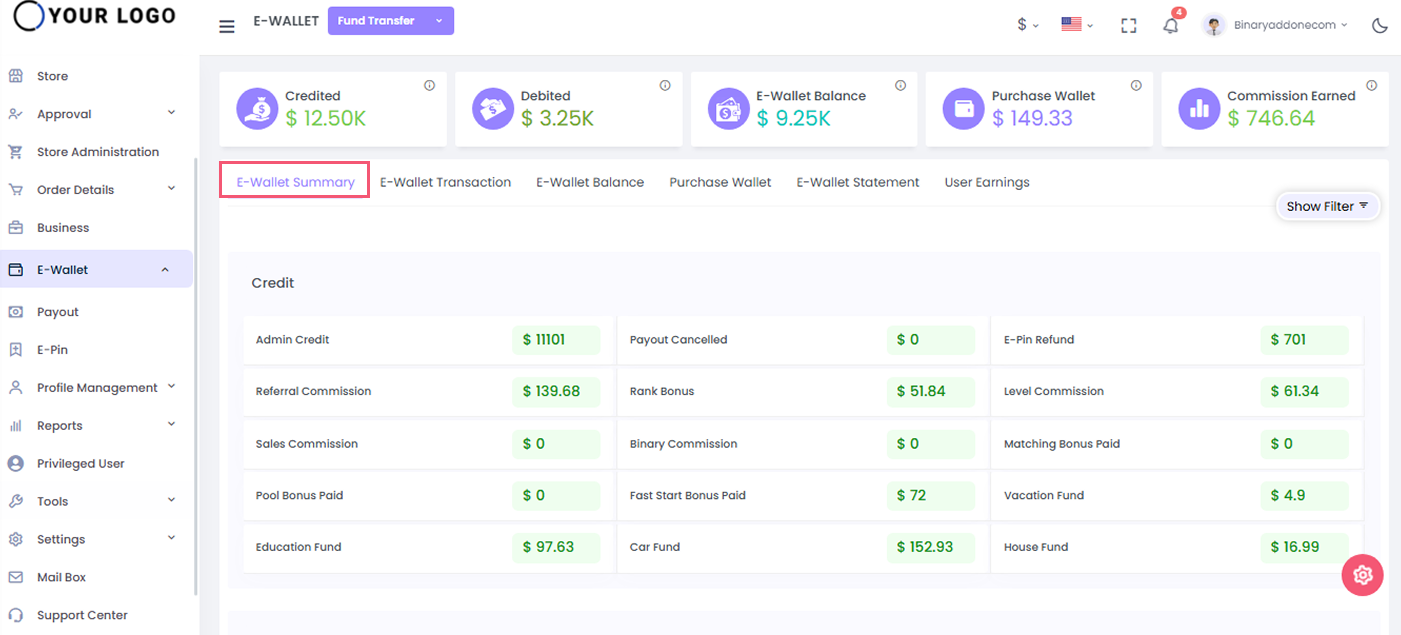
Click on the E-Wallet Summary tab to view the whole system E-Wallet summary. It displays the total amount credited and debited.

It also displays the category wise amount credited or debited for the selected date range.
2. E-Wallet Transactions

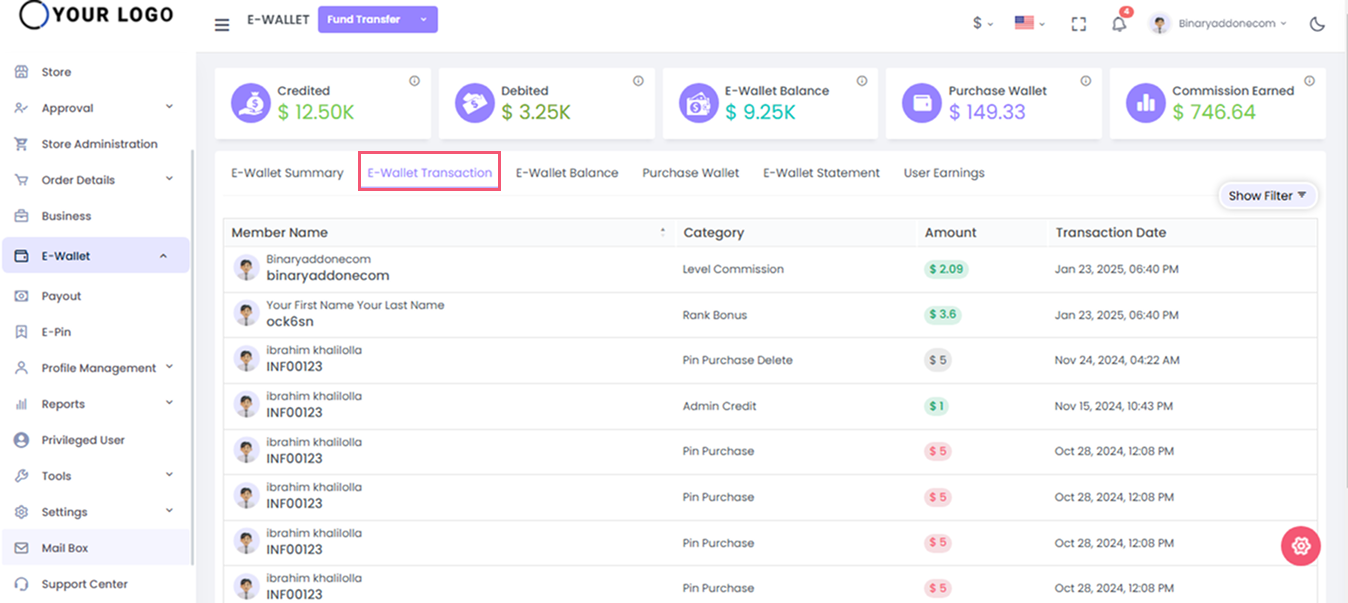
Click on the ‘E-Wallet transactions’ tab to view all the credited or debited transactions of the user for selected category and date range.

Enter the following details:

  1. User Name: Enter the user name
  2. Status: Select Credited/Debited from the drop down
  3. Category: Select the payment category from drop down (E-Pin Purchase, Fund Credit, Fund Debit, many more)
  4. Date Range : Select the period from the drop down (Alltime, Last 30 days, Last 90 days, Last year, Custom range)

Click on the ‘view’ button to see all the credited or debited transactions for the selected options.
3. E-Wallet Balance

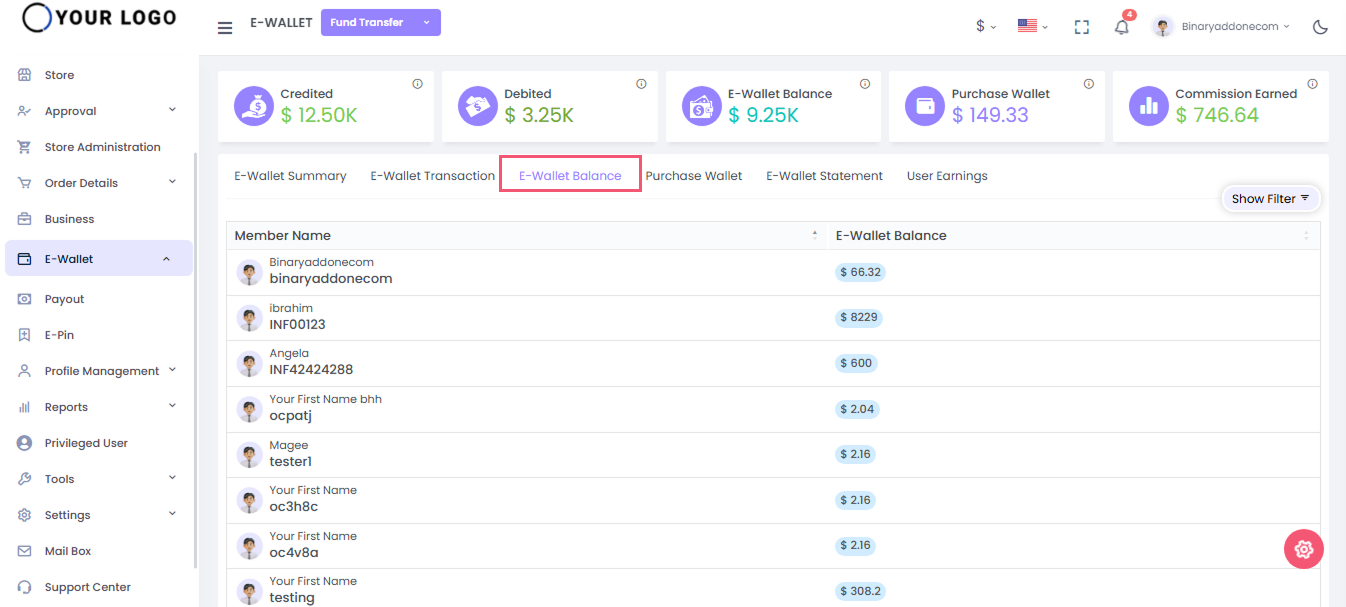
Click on the ‘E-Wallet Balance’ tab to view the E-wallet balance of the specified user. Enter the username and click on the search button to view the e wallet details of the user.
4. Purchase Wallet

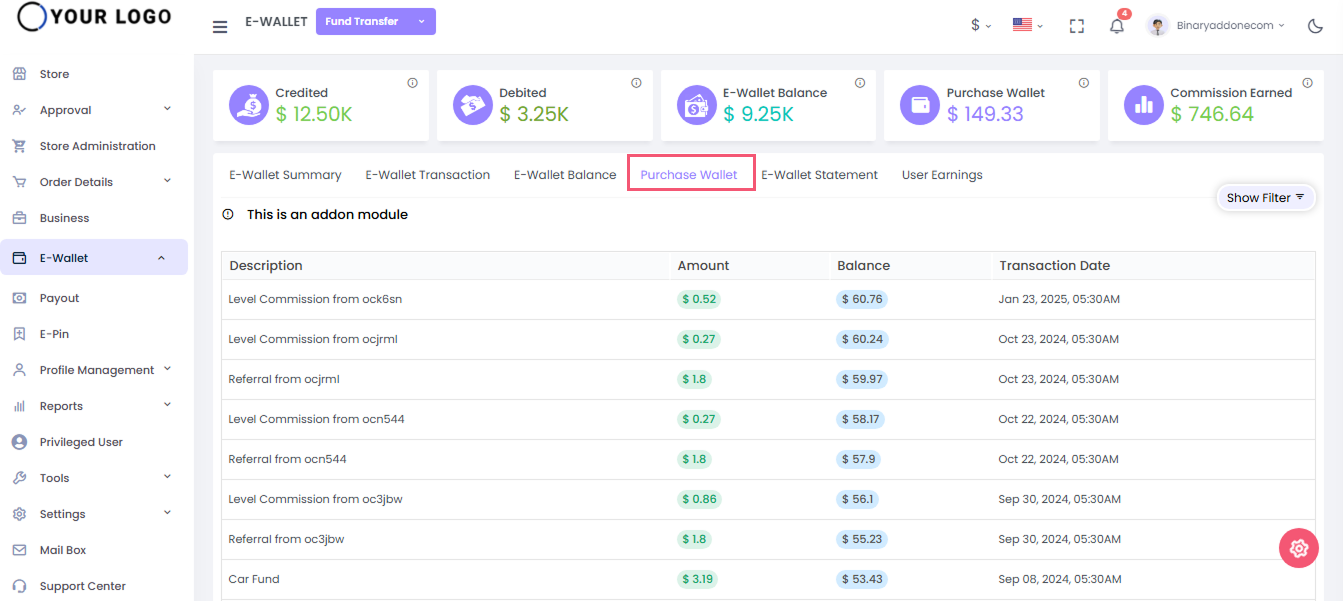
This is an add-on feature. This shows the details of the credited and debited amount through this wallet.

Enter the username and click on search button to see the purchased wallets of the users
By clicking the search button you can see the description, amount, balance, and transaction date of each wallet.
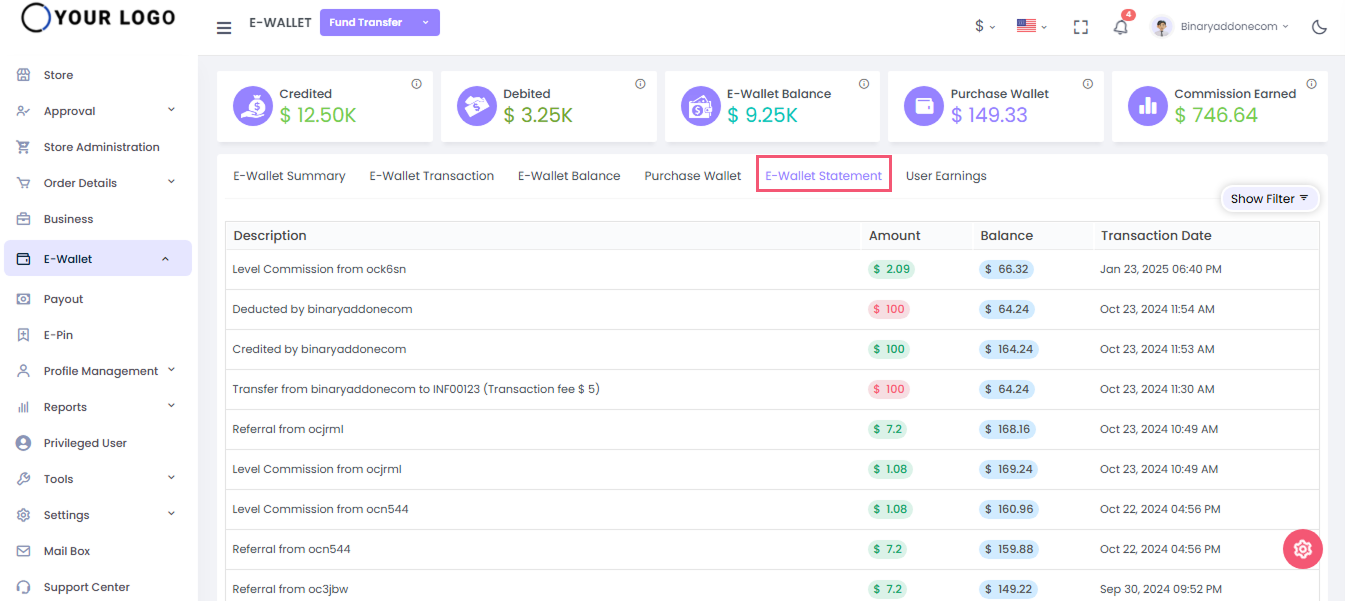
5. E-Wallet Statement

The E-Wallet statement shows the statement details of each transaction through the wallet.

By entering the username and clicking on the view button, you can see the description, amount, balance, transaction date.
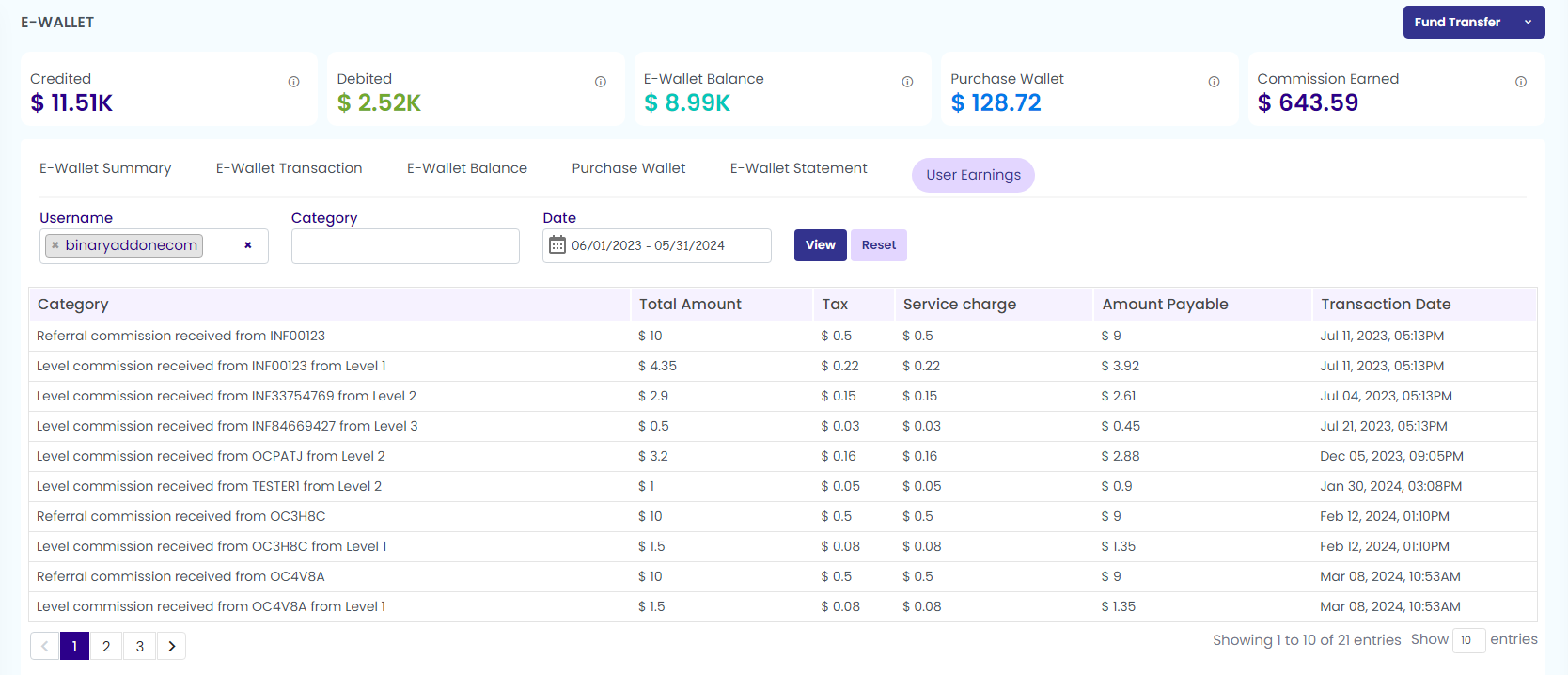
6. User Earnings

Here you can see the total earnings of each user. To view the details, enter the username, select the category, enter the date from the drop down. Click on the view button to see the category, total amount, tax, service charge, payable amount, and transaction date.
7. Fund Transfer

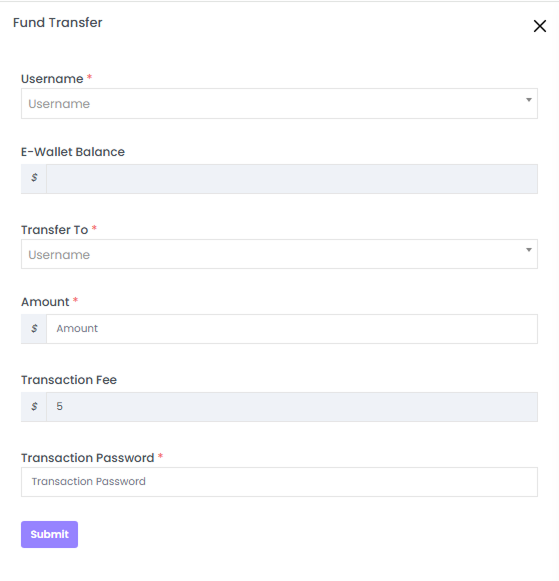
Click on the Fund transfer tab on the top right corner to transfer funds from one account to another.

Fill in the necessary details within the pop-up window that has appeared.

  1. Username: Enter the username of the sender account
  2. E-Wallet Balance: Automatically displays the E-Wallet balance of the sender account as you enter the username.
  3. Transfer To: Enter the username of receiver account
  4. Amount:Enter the amount to be transferred
  5. Notes: Mention the transaction note.
  6. Transaction Fee: the transaction fee gets popped up if any
  7. Transaction Password: Enter the password

Click on the Submit button and the message gets popped on the top as “ Fund credited successfully”.
There are two options under Fund Transfer Tab as shown in the below screenshot

  1. Fund Credit
  2. Fund Debit

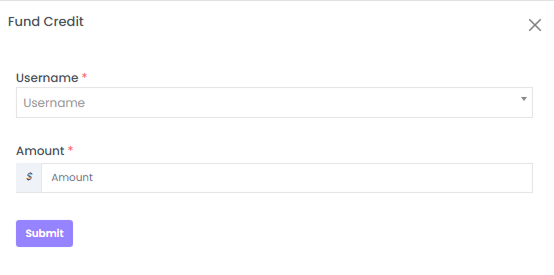
Fund Credit

Click on the Fund Credit option to add the amount to the E-wallet of any user.

Enter the following details

  1. Username: Enter the user name whose fund to be credited to the wallet
  2. Amount: Enter the required amount

Click on the Submit button and the message gets popped on the top as “ Fund credited successfully”.
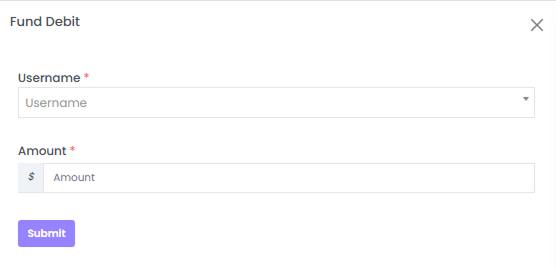
Fund Debit

Click on the Fund Debit option to deduct the amount from the E-wallet of any user.

Enter the following as shown in the below screenshot.

  1. Username: Provide the username of the individual whose funds are to be debited from the wallet.
  2. Amount: Enter the required amount.

Click on the ‘Submit button’ and the message gets popped on the top as “ Fund debited successfully”

Related Articles

  • How to View an E-Wallet Statement?

  • How are MLM profits and payouts managed by E-Wallet?

  • How to View the User Earnings?

  • How to View the Purchase Wallet Details of a User?

  • How to Check the E-Wallet Balance of a Particular User?

MLM Software Dashboard

Try Free MLM Demo

Try Now

© Copyright 2026 by Infinite Open Source Solutions LLP All Rights Reserved.

Diese Website verwendet Browser-Cookies, um Ihr Nutzererlebnis zu verbessern und die Ladezeiten zu beschleunigen. Wir speichern jedoch keine Ihrer persönlichen Daten. Durch die weitere Nutzung akzeptieren Sie unsere Datenschutzrichtlinie.

Cookie-Richtlinie
