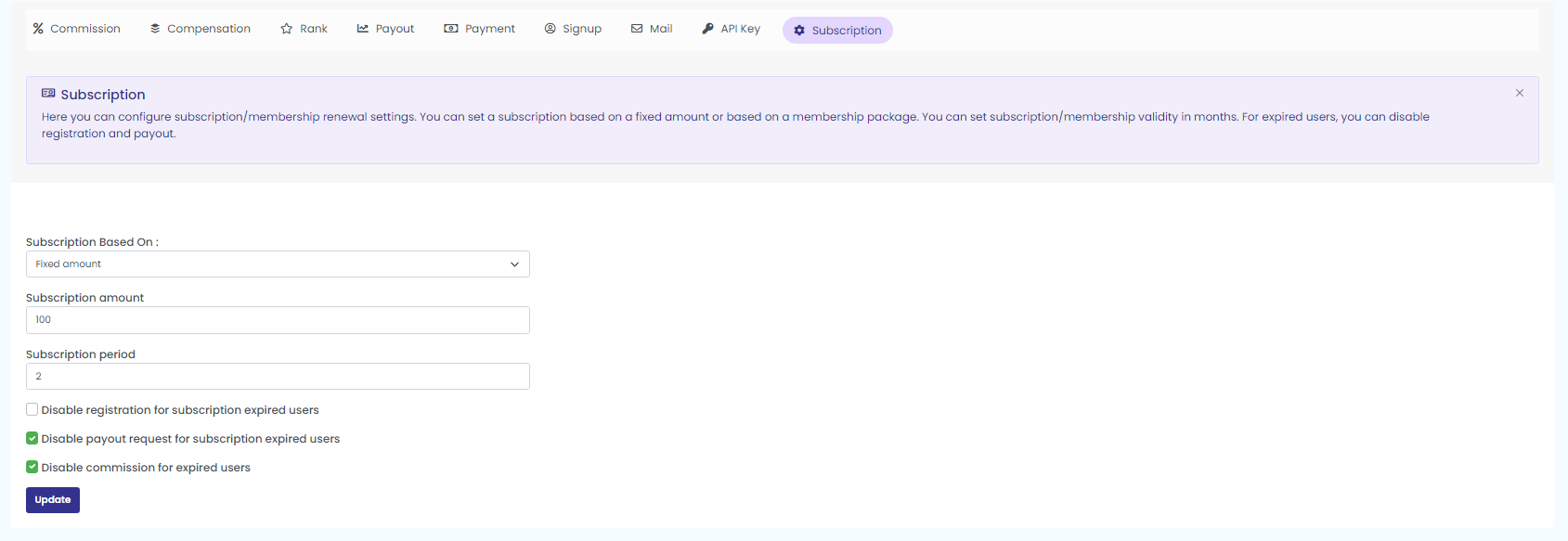
Click on the ‘Commission Settings’ sub menu to configure the system settings. It consists of the following tabs.
- Commission
- Compensation
- Rank
- Payout
- Payment
- Signup
- API Key
- Subscription
Note: You will not be able to perform any action in the preset demo. However you can perform by registering a custom demo.
1. Commission
Here, you can configure the following commission settings Purchase Wallet(%): Specified percentage of commission earned will be saved in purchase wallet and the remaining amount will be saved in E-wallet.Service Charge(%): Specified percentage will be deducted from commission generated (Member will receive only the remaining amount).Tax(%): Specified percentage will be deducted from commission generated (Member will receive only the remaining amount). When dynamic compression is enabled, the unilevel commission of inactive users will be given to upline users.When you choose to skip a bonus for blocked users, no commission will be generated for inactive users.
Click on the commission tab to configure the following commission settings.
Enter the following as shown below to configure the settings
- Purchase wallet commission(%): Enter the percentage of purchase wallet commission.
- Service Charge(%): Enter the service charge percentage.
- Tax(%): Enter the percentage amount for tax deduction.
- Transaction Fee
- Check or uncheck Skip bonus for blocked users
Click on the update button to configure the commission settings as shown in the below screenshot.

2. Compensation
Here, you can see the different commissions in the system. You can enable, disable or configure any commissions from here.
Click on the compensation tab to configure all the types of commission. Enable the status to enable the particular type of compensation as shown in the below screenshot.
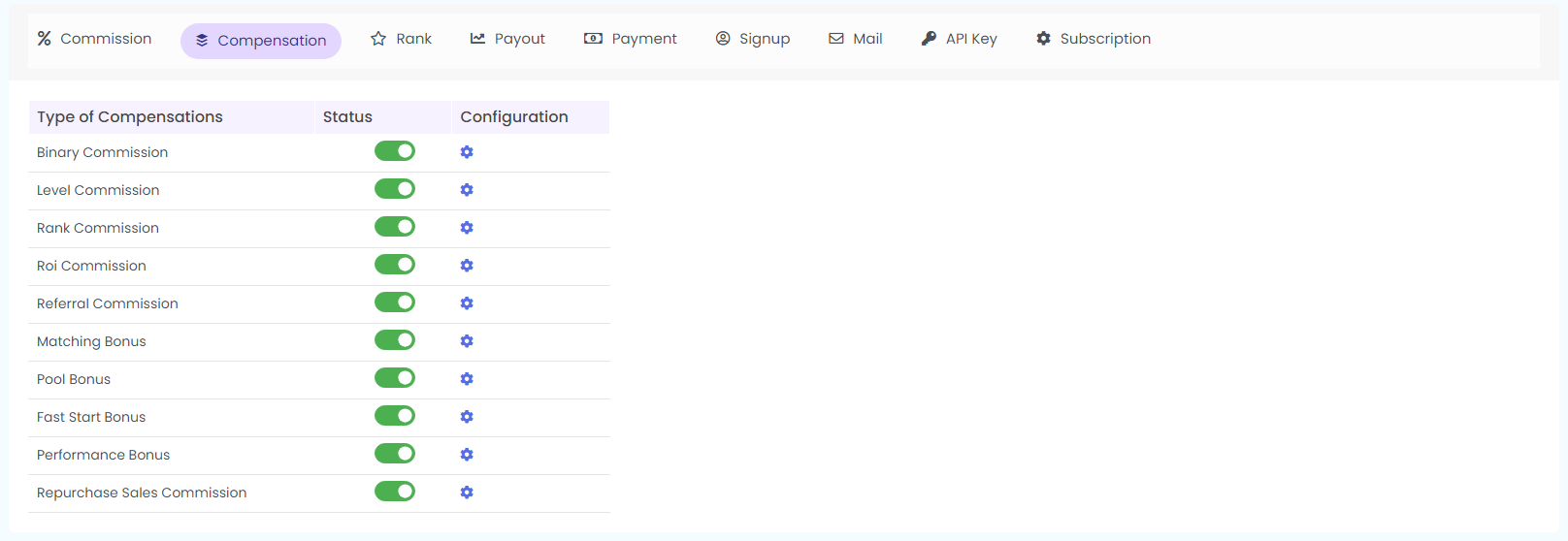
Click on the ‘configure icon’ next to the commission type to configure the commission.
2.1 Binary Commision
NB: Binary commission is only available for Binary plan users.
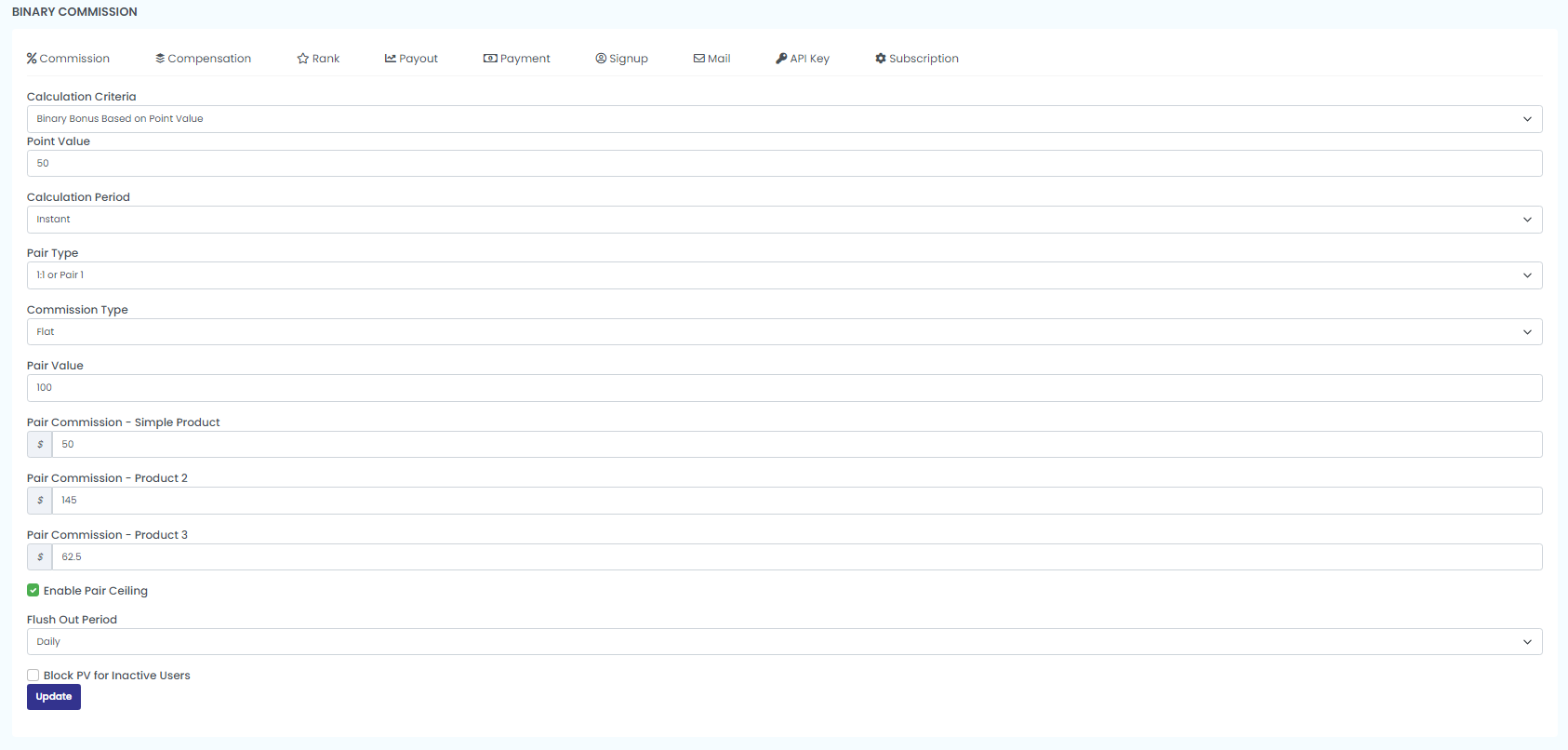
Click on configure icon and enter the following details to configure binary commission
Calculation criteria: Choose the calculation criteria from the drop down (Binary bonus based on sales volume/sales price).
Point Value: Enter the point value
Calculation Period:Choose any one calculation period from drop down (Instant/Daily/Weekly/Monthly).
Pair Type: Select the ratio of pair type (1:1 or pair 1/ 2:1 or pair 1:2)
Commission Type: Select the commission type (Flat/Percentage).
Pair Value: Enter the Pair value.
Pair Commission – simple product: Enter the commission of the product
Pair Commission – product 2: Enter the commission of the product
Pair Commission – product 3: Enter the commission of the product
Enable Pair Ceiling:Enable or disable the checkbox of the pair ceiling. If enabled, enter the,
Enter the Maximum Pair for Flush Out: Enter the maximum pair count for pair ceiling
Flush out Period: Choose any Pair Ceiling Period (Daily, Weekly, Monthly) from the drop
down menu.
Block PV For Inactive Users:Enable block PV for inactive users
Click on the update button to configure the Binary Commission
2.2 Level Commission
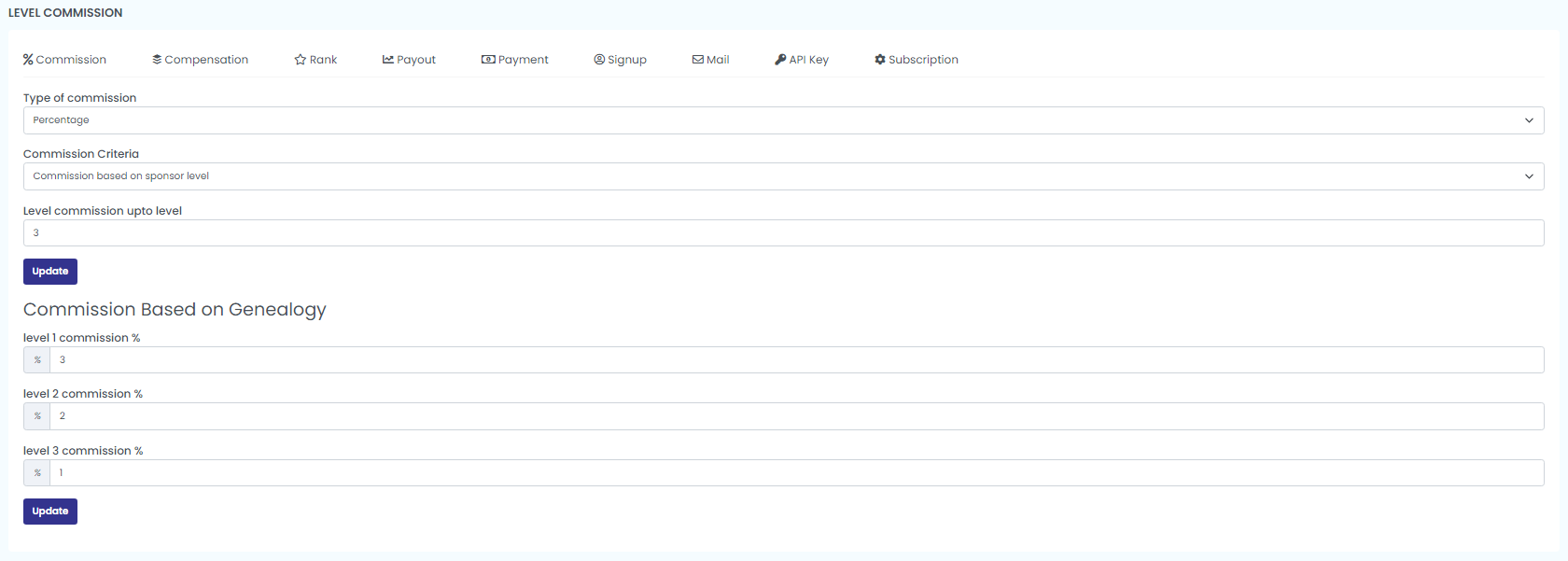
Enter the following details to configure the level commission
Type of Commission: Select the commission type from the drop down menu (Flat/Percentage)
Level Commission Criteria: Choose the level commission criteria (Commission based on sponsor level/registration pack/member pack)from the drop down menu.
Maximum Commission Upto Level: Enter the level upto which the commission is offered.
Click on the update button to configure the level commission
Commission based on Genealogy
Enter the following to configure the commission based on genealogy
1.Level 1 Commission(%): Enter the commision percentage at level 1
2.Level 2 Commission(%): Enter the commision percentage at level 2
3.Level 3 Commission(%): Enter the commision percentage at level 3
Click on the update button to configure the commission percentage at each level.
2.3 Rank Commission
Rank Criteria: Select the rank criteria from Referral Count, Personal PV, Group PV, Joiner Package, Downline Member Count, Downline, Package Count, Downline Rank Count.
Click on ‘update’ to see the rank details.
The rank details include the details such as Rank name, Package name, Rank commission, Rank color, Badge, and do certain Action or edit.
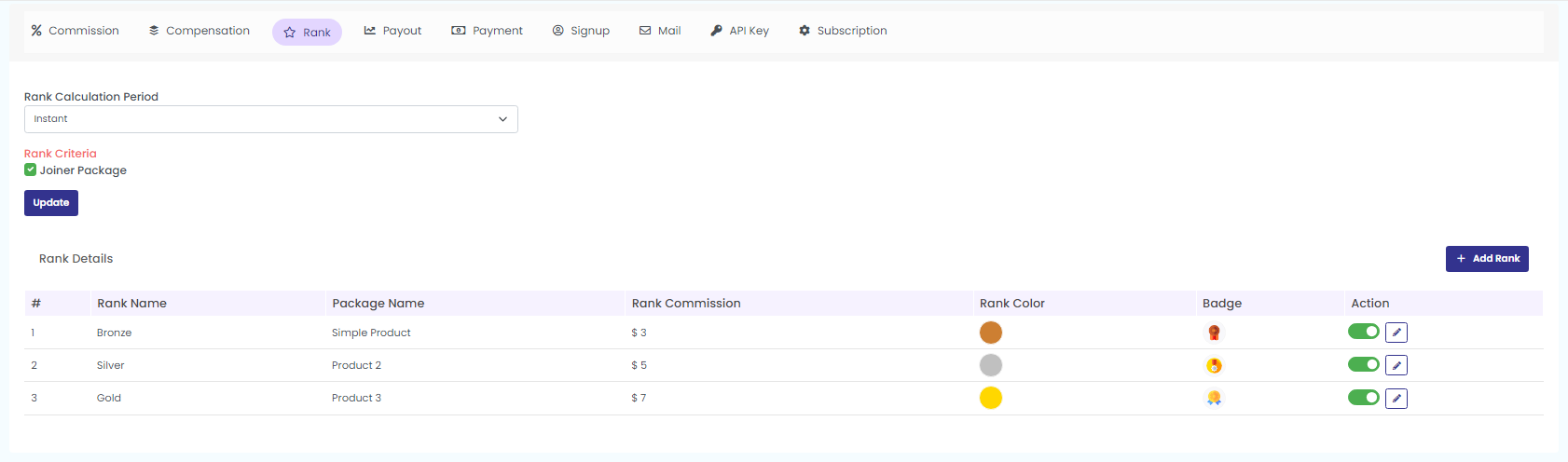
NB: Rank commission is available for all the compensation plans.
2.4 ROI Commission
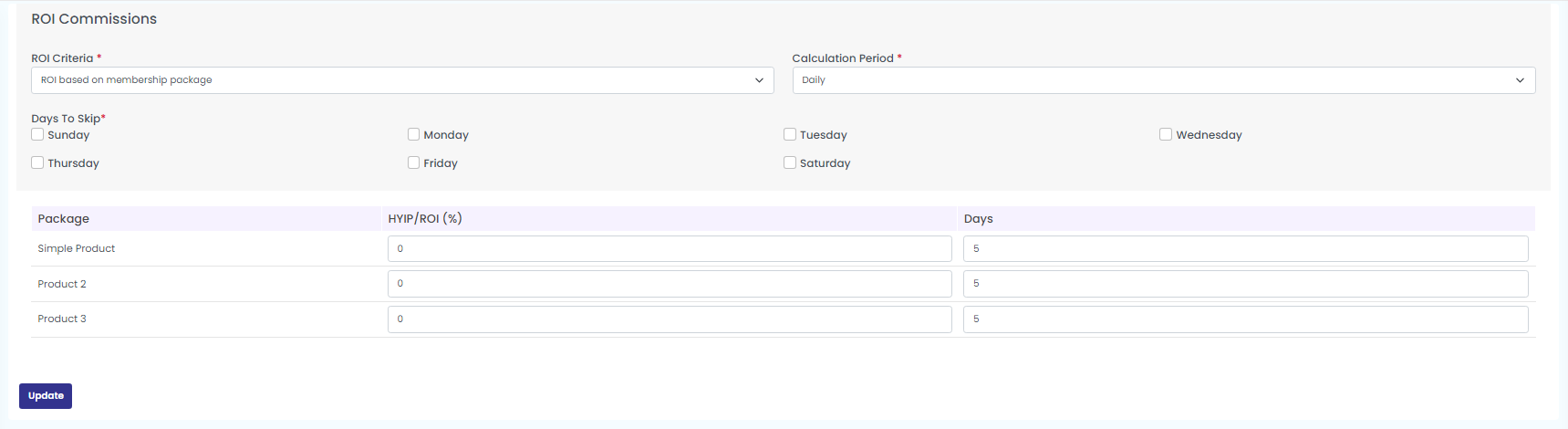
Do the following to configure ROI commission.
Click on the settings icon corresponding to ROI commission.
Enter the ROI Criteria.
Choose Calculation Period (Daily, weekly, monthly, yearly)
Select the days to skip from the calculation
Enter HYIP/ROI in % and Days for each package
Click on Update.
2.5 Referral Commission
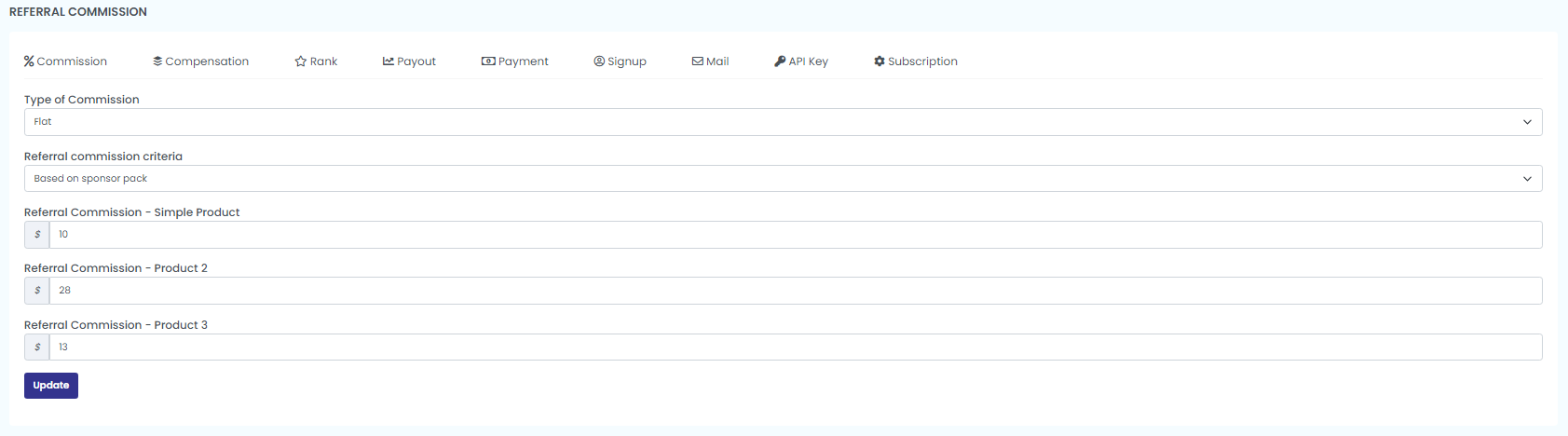
To configure Referral commission click on the ‘settings’ icon and do as follows:
Type of commission: Choose whether the commission is based on flat or percentage.
Select the criteria: Join pack, sponsor pack, sponsor rank.
Give the amount of commission for each product
And click on update button
2.6 Matching Bonus
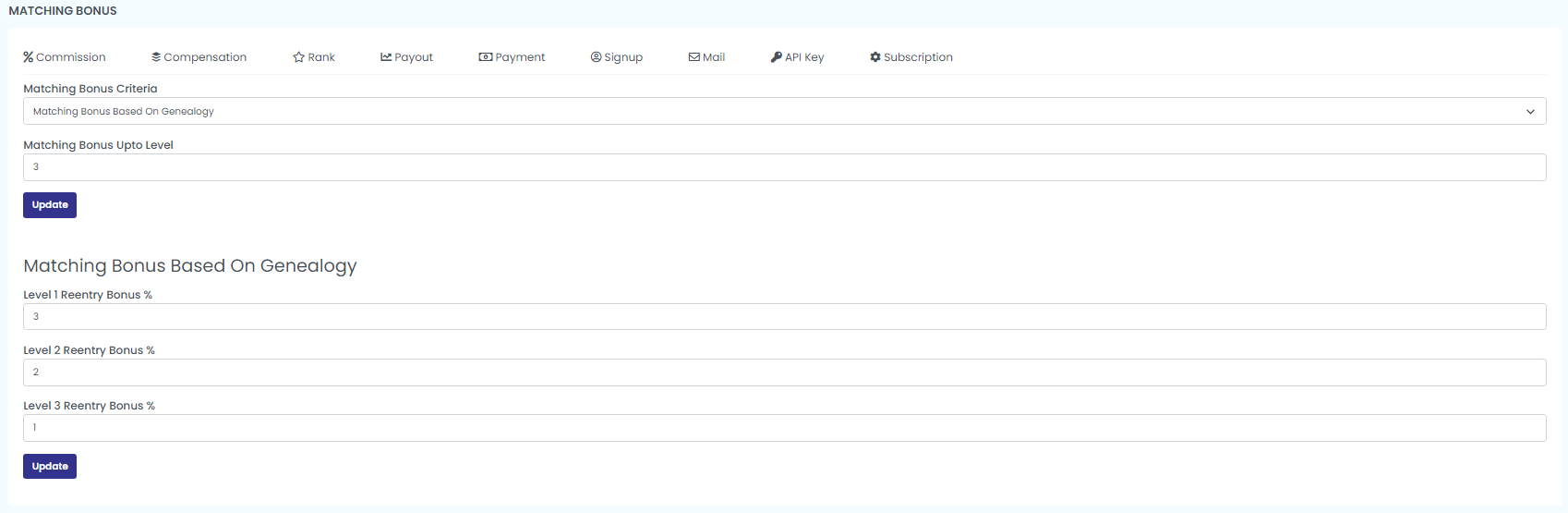
Click on the ‘settings’ icon and enter the necessary details to edit the matching bonus.
Select the criteria i.e, Matching Bonus based on genealogy or member pack
Enter the Matching Bonus Level
Click on Update
Now, if you have selected a matching bonus based on genealogy, then enter the Reentry
Bonus Percentage of the selected level. And click on update to save the changes.
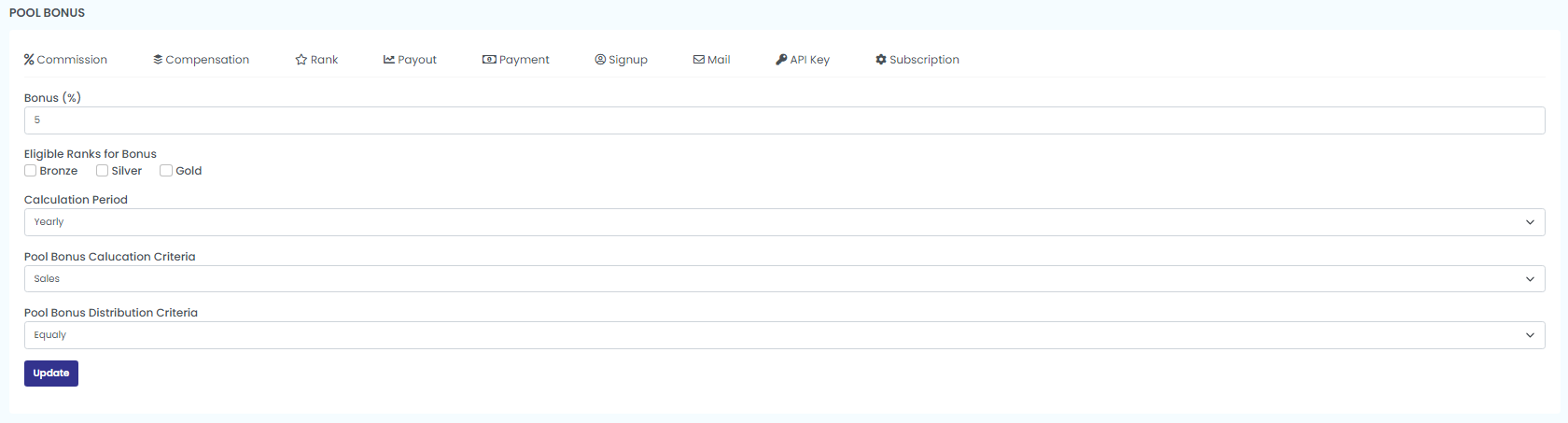
2.7 Pool Bonus
Enter the necessaries like:
- Bonus Percentage
- Eligible Rank (Bronze, silver, Gold)
- Calculation Period (monthly, quarterly, half yearly, yearly)
- Pool Bonus Calucation Criteria (sales or sales volume)
- Pool Bonus Distribution Criteria:
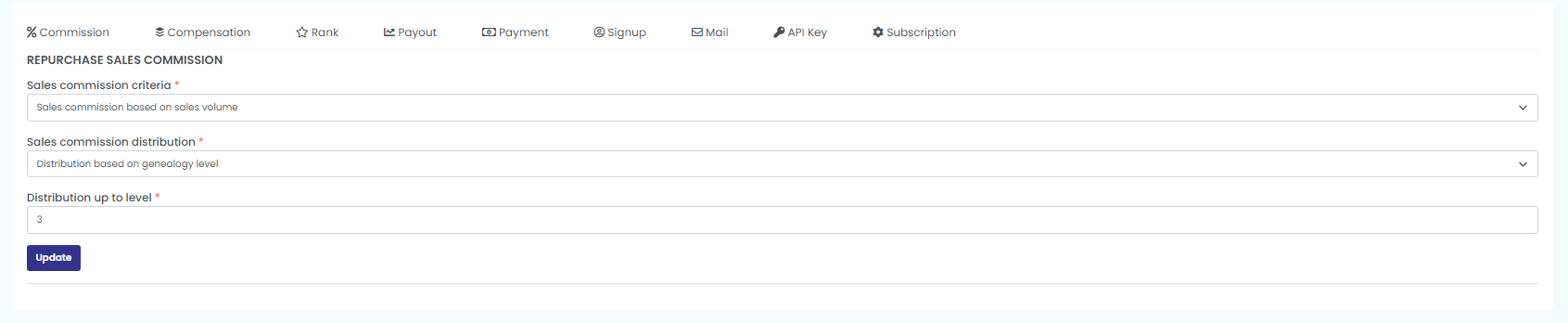
- Select the Sales commission criteria from the drop down.
- Choose the Sales commission distribution.
- Enter the Distribution up to level.
- Click on Update.
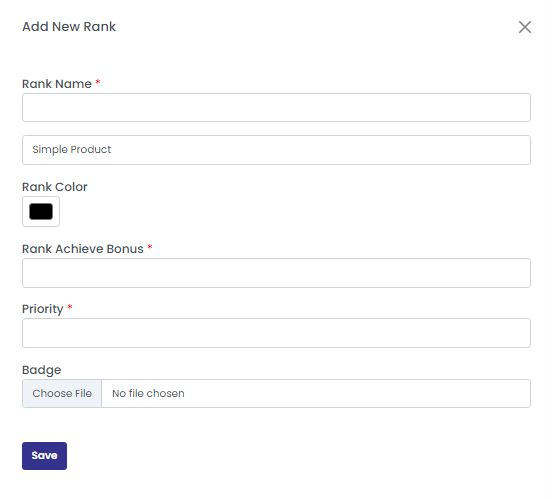
- Rank name
- Membership pack
- Rank Color
- Rank achieve bonus
- Badge
- Manual payout by Admin
- Payout by user request
- Both manual payout and by user request
- Bank
- Transfer
- Stripe
- Paypal
- COD
- Status
- Registration
- Repurchase
- Membership renewal
- Upgradation
- Admin Only
- Disable registration for subscription expired users
- Disable payout request for subscription expired users
- Disable commission for expired users
Click on the Update button to update Pool Bonus.
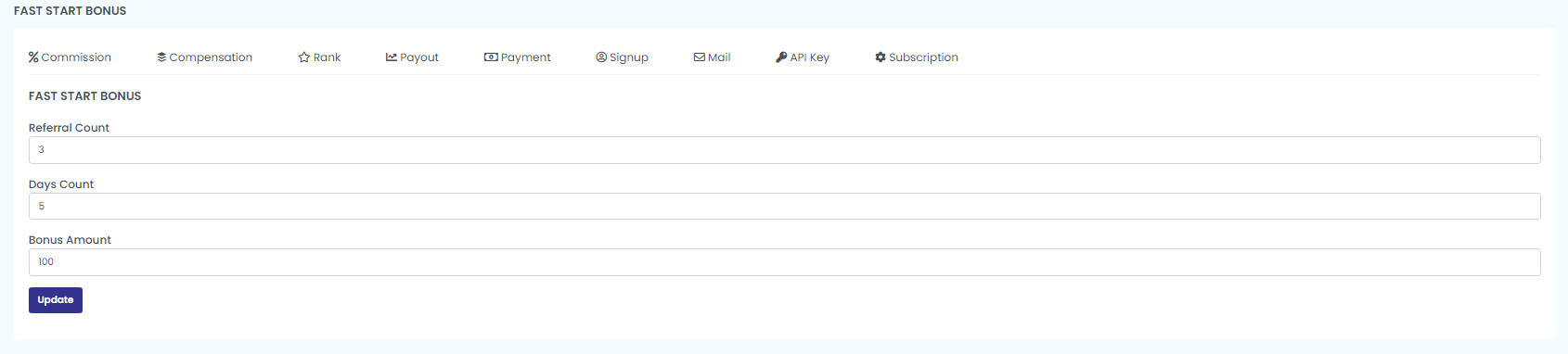
2.8 Fast Start Bonus
Enter the referral count
Days Count
Bonus amount
And click on ‘Update’ to configure the bonus
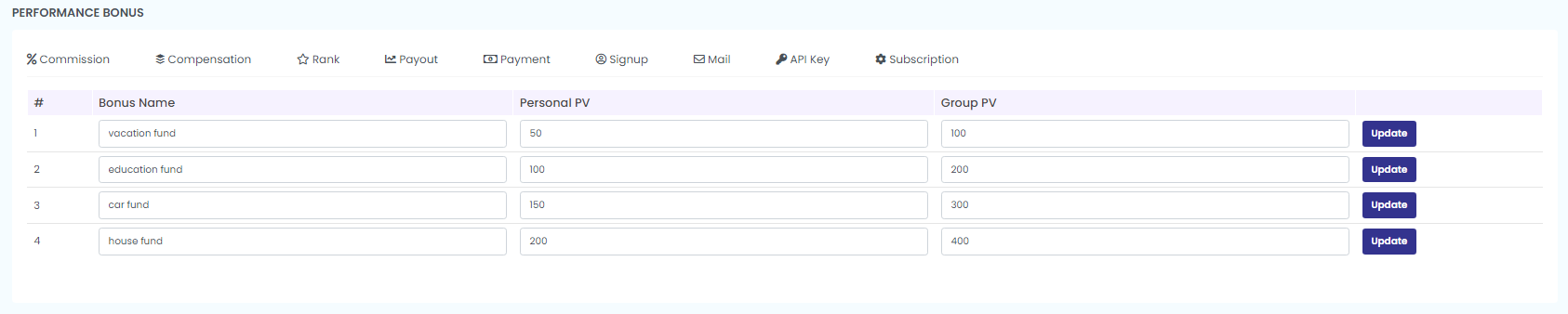
2.9 Performance Bonus
NB: Performance bonus is also available to all the compensation plans.
Enter Bonus name, Personal PV, Group PV, and click on update to configure performance bonus.
2.10 Repurchase Sales Commission
NB: Repurchase bonus is also available to all the compensation plans.
3 Rank Settings
Here you can configure system ranks and their criteria.Rank Calculation Period: You can set rank calculation as instant, daily, weekly, monthly, or yearly. You can enable or disable different criteria like referral count, personal PV, group PV, etc… You can also add ranks, edit, and remove as you wish.(Instant/Daily/Weekly/Monthly/Yearly)
Rank calculation period: Select any period from the drop down
Enable the criteria for calculating ranks: Referral Count. Personal PV, Group PV, Joiner, Package, Downline Member Count, Downline Package Count, Downline Rank Count.
Click on ‘update’ to see the rank details.
The rank details include the details such as Rank name, Package name, Rank commission, Rank color, Badge, and do certain Action or edit.
To edit the rank details, click on the edit icon and update the necessary change.
After editing, press the ‘save’ button to save the changes.
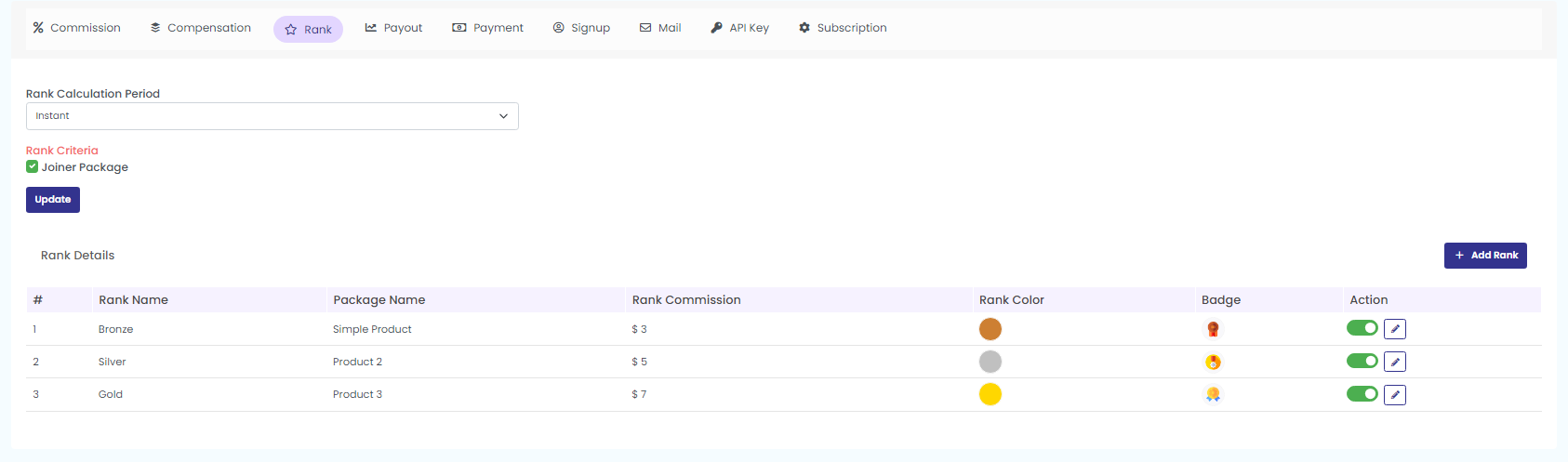
You can also add ranks by clicking the ‘Add Rank’ button to add new rank details.
Enter the following details:
Click on the ‘save’ button to save the changes.
4. Payout Settings
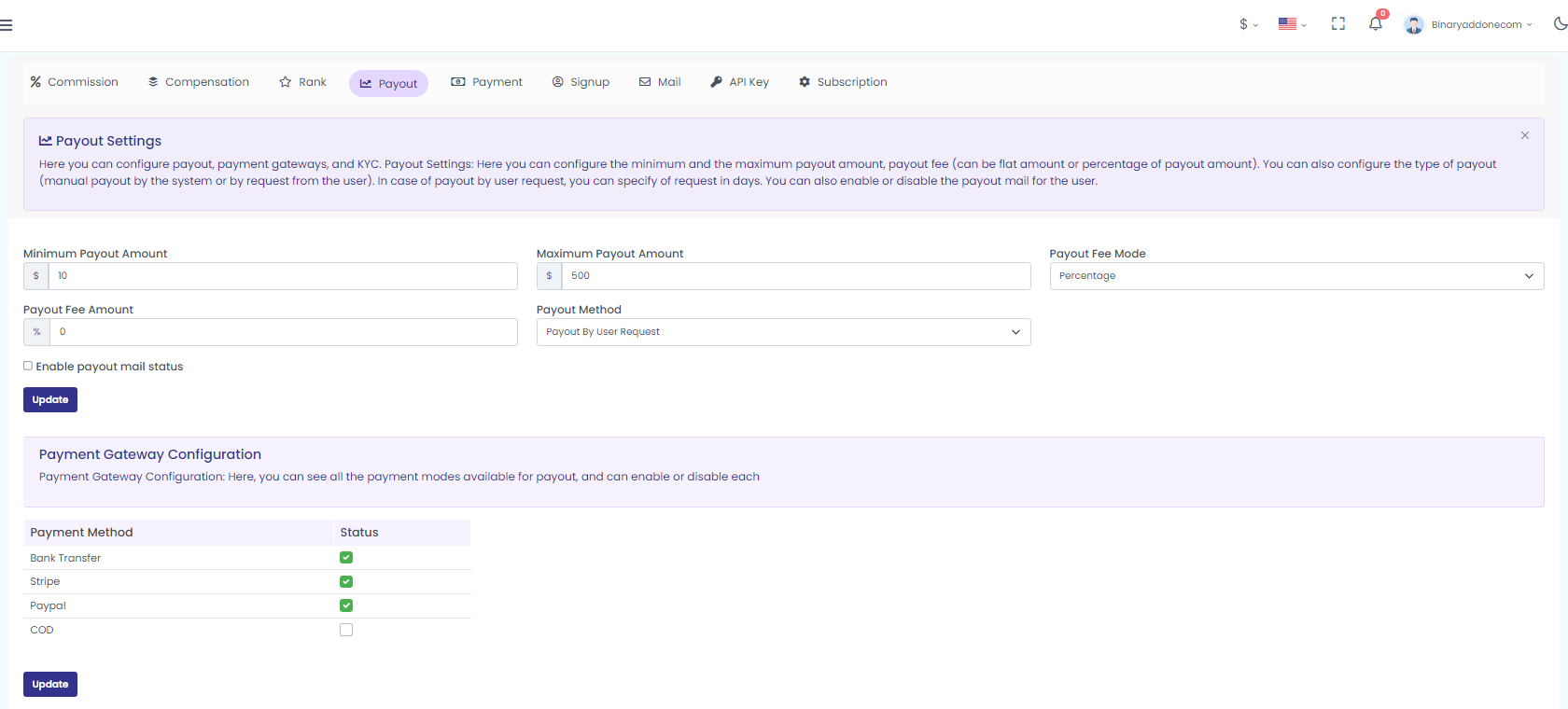
Here you can configure the minimum and the maximum payout amount, payout fee (can be flat amount or percentage of payout amount) and configure the type of payout (manual payout by the system or by request from the user). In case of payout by user request, you can specify the request in days and also enable or disable the payout mail for the user.
Click on ‘Payout’ to configure the payout settings, payment gateway, KYC
Under Payout settings you can see the following details. Fill them to configure the payouts.
Minimum Payout Amount:- Set the minimum payout to be provided to the user
Maximum Payout Amount: Set the minimum payout to be provided to the user
Payout Fee: Choose the payout fee as flat or percentage
Payout Fee Amount: Enter the amount
Payout Method: Choose any one option out of 3 payment methods
Enable/Disable Mail Status. Click on ‘Update’ to save the updates
Payment Gateway Configuration
Payment Gateway Configuration: Here, you can see all the payment modes available for payout, and can enable or disable each
Press the ‘Update’ button to save the changes. ‘Payment method updated successfully’ gets popped up.
5. Payment
Here you can enable, disable, or configure payment methods available in the system. You can also enable or disable these in specific parts such as registration Purchase, Renewal
To enable/disable click on Payment tab to enable/disable the payment methods as shown in the below screenshot.
You can enable/disable the following:
Click on the ‘update’ button.
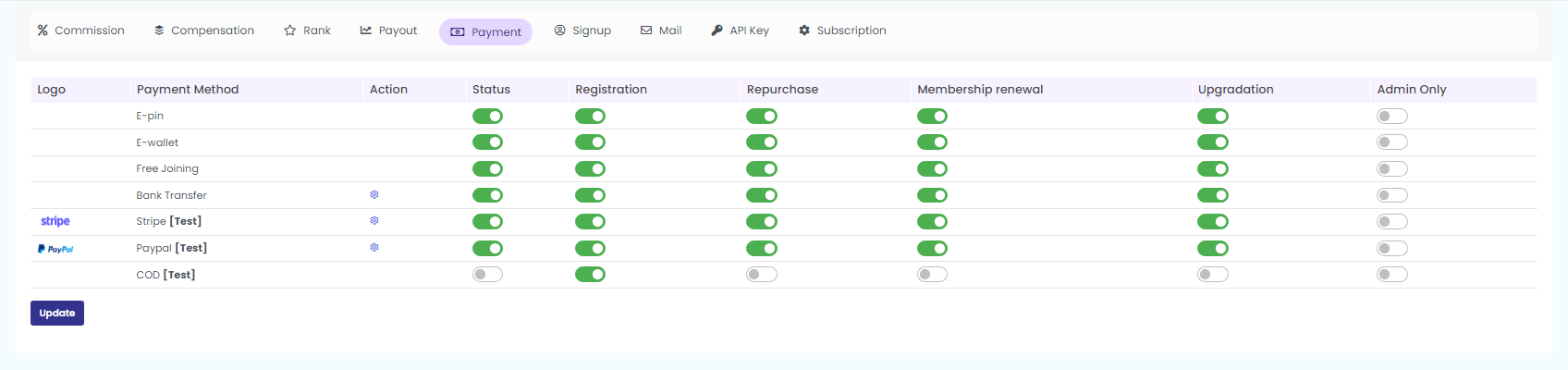
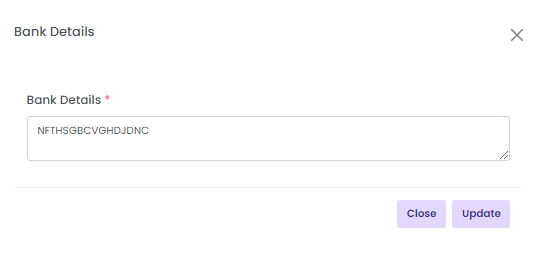
Now, click on the ‘settings icon’ under ‘Action’ to edit the Bank details. Click on update after editing the Bank Details.
6. Sign Up
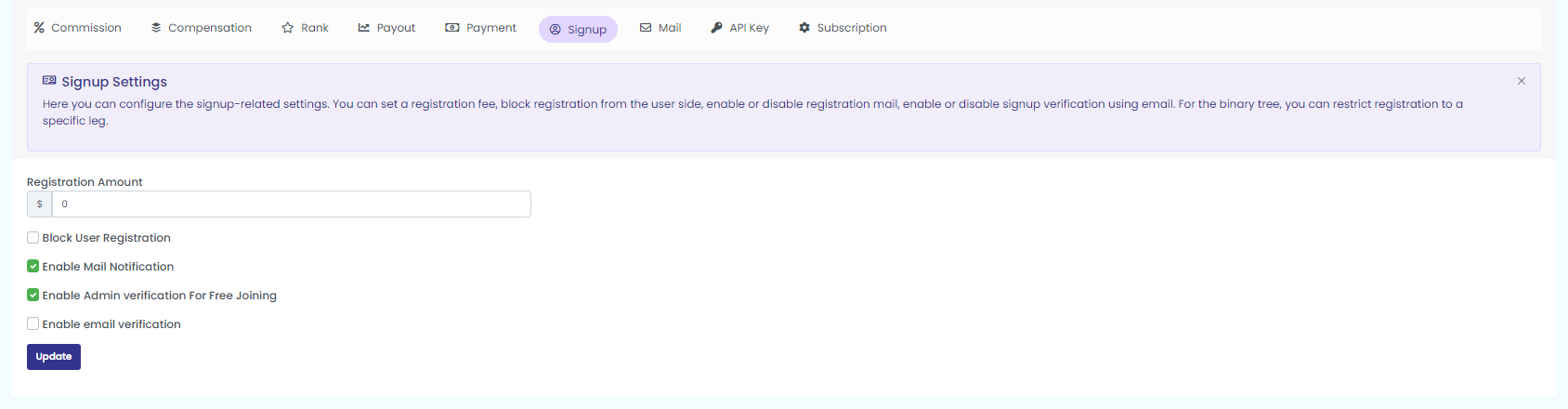
Here you can configure the signup-related settings. You can set a registration fee, block registration from the user side, enable or disable registration mail, enable or disable signup verification using email.
Firstly, enter the registration amount.
Then, Enable/Disable the below signup settings:
Block User Registration: Block/Unblock for registration process
Enable Mail Notification: Enable the option if the registration process to be notified to the user via mail
Enable Admin verification For Free Joining: Enable the option for admin verification
Enable Email Verification: Enable this option to verify email.
Click on the ‘Update’ button to update the changes.
7. Email
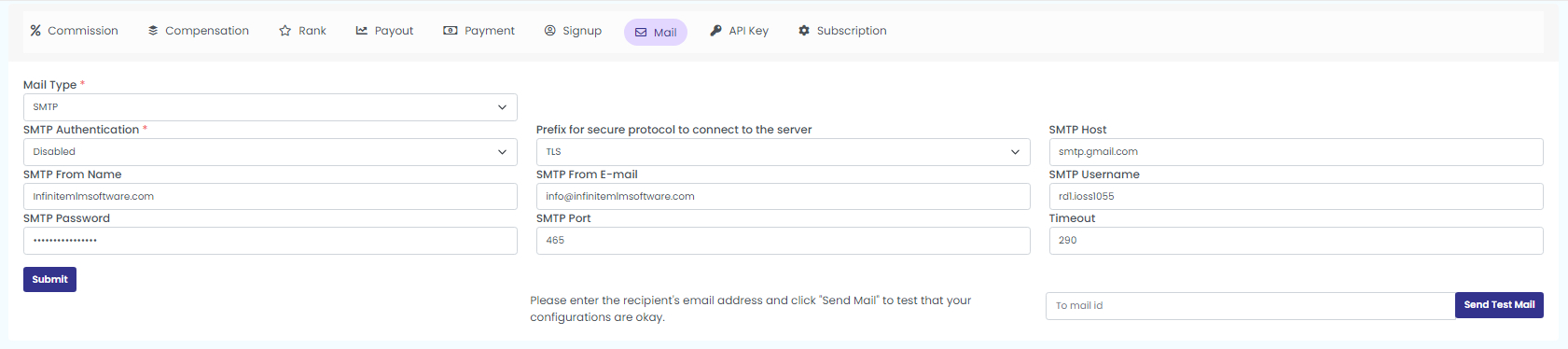
Here you can configure mail settings. You can send mails using SMTP server details.
For that, click on the ‘Mail’ tab to configure the mail settings.
Fill in the necessary details like;
Mail type, SMTP Authentication, SMTP From Name, SMTP From Email, Prefix for secure protocol to connect to the server, SMTP Port, SMTP Host, SMTP Username, and Timeout.
Also, type in the recipient’s email address and click “Send Text Mail” to test that your configurations are okay.
Click the ‘Submit’ button to save the updated details.
8. API
Generate and configure API keys required for public APIs from here.
Click the ‘API key’ tab to configure API settings. You can see the API Base URL, API Documentation Link, and API Key in the appeared page.
To generate API, click on the generate button and click on the save button to configure API.

9. Subscription
Here you can configure subscription/membership renewal settings. You can set a subscription based on a fixed amount or based on a membership package. You can set subscription/membership validity in months. For expired users, you can disable registration and payout.
Choose on which basis the subscription is made (Member Package, Fixed Amount).
Enter the subscription amount and the subscription period.
Also disable the following:
Click on ‘update’.