Infinite MLM Software Logo
  • Productos
    Productos
    Software MLM Binario Crecimiento equilibrado a través de redes duales
    Software MLM Board Permite la rotación y reincorporación de miembros
    Software MLM Matricial Crecimiento organizado mediante una estructura de equipo limitada
    Software MLM Monoline Alinea a los miembros en una línea para beneficios equitativos
    Software MLM Unilevel Permite reclutas directos ilimitados
    Software de Venta Directa Simplifica las tareas y operaciones de venta directa
    Servicios MLM
    Migración MLMTransfiere tus datos a una nueva plataforma MLM
    Integración con TercerosConéctate con herramientas y servicios externos
    Integración con ShopifySincroniza el software MLM con tu tienda Shopify
    Demo dashboard preview

    Nivel Empresarial · Impulsado por IA

    Infinite MLM Software

    Tecnología avanzada, automatización inteligente y funciones inteligentes — todo en una sola plataforma.

    Probar Demo Gratis
  • Demo
    Demo Personalizada
    Custom Demo preview

    La demo personalizada del software MLM ofrece una experiencia adaptada a las necesidades de tu negocio.

    Probar Ahora
    Demo Preajustada
    Preset Demo preview

    La demo preajustada ofrece una vista estandarizada del software con datos de muestra preconfigurados.

    Probar Ahora
    1 Million Users
    Demo MLM con 1 Millón de Usuarios
    • Gestiona 1 millón de usuarios
    • Bono por Coincidencia Binario
    • Configuración de Tope / Cap
    • Configuración de Spillover Binario
    Demo de Administrador Demo de Usuario
  • Planes MLM
    Planes MLM
    Plan MLM Binario Construye una estructura de red de dos piernas
    Plan MLM Matricial Limita el ancho y la profundidad de las redes descendentes
    Plan MLM Unilevel Permite reclutas directos ilimitados en el primer nivel
    Plan MLM Board Los miembros avanzan a través de una matriz
    Plan MLM Monoline Los distribuidores se colocan en una sola línea descendente
    Plan Party MLM Se centra en las ventas a través de eventos sociales
    Plan MLM por Generación Comisiones a través de múltiples niveles
    Plan MLM Híbrido Los referidos directos se ubican en cualquiera de las piernas por el patrocinador
    Plan Stair Step Sistema de separación basado en rangos
    Ver todos los planes →
    MLM Plans overview

    Comparar y Elegir

    Reclutar, Recompensar, Retener: Los Mejores Planes MLM para el Éxito

    Compara estructuras de compensación y elige el plan perfecto para tu negocio.

    Ver Planes
  • Precios
  • Recursos
    Empresa
    Sobre NosotrosNuestra misión, valores e historia
    TestimoniosReseñas y comentarios de clientes
    Caso de UsoEjemplos reales de uso del producto
    Preguntas FrecuentesPreguntas comunes con respuestas
    Explorar
    BlogArtículos y actualizaciones periódicas
    Tutoriales en VideoGuías visuales para un aprendizaje fácil
    DocumentaciónGuías de usuario e instrucciones
    Historial de VersionesRegistro de actualizaciones del software
    CaracterísticasHerramientas y funcionalidades principales
    Historias de ÉxitoLogros de clientes con nuestra solución
    Complementos MLMComplementos avanzados para funcionalidades extendidas
    Calculadora MLMCálculos fáciles de comisiones por plan
    Contact our experts

    Estamos Aquí para Ayudar

    Ponte en Contacto con Nuestros Expertos

    Desde demos de productos hasta soluciones personalizadas, te apoyamos en tu éxito.

    Contáctanos
Demo en Vivo Empezar Gratis
Empezar Ahora
MLM HELP

How does E-pin work in Infinite MLM software?

/ E-Pin / How does E-pin work in Infinite MLM software?
  • May 30, 2026
  • infinite_help
  • E-Pin

The E-Pin module in Infinite MLM software helps administrators generate, manage, allocate and approve electronic pins (E-Pins) that are used for registrations, upgrades, or product/package purchases inside the system.

This section explains how the complete E-Pin workflow works based on the E-Pin screens shown.

Overview of the E-Pin Dashboard

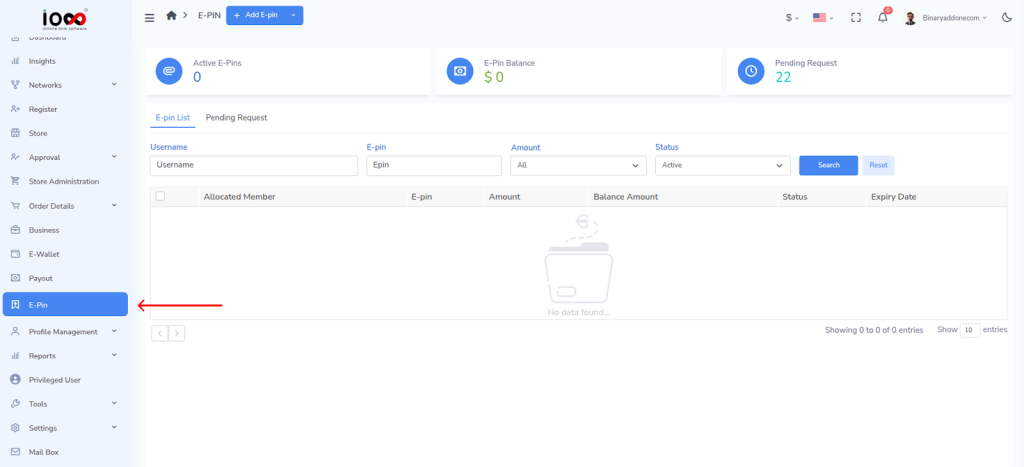
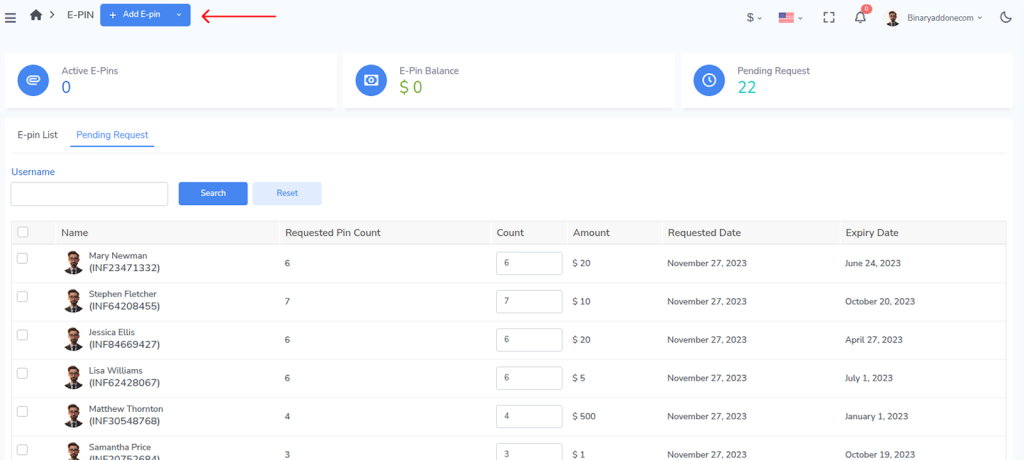
To access the E-pin Dashboard, click on E-pin from the left panel.
At the top of the E-Pin page, you can see three quick summary cards:
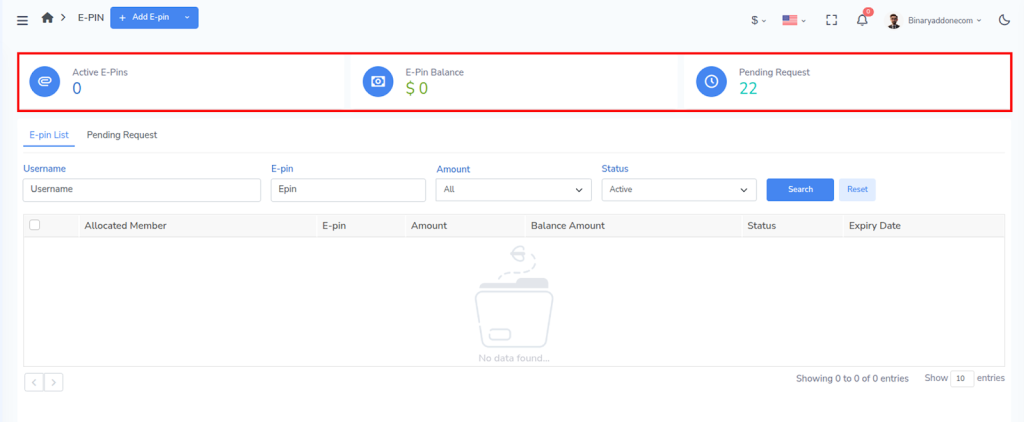
  • Active E-Pins – Total number of usable E-Pins currently available.
  • E-Pin Balance – Total monetary value of available E-Pins.
  • Pending Request – Number of E-Pin requests waiting for approval.

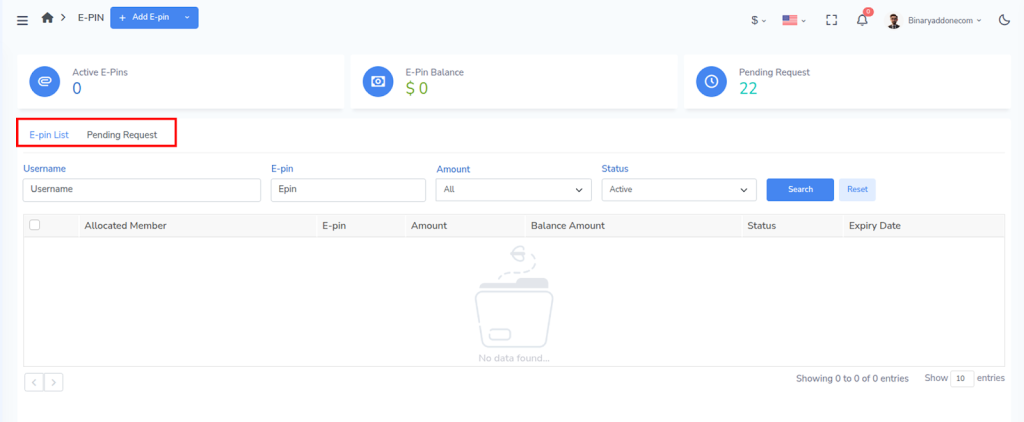
The E-Pin module is divided into two tabs:

  • E-Pin List
  • Pending Request

1. E-Pin List 

The E-Pin List tab shows all generated and allocated E-Pins in the system.
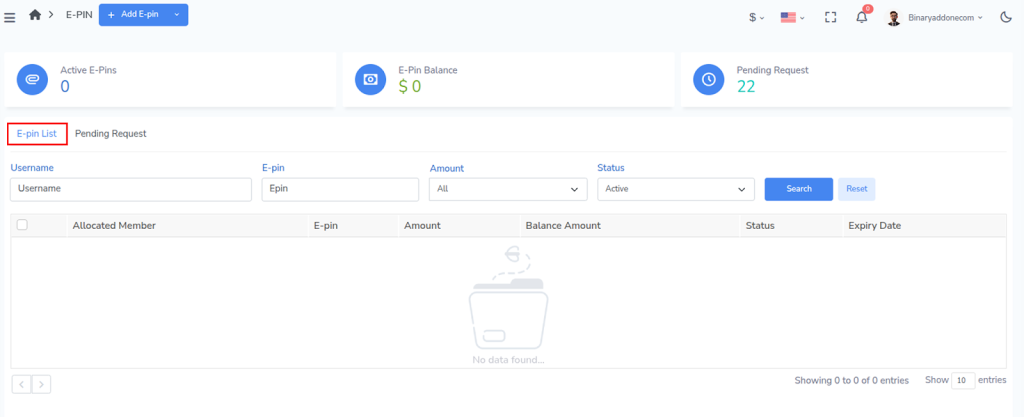
You can search and filter E-Pins using:

  • Username – Filter by allocated member
  • E-pin – Search by a specific pin code
  • Amount – Filter by pin value
  • Status – Filter by Active / other statuses

Click Search to apply filters and Reset to clear them.

Columns in E-Pin List

Each row represents an E-Pin entry.

  • Allocated Member – The user to whom the E-Pin is assigned
  • E-pin – The unique pin code
  • Amount – Value of the E-Pin
  • Balance Amount – Remaining usable value (if partial usage is supported)
  • Status – Current state of the pin (for example: Active)
  • Expiry Date – Date after which the pin cannot be used

This screen is mainly used to:

  • track issued E-Pins,
  • verify whether a pin is active,
  • check expiry and usage availability.

2. Pending Request – Manage E-Pin Requests from Users

The Pending Request tab shows all E-Pin requests submitted by members. These requests must be approved by an administrator before the pins become usable.
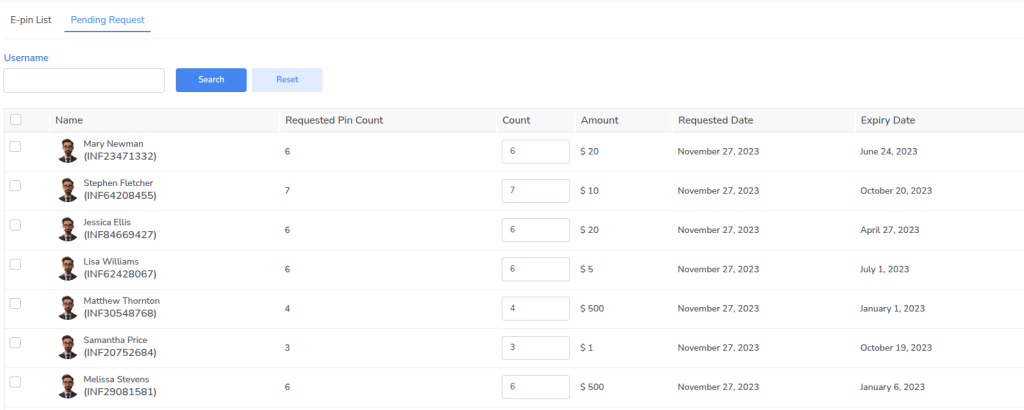
Filter options

You can filter requests using:

  • Username

Columns in Pending Request

Each row represents a request made by a user.

  • Name – Member who requested E-Pins
  • Requested Pin Count – Number of pins requested by the user
  • Count – Editable field to confirm how many pins will be issued
  • Amount – Value of each pin
  • Requested Date – Date when the request was created
  • Expiry Date – Expiry date that will apply to the issued pins

A checkbox is available to select one or more requests for processing.

3. Adding E-Pins Manually

Administrators can also create pins directly using the Add E-Pin button at the top of the page. 

To Add a New E-Pin:

Step 1: Navigate to the top left of the screen and click on the Add E-pin button.
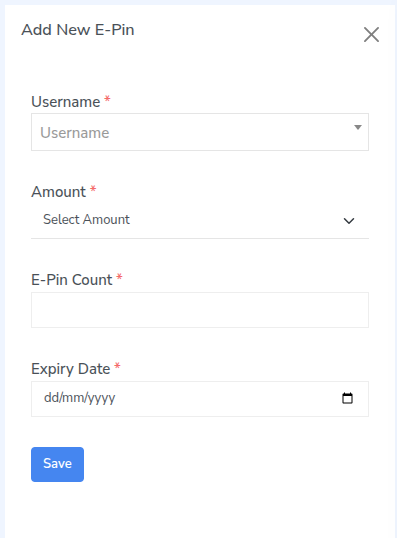
Step 2: An Add New E-Pin window will open.
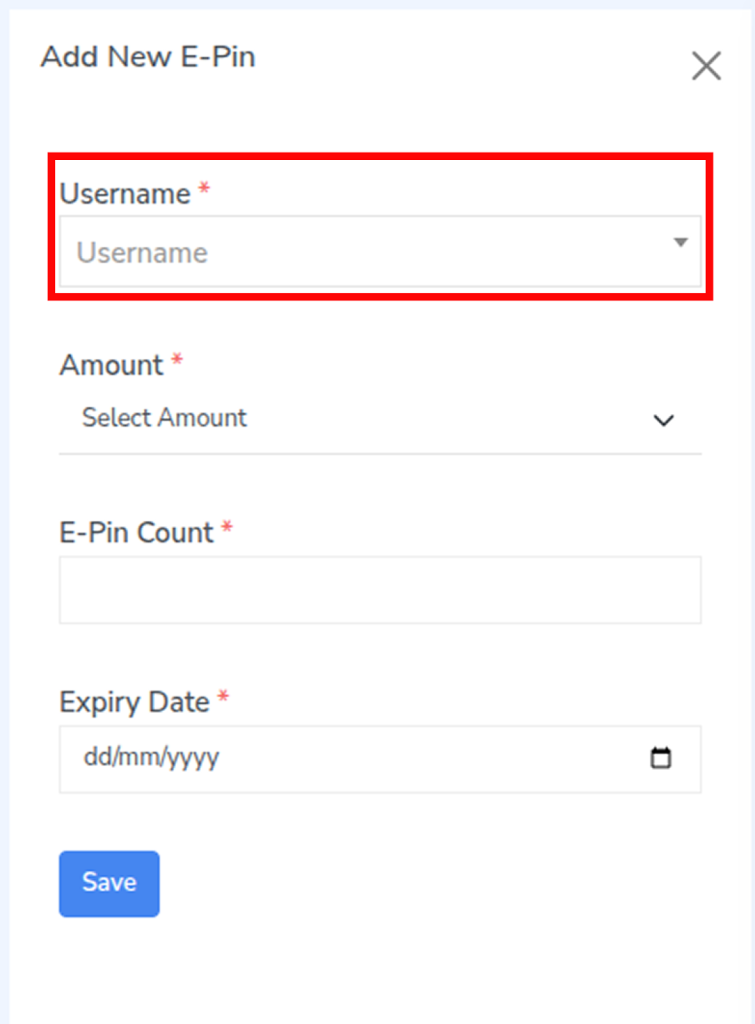
Step 3:  Choose the user from the dropdown. 
Step 4:  Choose the E-Pin value from the Amount dropdown.
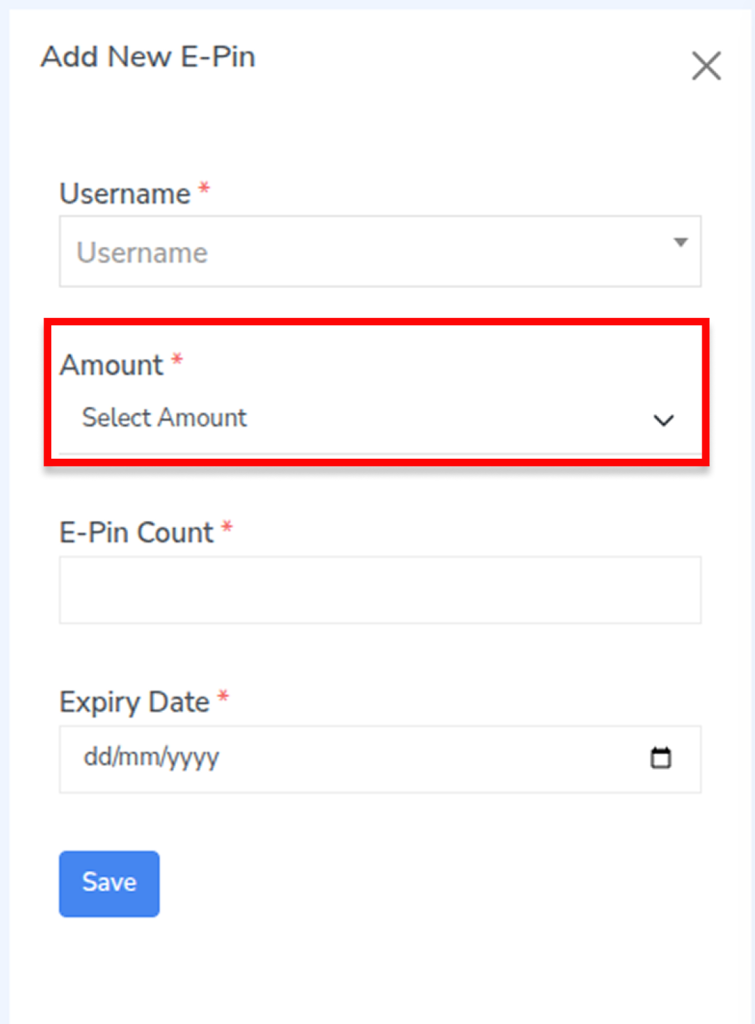
Step 5: Enter the E-Pin Count i.e how many E-Pins you want to generate.
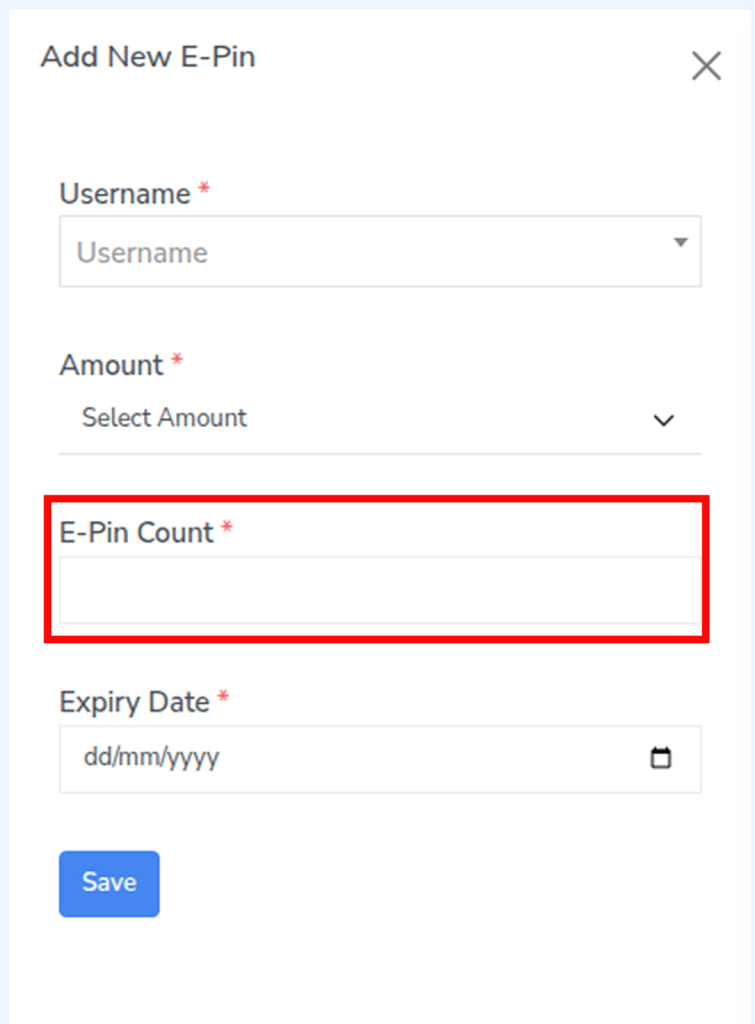
Step 6: Select the Expiry Date.
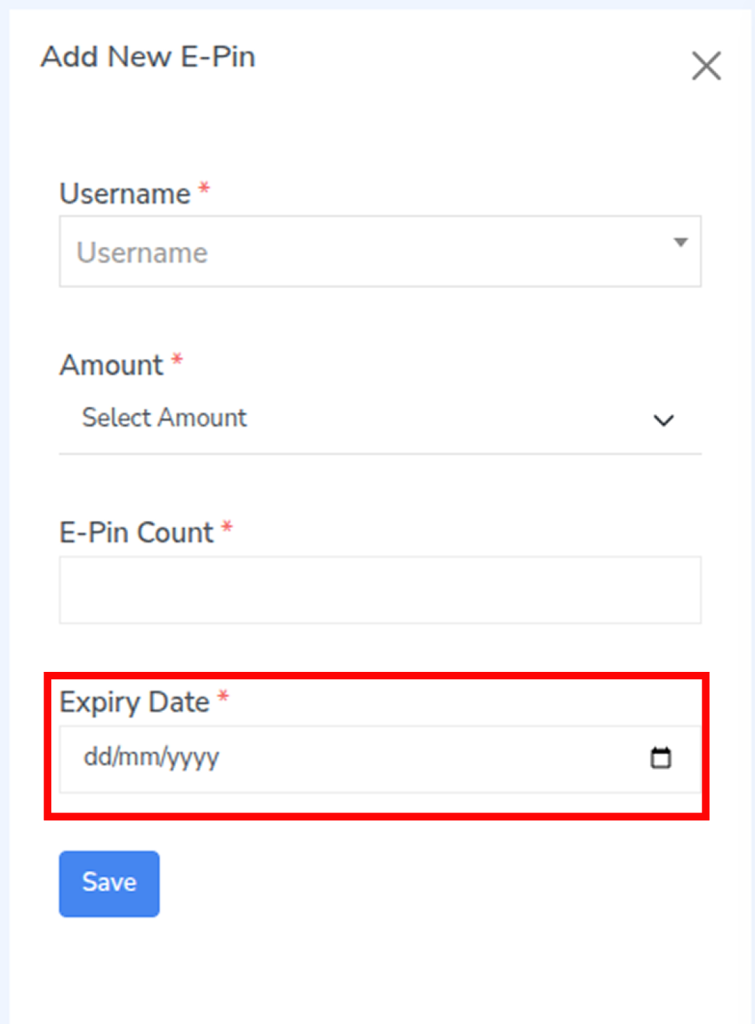
Step 7: Click Save to generate the E-Pins.
Important

  • All fields marked (*) are mandatory.

4. How to do E-pin Transfer?

Step 1: Navigate to the top-left of the screen and click the dropdown next to the Add E-Pin button.
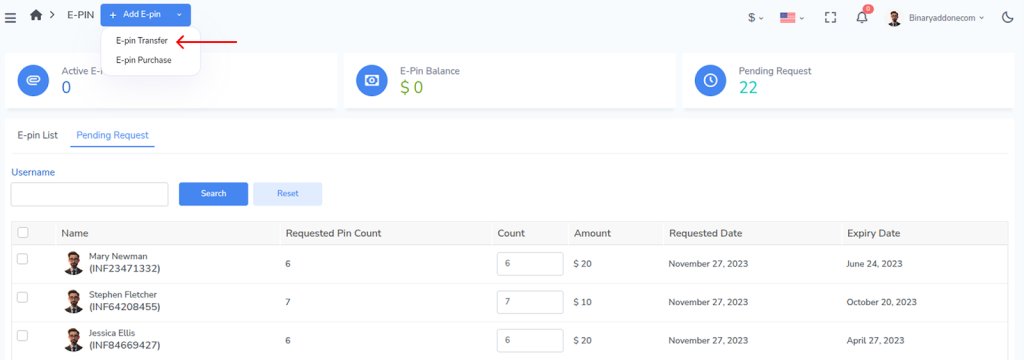

Step 2: Select E-Pin Transfer. The transfer window will open.
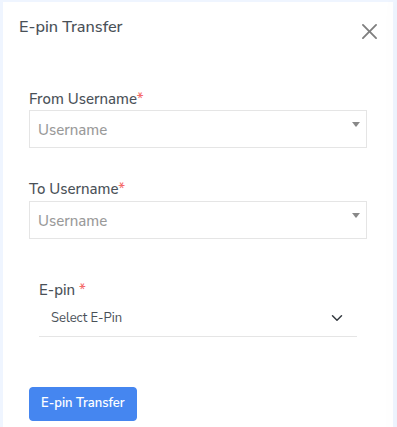
Step 3: In From Username, select the user who currently owns the E-Pin.
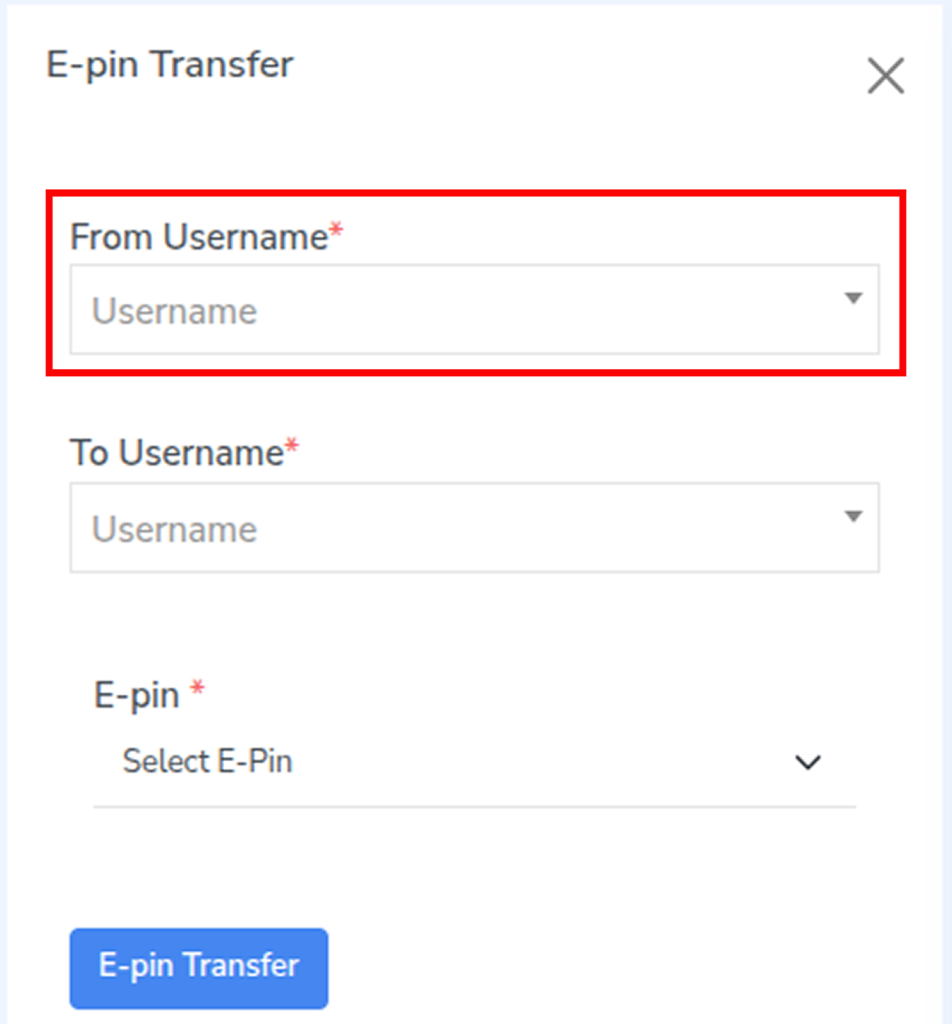
Step 4: In To Username, select the user to whom the E-Pin should be transferred.
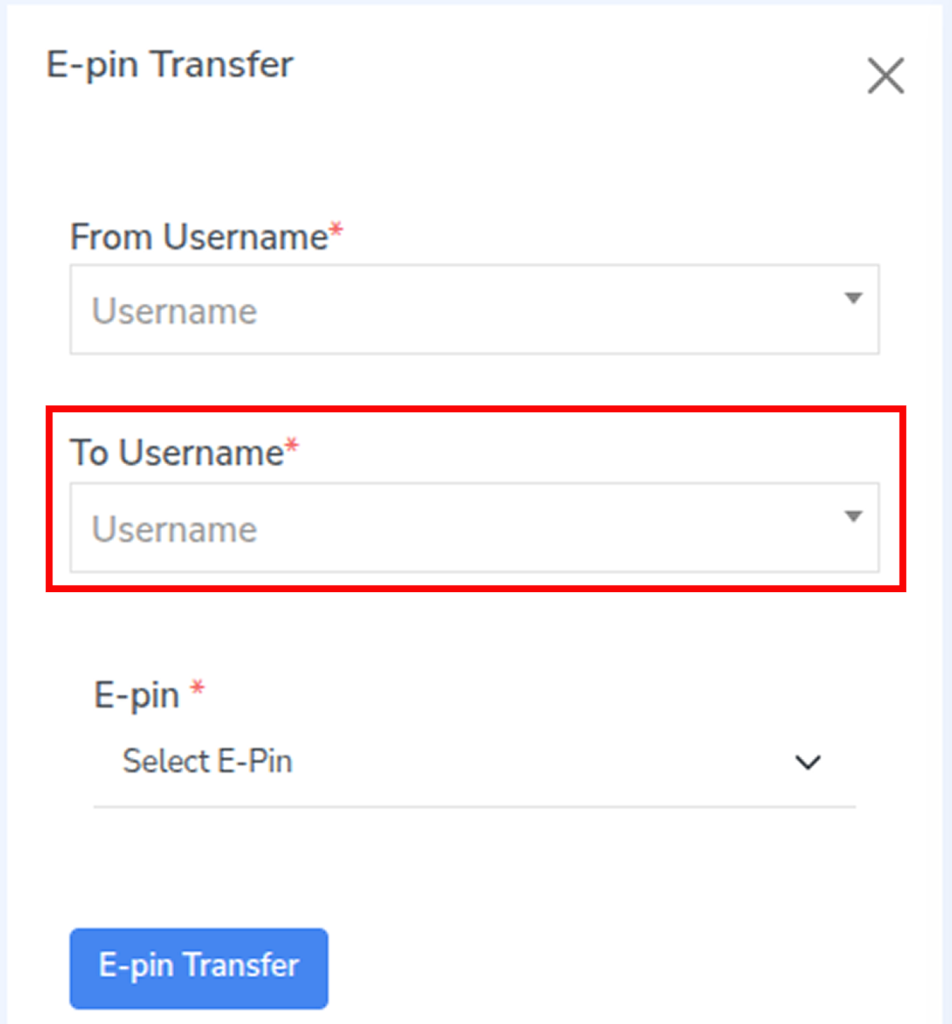
Step 5: In the E-Pin field, choose the E-Pin you want to transfer.
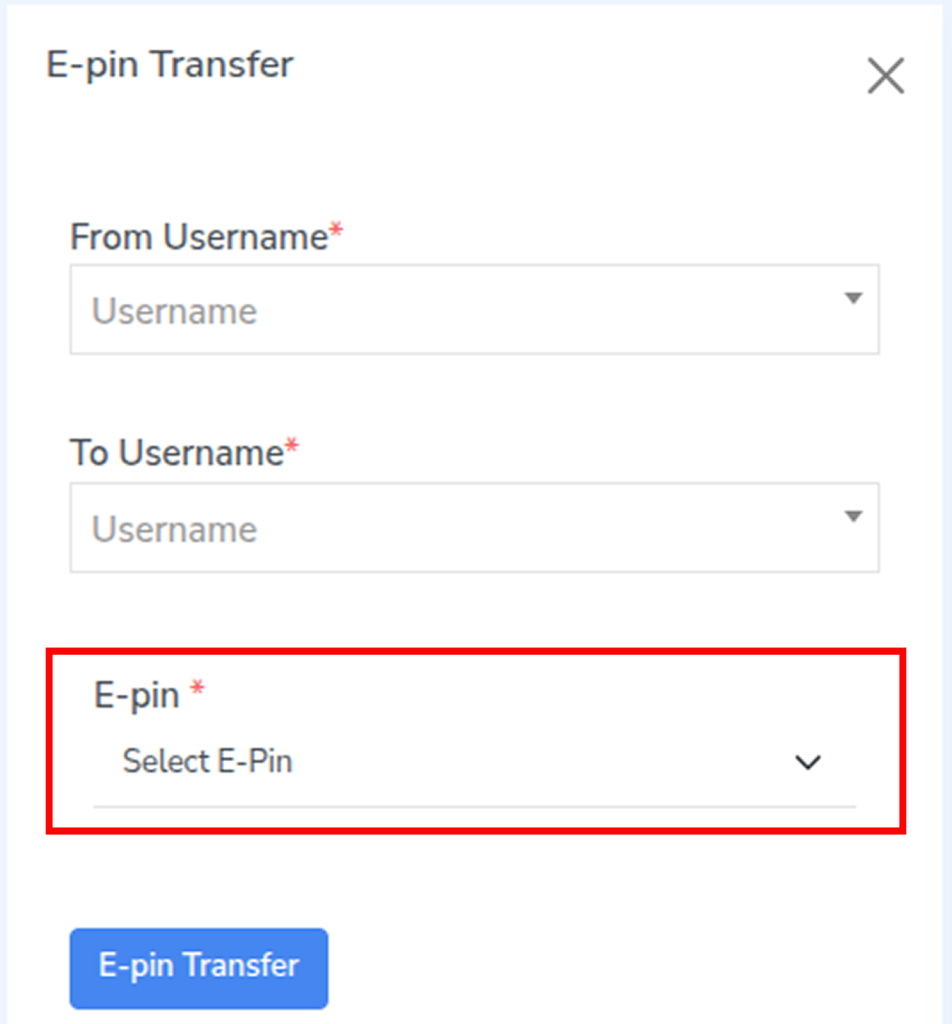
Step 6: Click E-Pin Transfer to complete the transfer.

5. How to do E-pin Purchase?

Step 1: Navigate to the top-left of the screen and click the dropdown next to the Add E-Pin button.
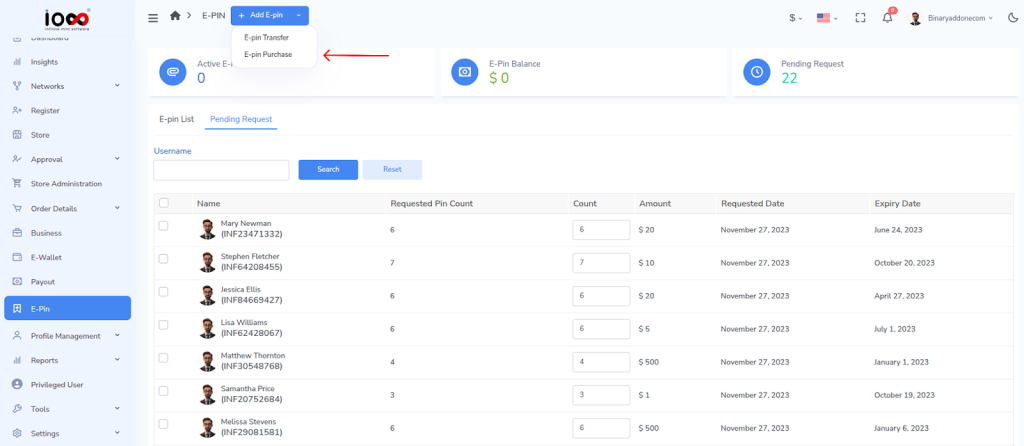
Step 2: Select E-Pin Purchase. The purchase window will open.
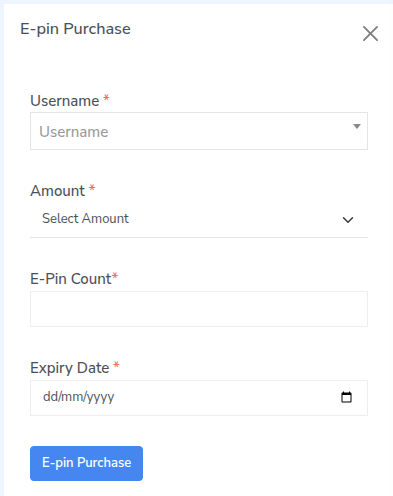
Step 3: In the Username field, select the user who is purchasing the E-Pins.
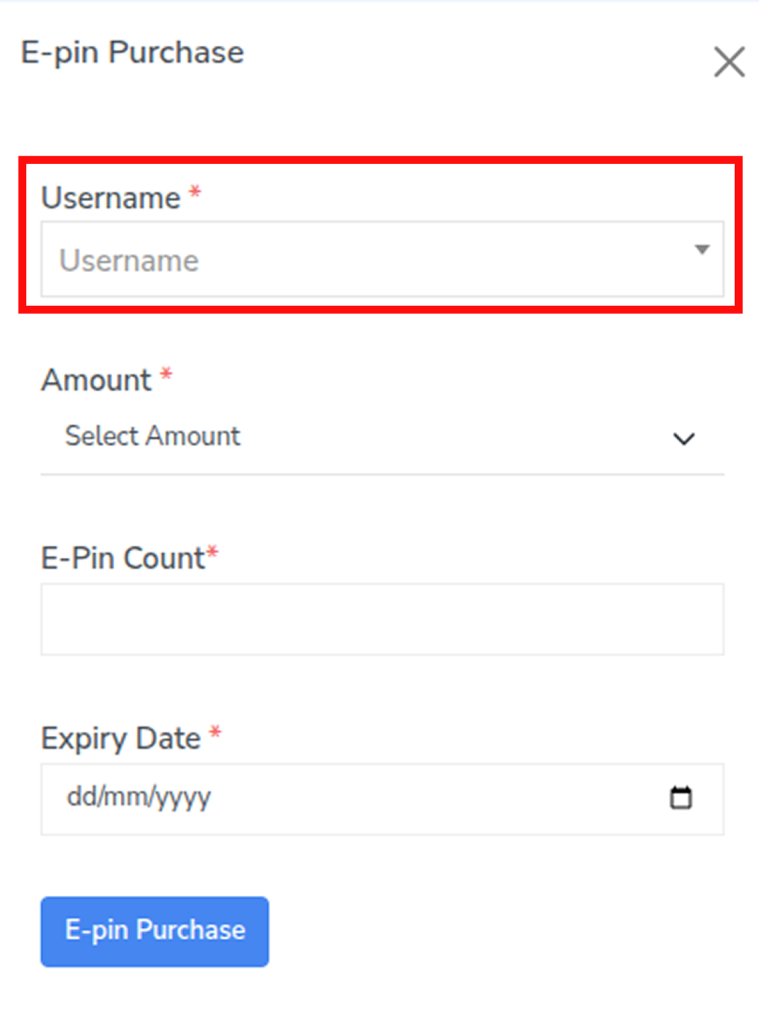
Step 4: In the Amount field, select the E-Pin value.
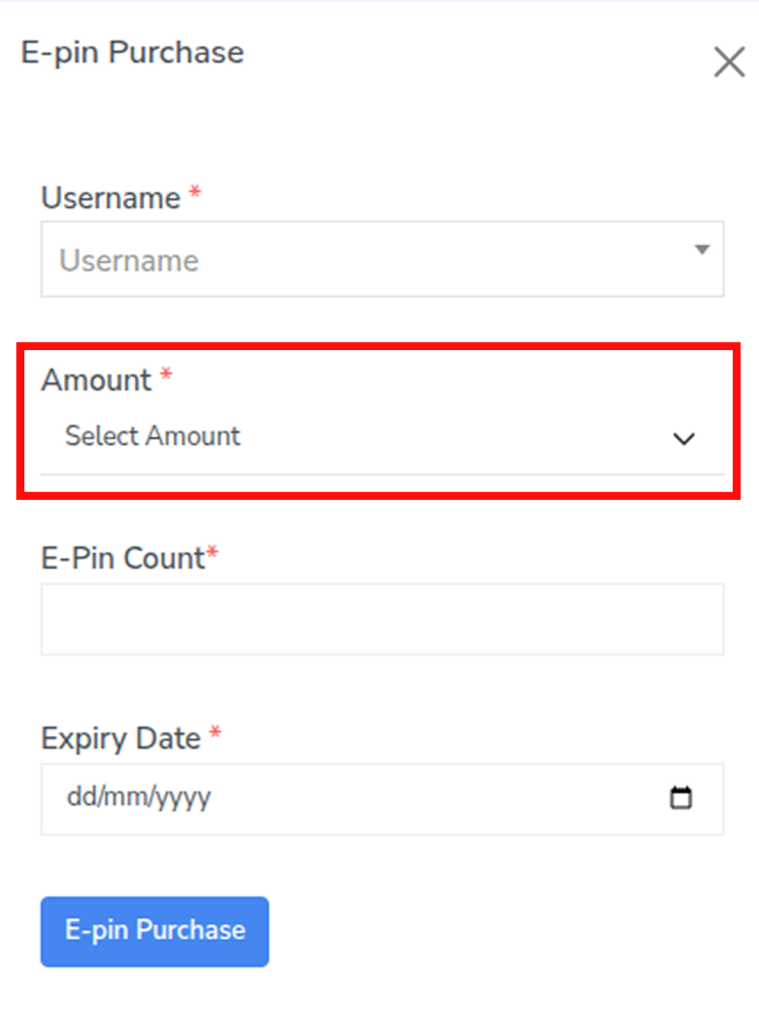
Step 5: Enter the required number in E-Pin Count.
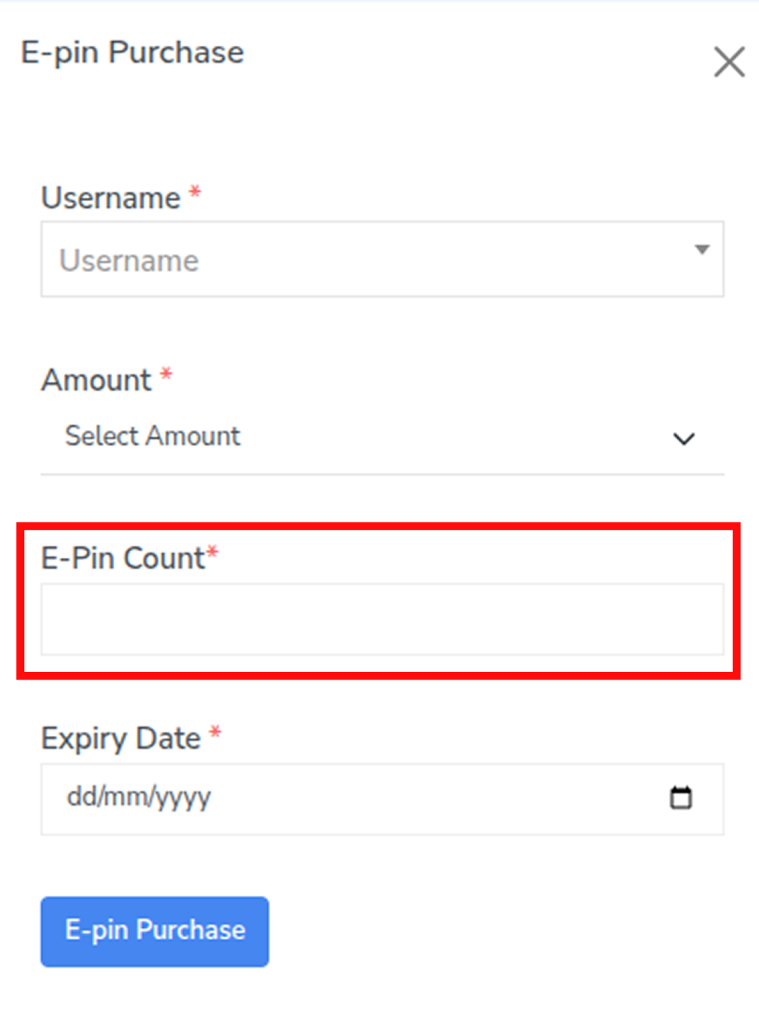
Step 6: Select the Expiry Date for the E-Pins.
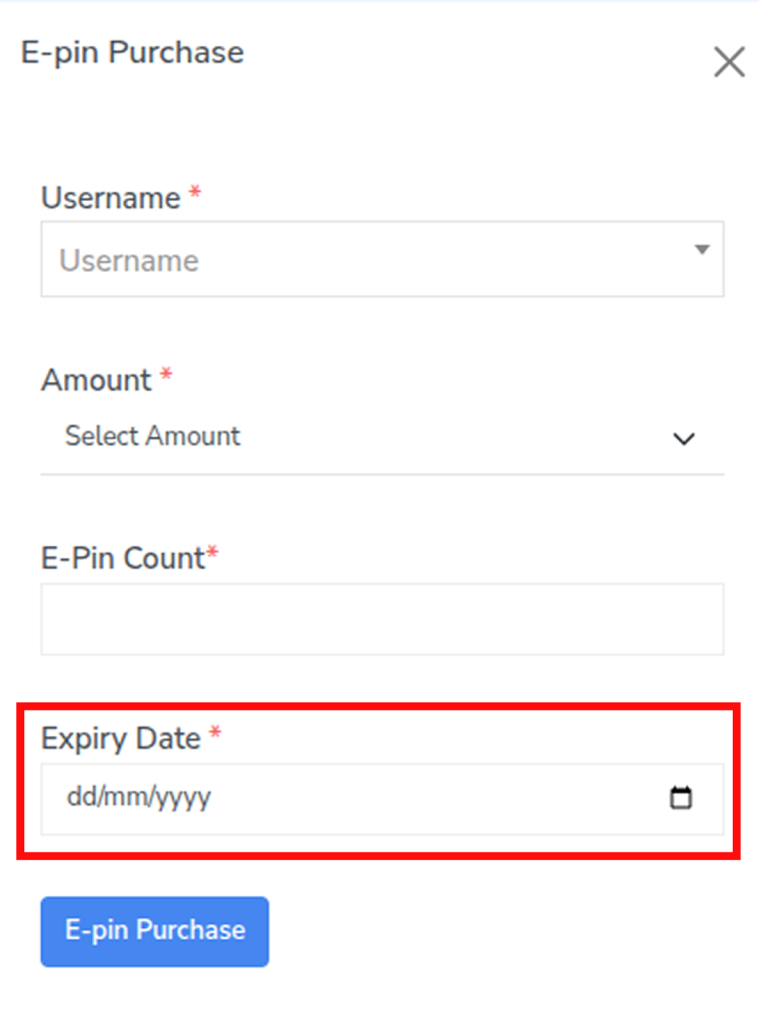
Step 7: Click E-Pin Purchase to complete the purchase.

Related Articles

  • How To Do E-Pin Purchase?

  • How To Do E-Pin Transfer?

  • How To Add A New E-Pin?

  • How to View E-Pin Pending Requests?

  • How to View an E-Pin List?

MLM Software Dashboard

Try Free MLM Demo

Try Now

© Copyright 2026 by Infinite Open Source Solutions LLP All Rights Reserved.

Este sitio web utiliza cookies del navegador para mejorar tu experiencia de usuario y acelerar la carga, pero nunca almacenamos ninguno de tus datos privados. Al continuar, aceptas nuestra política de privacidad.

Política de cookies