
Infinite MLM Software Logo
  • Productos
    Productos
    Software MLM Binario Crecimiento equilibrado a través de redes duales
    Software MLM Board Permite la rotación y reincorporación de miembros
    Software MLM Matricial Crecimiento organizado mediante una estructura de equipo limitada
    Software MLM Monoline Alinea a los miembros en una línea para beneficios equitativos
    Software MLM Unilevel Permite reclutas directos ilimitados
    Software de Venta Directa Simplifica las tareas y operaciones de venta directa
    Servicios MLM
    Migración MLMTransfiere tus datos a una nueva plataforma MLM
    Integración con TercerosConéctate con herramientas y servicios externos
    Integración con ShopifySincroniza el software MLM con tu tienda Shopify
    Demo dashboard preview

    Nivel Empresarial · Impulsado por IA

    Infinite MLM Software

    Tecnología avanzada, automatización inteligente y funciones inteligentes — todo en una sola plataforma.

    Probar Demo Gratis
  • Demo
    Demo Personalizada
    Custom Demo preview

    La demo personalizada del software MLM ofrece una experiencia adaptada a las necesidades de tu negocio.

    Probar Ahora
    Demo Preajustada
    Preset Demo preview

    La demo preajustada ofrece una vista estandarizada del software con datos de muestra preconfigurados.

    Probar Ahora
    1 Million Users
    Demo MLM con 1 Millón de Usuarios
    • Gestiona 1 millón de usuarios
    • Bono por Coincidencia Binario
    • Configuración de Tope / Cap
    • Configuración de Spillover Binario
    Demo de Administrador Demo de Usuario
  • Planes MLM
    Planes MLM
    Plan MLM Binario Construye una estructura de red de dos piernas
    Plan MLM Matricial Limita el ancho y la profundidad de las redes descendentes
    Plan MLM Unilevel Permite reclutas directos ilimitados en el primer nivel
    Plan MLM Board Los miembros avanzan a través de una matriz
    Plan MLM Monoline Los distribuidores se colocan en una sola línea descendente
    Plan Party MLM Se centra en las ventas a través de eventos sociales
    Plan MLM por Generación Comisiones a través de múltiples niveles
    Plan MLM Híbrido Los referidos directos se ubican en cualquiera de las piernas por el patrocinador
    Plan Stair Step Sistema de separación basado en rangos
    Ver todos los planes →
    MLM Plans overview

    Comparar y Elegir

    Reclutar, Recompensar, Retener: Los Mejores Planes MLM para el Éxito

    Compara estructuras de compensación y elige el plan perfecto para tu negocio.

    Ver Planes
  • Precios
  • Recursos
    Empresa
    Sobre NosotrosNuestra misión, valores e historia
    TestimoniosReseñas y comentarios de clientes
    Caso de UsoEjemplos reales de uso del producto
    Preguntas FrecuentesPreguntas comunes con respuestas
    Explorar
    BlogArtículos y actualizaciones periódicas
    Tutoriales en VideoGuías visuales para un aprendizaje fácil
    DocumentaciónGuías de usuario e instrucciones
    Historial de VersionesRegistro de actualizaciones del software
    CaracterísticasHerramientas y funcionalidades principales
    Historias de ÉxitoLogros de clientes con nuestra solución
    Complementos MLMComplementos avanzados para funcionalidades extendidas
    Calculadora MLMCálculos fáciles de comisiones por plan
    Contact our experts

    Estamos Aquí para Ayudar

    Ponte en Contacto con Nuestros Expertos

    Desde demos de productos hasta soluciones personalizadas, te apoyamos en tu éxito.

    Contáctanos
Demo en Vivo Empezar Gratis
Empezar Ahora
MLM HELP

How does E-Wallet manage MLM earnings and payouts?

/ E-wallet / How does E-Wallet manage MLM earnings and payouts?
  • May 29, 2026
  • infinite_help
  • E-wallet

Click on the ‘E-Wallet’ menu on the left panel of the window to view E-wallet details. It displays the credited amount, debited amount, and E-Wallet balance and the commission earned.

There are different tabs to view E-Wallet summary, E-Wallet transactions, E-Wallet balance, Purchase wallet, E-Wallet statement, and User earnings.

1. E-Wallet Summary

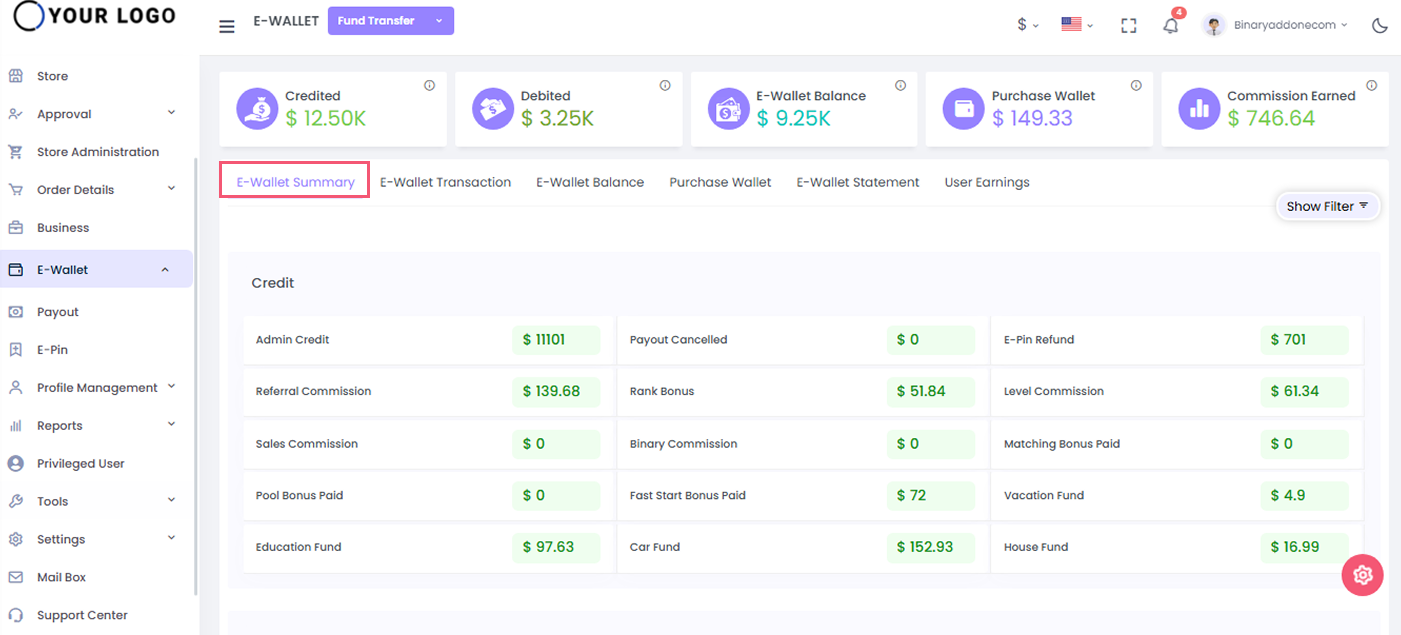
Click on the E-Wallet Summary tab to view the whole system E-Wallet summary. It displays the total amount credited and debited.

It also displays the category wise amount credited or debited for the selected date range.
2. E-Wallet Transactions

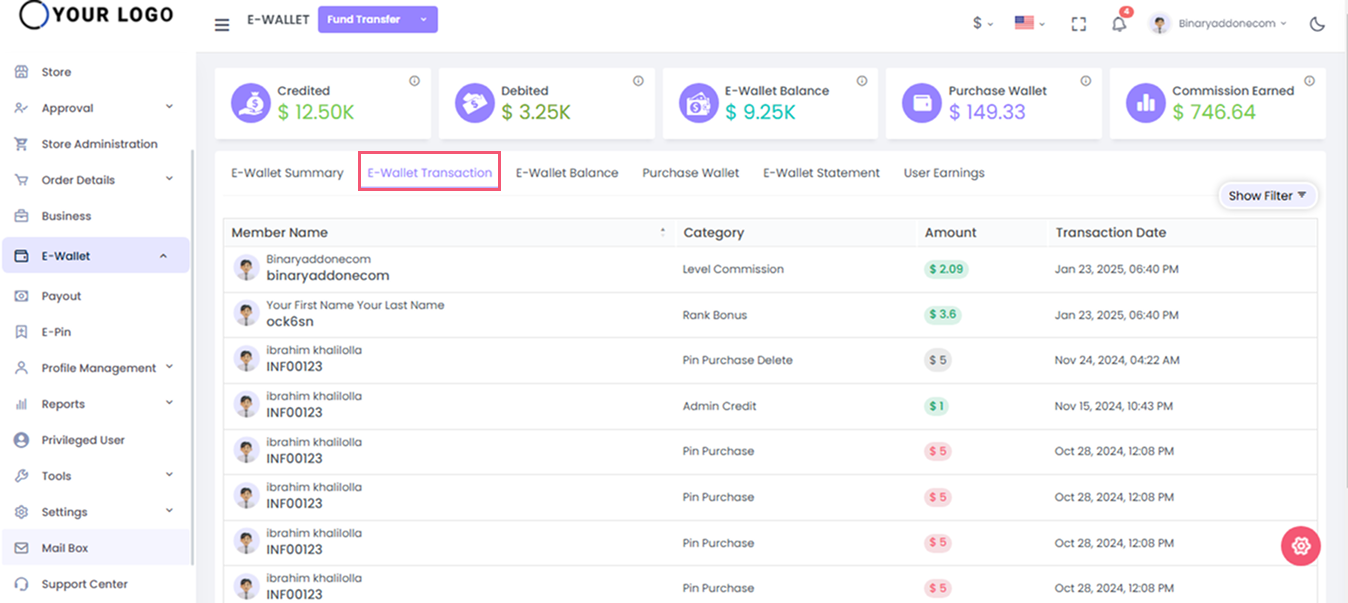
Click on the ‘E-Wallet transactions’ tab to view all the credited or debited transactions of the user for selected category and date range.

Enter the following details:

  1. User Name: Enter the user name
  2. Status: Select Credited/Debited from the drop down
  3. Category: Select the payment category from drop down (E-Pin Purchase, Fund Credit, Fund Debit, many more)
  4. Date Range : Select the period from the drop down (Alltime, Last 30 days, Last 90 days, Last year, Custom range)

Click on the ‘view’ button to see all the credited or debited transactions for the selected options.
3. E-Wallet Balance

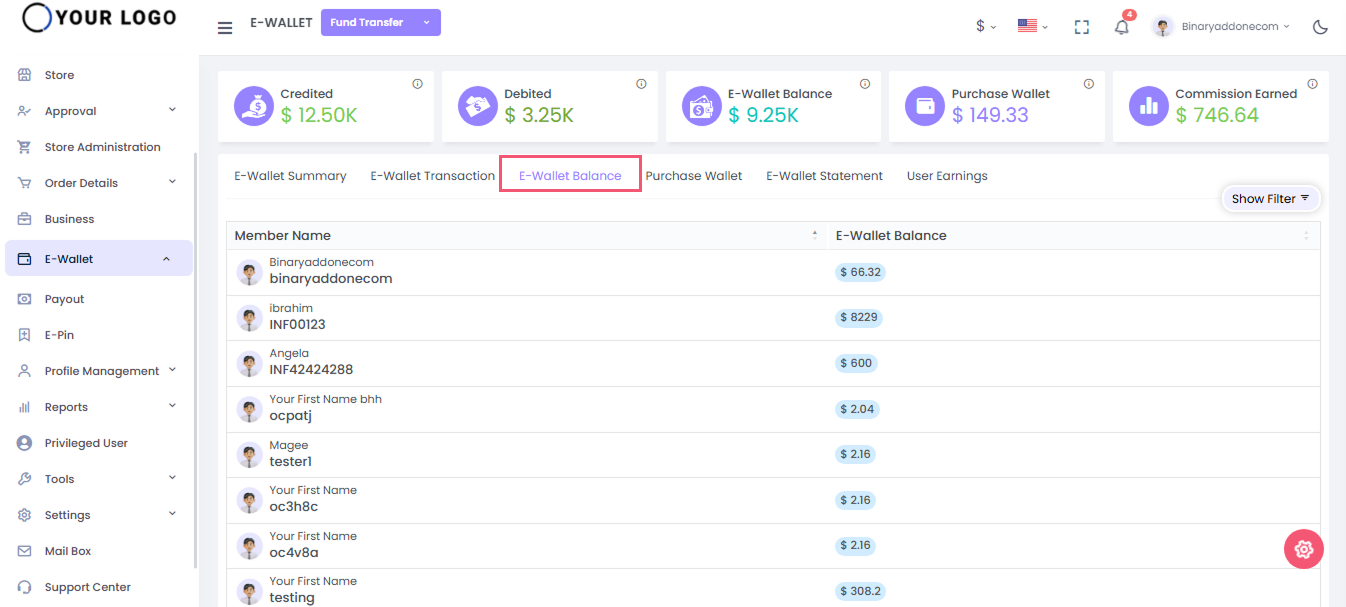
Click on the ‘E-Wallet Balance’ tab to view the E-wallet balance of the specified user. Enter the username and click on the search button to view the e wallet details of the user.
4. Purchase Wallet

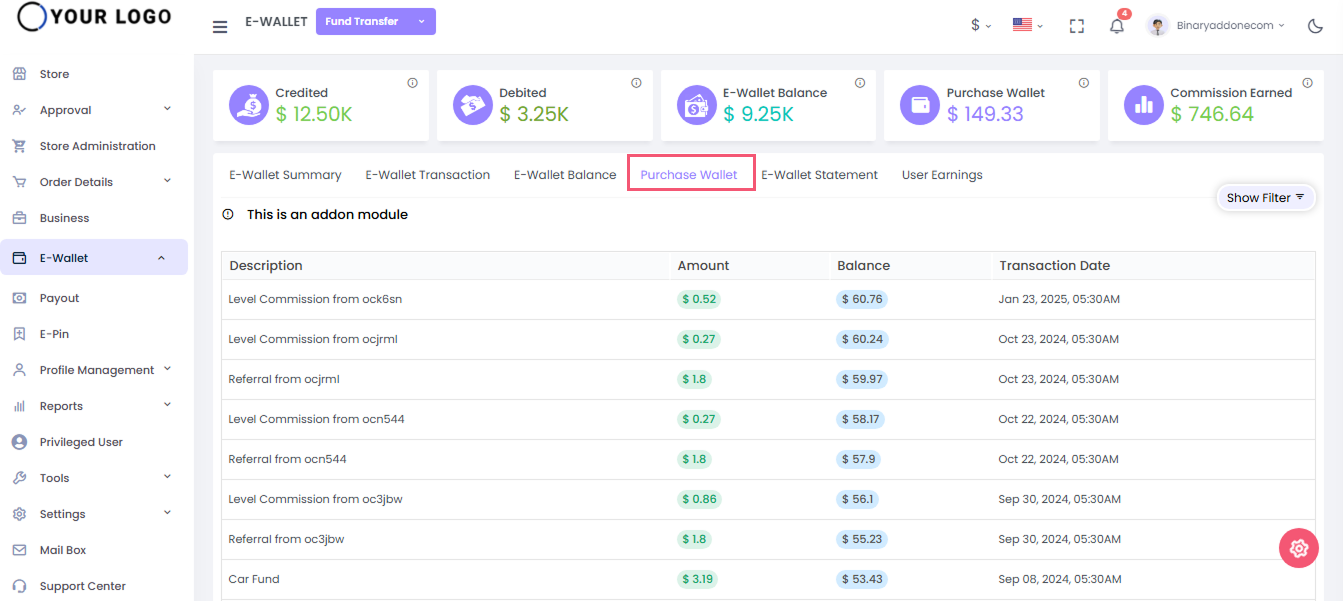
This is an add-on feature. This shows the details of the credited and debited amount through this wallet.

Enter the username and click on search button to see the purchased wallets of the users
By clicking the search button you can see the description, amount, balance, and transaction date of each wallet.
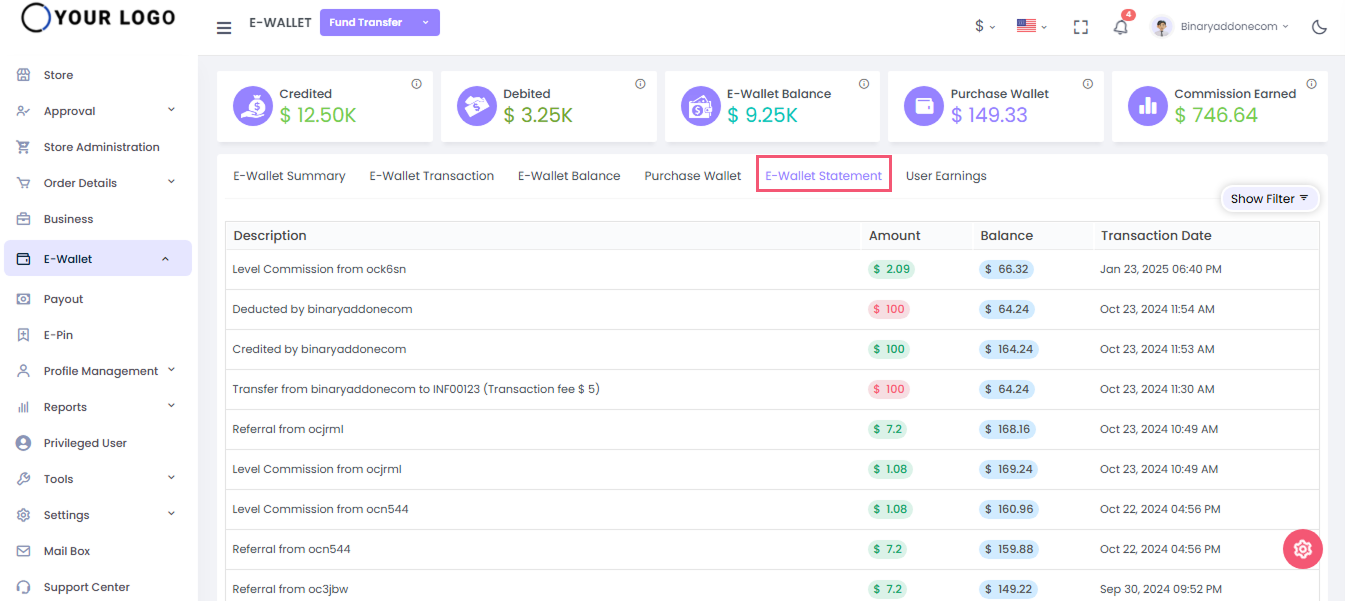
5. E-Wallet Statement

The E-Wallet statement shows the statement details of each transaction through the wallet.

By entering the username and clicking on the view button, you can see the description, amount, balance, transaction date.
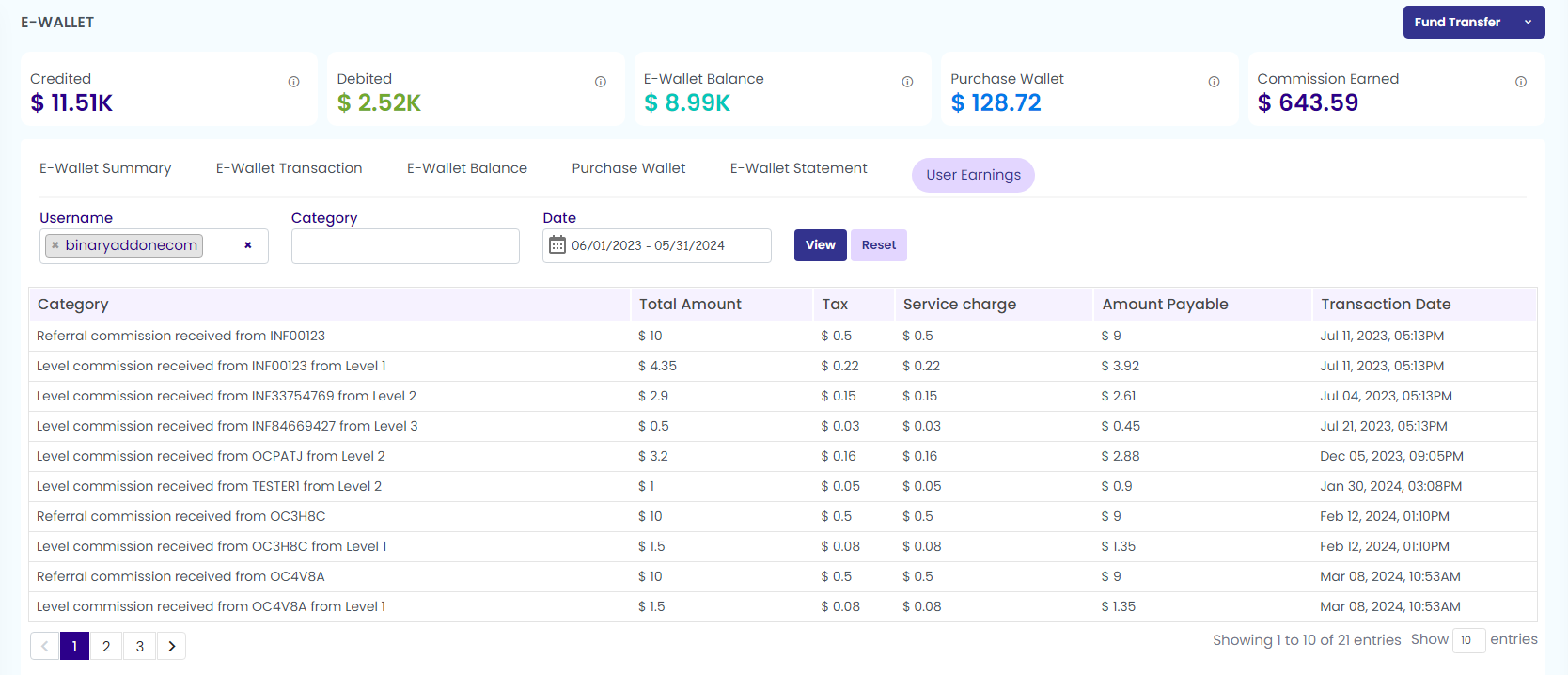
6. User Earnings

Here you can see the total earnings of each user. To view the details, enter the username, select the category, enter the date from the drop down. Click on the view button to see the category, total amount, tax, service charge, payable amount, and transaction date.
7. Fund Transfer

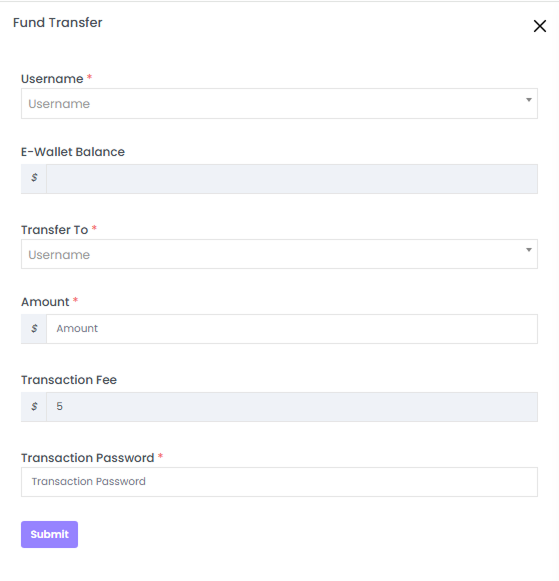
Click on the Fund transfer tab on the top right corner to transfer funds from one account to another.

Fill in the necessary details within the pop-up window that has appeared.

  1. Username: Enter the username of the sender account
  2. E-Wallet Balance: Automatically displays the E-Wallet balance of the sender account as you enter the username.
  3. Transfer To: Enter the username of receiver account
  4. Amount:Enter the amount to be transferred
  5. Notes: Mention the transaction note.
  6. Transaction Fee: the transaction fee gets popped up if any
  7. Transaction Password: Enter the password

Click on the Submit button and the message gets popped on the top as “ Fund credited successfully”.
There are two options under Fund Transfer Tab as shown in the below screenshot

  1. Fund Credit
  2. Fund Debit

Fund Credit

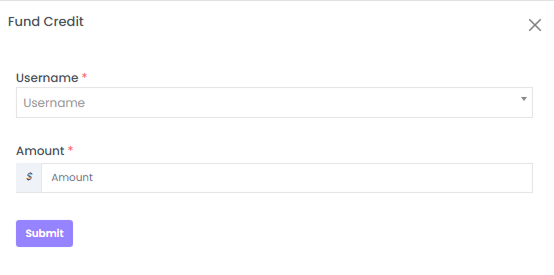
Click on the Fund Credit option to add the amount to the E-wallet of any user.

Enter the following details

  1. Username: Enter the user name whose fund to be credited to the wallet
  2. Amount: Enter the required amount

Click on the Submit button and the message gets popped on the top as “ Fund credited successfully”.
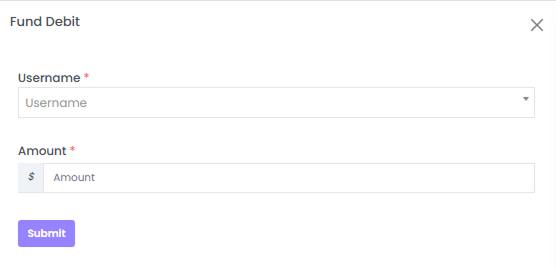
Fund Debit

Click on the Fund Debit option to deduct the amount from the E-wallet of any user.

Enter the following as shown in the below screenshot.

  1. Username: Provide the username of the individual whose funds are to be debited from the wallet.
  2. Amount: Enter the required amount.

Click on the ‘Submit button’ and the message gets popped on the top as “ Fund debited successfully”

Related Articles

  • How to View an E-Wallet Statement?

  • How are MLM profits and payouts managed by E-Wallet?

  • How to View the User Earnings?

  • How to View the Purchase Wallet Details of a User?

  • How to Check the E-Wallet Balance of a Particular User?

MLM Software Dashboard

Try Free MLM Demo

Try Now

© Copyright 2026 by Infinite Open Source Solutions LLP All Rights Reserved.

Este sitio web utiliza cookies del navegador para mejorar tu experiencia de usuario y acelerar la carga, pero nunca almacenamos ninguno de tus datos privados. Al continuar, aceptas nuestra política de privacidad.

Política de cookies
