
The User Activity feature allows administrators to monitor and review the actions performed by privileged users within the system. Tracking user activities helps maintain transparency, improve accountability, and ensure that users are accessing and using the assigned features appropriately. Administrators can easily search for a specific user and view their activity records whenever required.
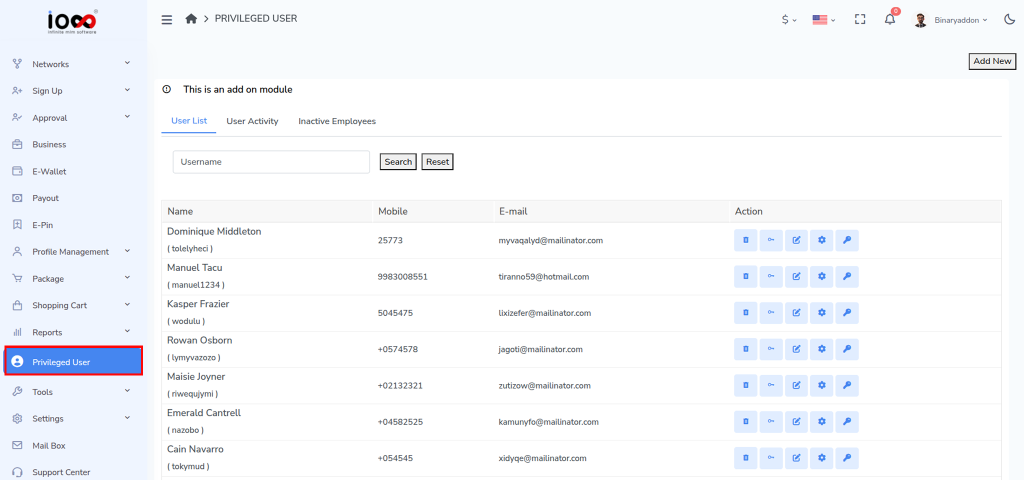
Step 1: Open the Privileged User Section
From the left-side menu of the Admin Panel, click Privileged User. This will open the Privileged User Management page, where all privileged user-related configurations and records are available.
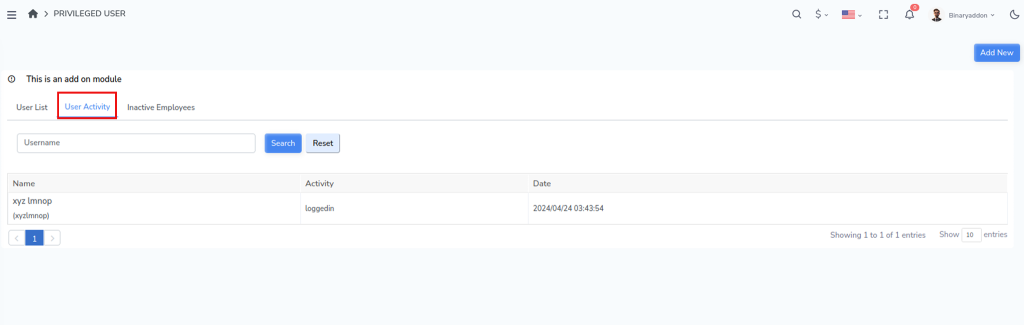
Step 2: Navigate to User Activity
On the Privileged User Management page, locate and click the User Activity section. This area contains the activity logs of all privileged users in the system.
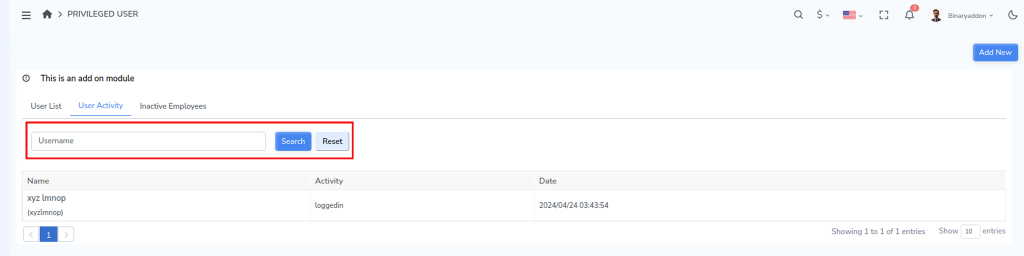
Step 3: Search for a Specific User
In the Username field, enter or select the name of the privileged user whose activity history you want to review. This option helps administrators quickly locate activity records for a particular user.
After selecting the username, click the Search button. The system will retrieve and display the activity records associated with the selected user.
Step 5: Review the Activity History
The activity log will display the actions performed by the user within the system. Administrators can review these records to track user operations, verify system usage, and maintain proper monitoring of privileged user activities.
Note: Regularly reviewing user activity logs helps improve security, ensures compliance with organizational policies, and provides better visibility into system usage.