Infinite MLM Software Logo
  • Prodotti
    Prodotti
    Software MLM Binario Crescita equilibrata tramite downline duali
    Software MLM Board Consente la rotazione e il rientro dei membri
    Software MLM Matrix Crescita organizzata tramite una struttura di team limitata
    Software MLM Monoline Allinea i membri in una sola linea per benefici equi
    Software MLM Unilevel Consente reclute dirette illimitate
    Software per la Vendita Diretta Semplifica le attività e le operazioni di vendita diretta
    Servizi MLM
    Migrazione MLMTrasferisci i tuoi dati a una nuova piattaforma MLM
    Integrazione di Terze PartiConnettiti con strumenti e servizi esterni
    Integrazione ShopifySincronizza il software MLM con il tuo store Shopify
    Demo dashboard preview

    Livello Enterprise · Basato su IA

    Infinite MLM Software

    Tecnologia avanzata, automazione intelligente e funzionalità smart — tutto in un’unica piattaforma.

    Prova la Demo Gratuita
  • Demo
    Demo Personalizzata
    Custom Demo preview

    La demo personalizzata del software MLM offre un’esperienza su misura per le esigenze della tua azienda.

    Prova Ora
    Demo Preimpostata
    Preset Demo preview

    La demo preimpostata offre una vista standardizzata del software con dati di esempio preconfigurati.

    Prova Ora
    1 Million Users
    Demo MLM con 1 Milione di Utenti
    • Gestisci 1 milione di utenti
    • Bonus di Matching Binario
    • Impostazioni di Limite / Cap
    • Impostazioni Spillover Binario
    Demo Admin Demo Utente
  • Piani MLM
    Piani MLM
    Piano MLM Binario Costruisce una struttura di downline a due gambe
    Piano MLM Matrix Limita la larghezza e la profondità delle downline
    Piano MLM Unilevel Consente un numero illimitato di reclute dirette al primo livello
    Piano MLM Board I membri avanzano attraverso una matrice
    Piano MLM Monoline I distributori sono inseriti in una sola linea discendente
    Piano Party MLM Si concentra sulle vendite tramite eventi sociali
    Piano MLM Generation Commissioni su più livelli
    Piano MLM Ibrido I referral diretti vengono collocati in una delle due gambe dallo sponsor
    Piano Stair Step Sistema di separazione basato sui ranghi
    Vedi tutti i piani →
    MLM Plans overview

    Confronta e Scegli

    Reclutare, Premiare, Fidelizzare: I Migliori Piani MLM per il Successo

    Confronta le strutture di compensazione e scegli il piano perfetto per la tua azienda.

    Vedi i Piani
  • Prezzi
  • Risorse
    Azienda
    Chi SiamoLa nostra missione, i nostri valori e la nostra storia
    TestimonianzeRecensioni e feedback dei clienti
    Caso d’UsoEsempi reali di utilizzo del prodotto
    Domande FrequentiDomande comuni con risposte
    Esplora
    BlogArticoli e aggiornamenti regolari
    Video TutorialGuide visive per un apprendimento facile
    DocumentazioneGuide utente e istruzioni
    Cronologia delle VersioniRegistro degli aggiornamenti del software
    CaratteristicheStrumenti e funzionalità principali
    Storie di SuccessoSuccessi dei clienti con la nostra soluzione
    Componenti Aggiuntivi MLMComponenti aggiuntivi avanzati per funzionalità estese
    Calcolatore MLMCalcoli facili delle commissioni per piano
    Contact our experts

    Siamo qui per Aiutarti

    Mettiti in Contatto con i Nostri Esperti

    Dalle demo dei prodotti alle soluzioni personalizzate, siamo al tuo fianco per il successo.

    Contattaci
Demo dal Vivo Inizia Gratis
Inizia Ora
MLM HELP

How does E-pin work in Infinite MLM software?

/ E-Pin / How does E-pin work in Infinite MLM software?
  • May 30, 2026
  • infinite_help
  • E-Pin

The E-Pin module in Infinite MLM software helps administrators generate, manage, allocate and approve electronic pins (E-Pins) that are used for registrations, upgrades, or product/package purchases inside the system.

This section explains how the complete E-Pin workflow works based on the E-Pin screens shown.

Overview of the E-Pin Dashboard

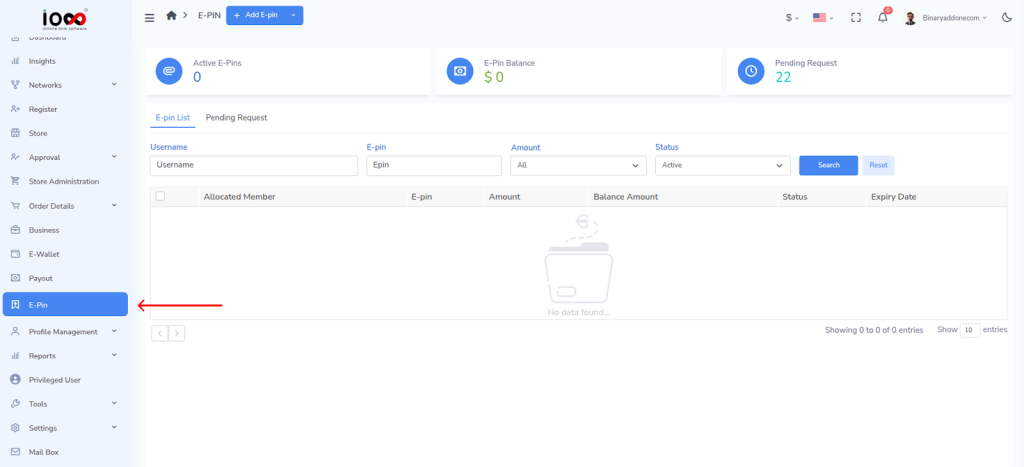
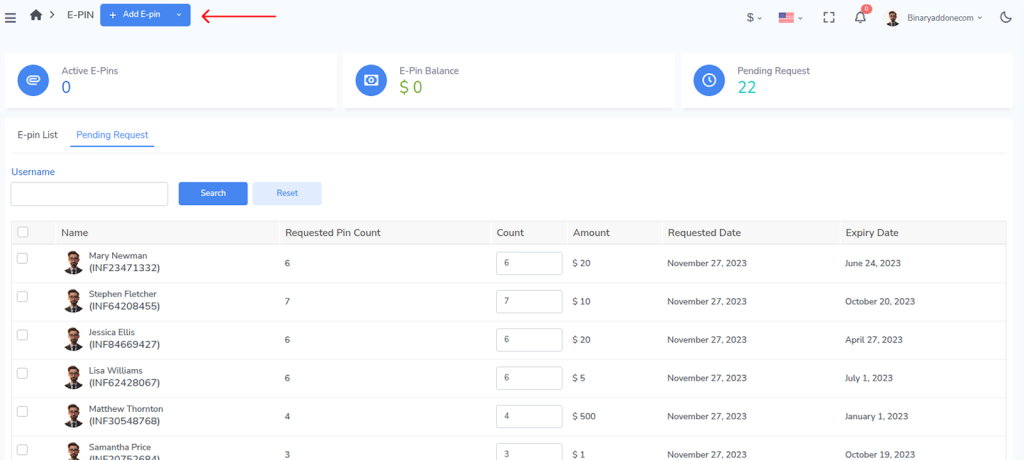
To access the E-pin Dashboard, click on E-pin from the left panel.
At the top of the E-Pin page, you can see three quick summary cards:
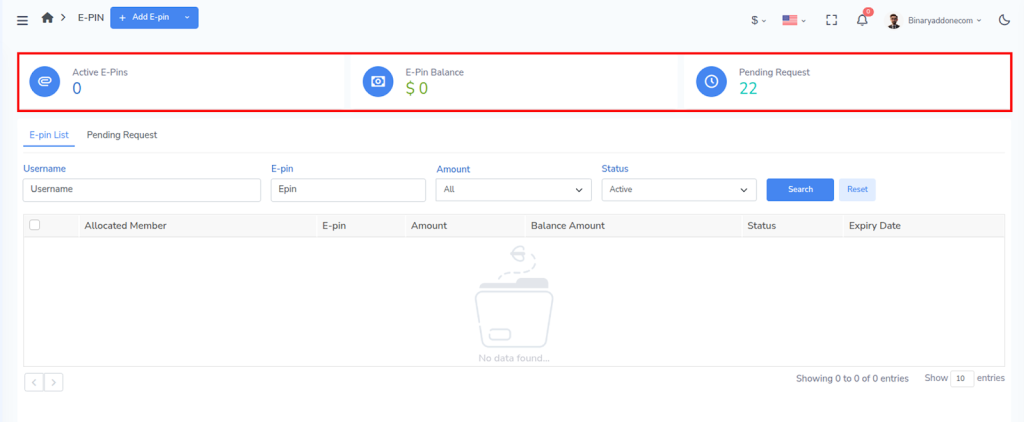
  • Active E-Pins – Total number of usable E-Pins currently available.
  • E-Pin Balance – Total monetary value of available E-Pins.
  • Pending Request – Number of E-Pin requests waiting for approval.

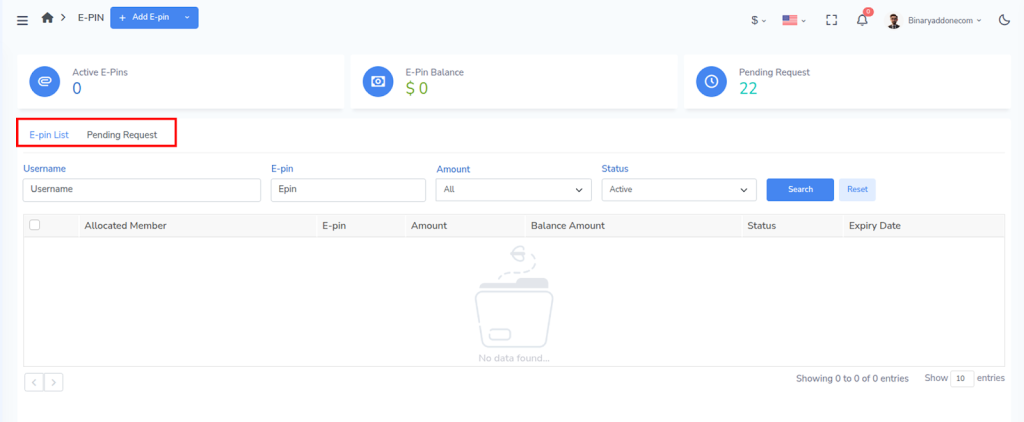
The E-Pin module is divided into two tabs:

  • E-Pin List
  • Pending Request

1. E-Pin List 

The E-Pin List tab shows all generated and allocated E-Pins in the system.
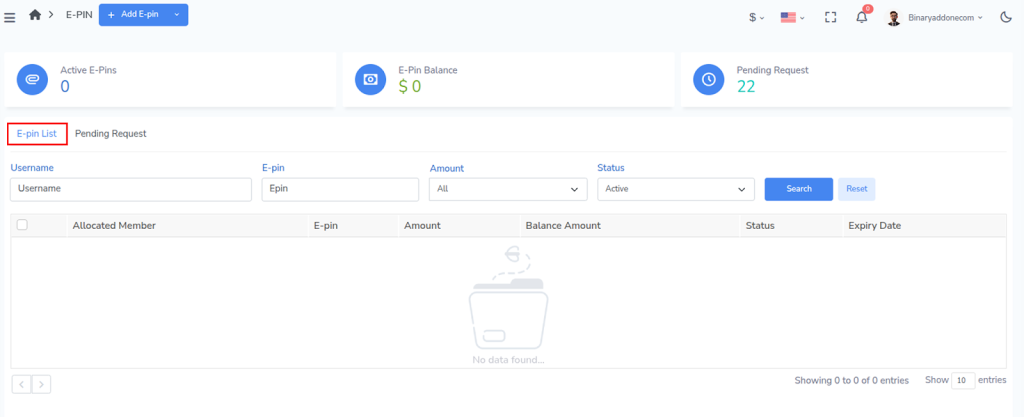
You can search and filter E-Pins using:

  • Username – Filter by allocated member
  • E-pin – Search by a specific pin code
  • Amount – Filter by pin value
  • Status – Filter by Active / other statuses

Click Search to apply filters and Reset to clear them.

Columns in E-Pin List

Each row represents an E-Pin entry.

  • Allocated Member – The user to whom the E-Pin is assigned
  • E-pin – The unique pin code
  • Amount – Value of the E-Pin
  • Balance Amount – Remaining usable value (if partial usage is supported)
  • Status – Current state of the pin (for example: Active)
  • Expiry Date – Date after which the pin cannot be used

This screen is mainly used to:

  • track issued E-Pins,
  • verify whether a pin is active,
  • check expiry and usage availability.

2. Pending Request – Manage E-Pin Requests from Users

The Pending Request tab shows all E-Pin requests submitted by members. These requests must be approved by an administrator before the pins become usable.
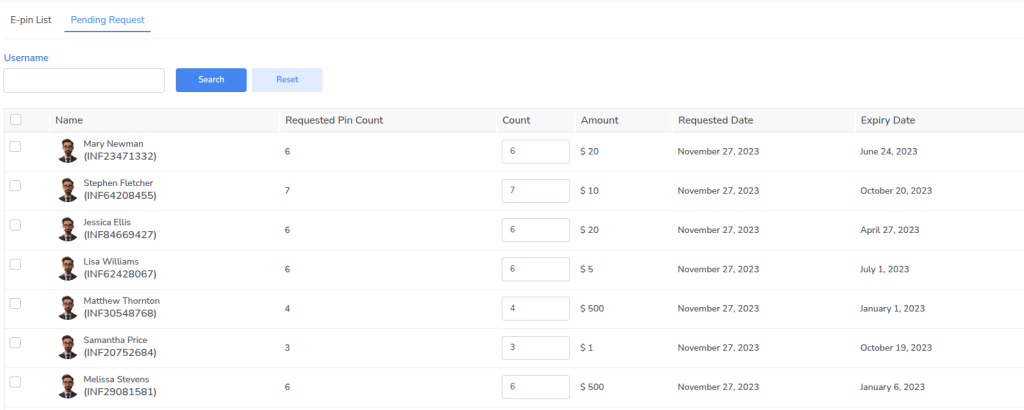
Filter options

You can filter requests using:

  • Username

Columns in Pending Request

Each row represents a request made by a user.

  • Name – Member who requested E-Pins
  • Requested Pin Count – Number of pins requested by the user
  • Count – Editable field to confirm how many pins will be issued
  • Amount – Value of each pin
  • Requested Date – Date when the request was created
  • Expiry Date – Expiry date that will apply to the issued pins

A checkbox is available to select one or more requests for processing.

3. Adding E-Pins Manually

Administrators can also create pins directly using the Add E-Pin button at the top of the page. 

To Add a New E-Pin:

Step 1: Navigate to the top left of the screen and click on the Add E-pin button.
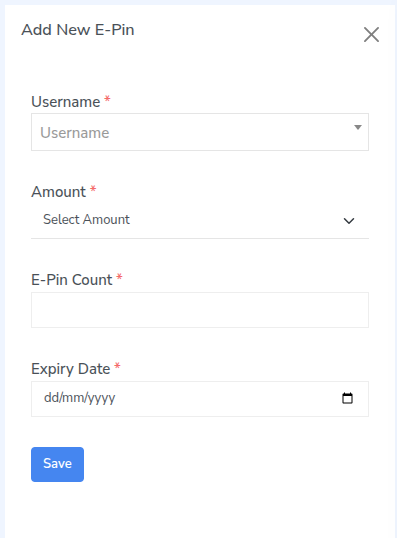
Step 2: An Add New E-Pin window will open.
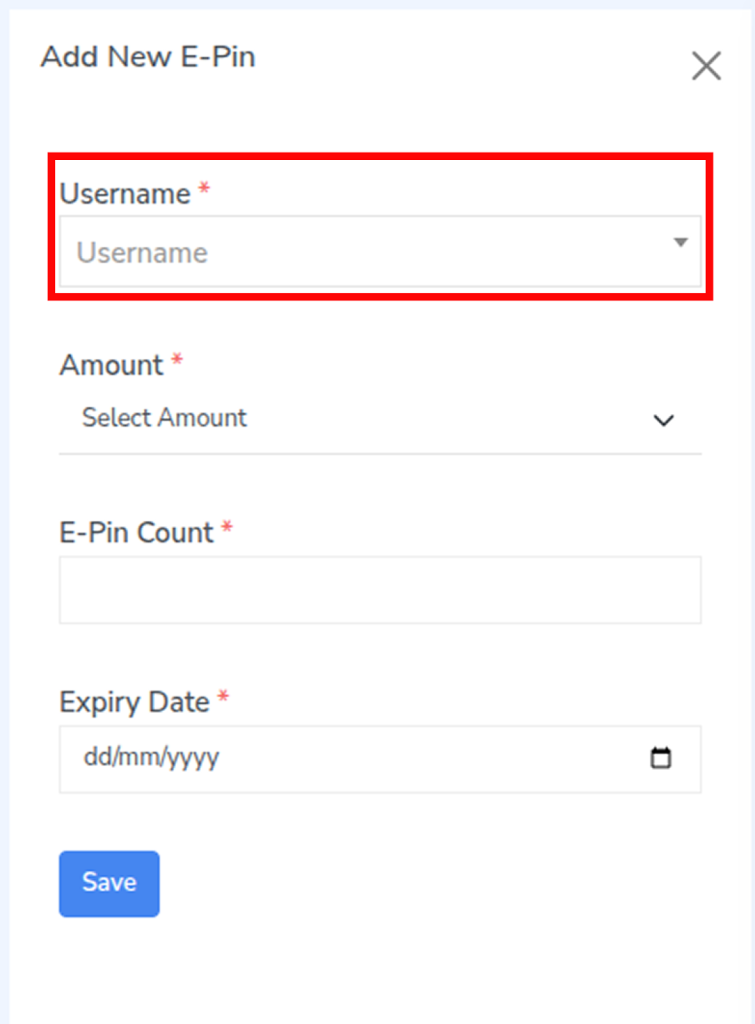
Step 3:  Choose the user from the dropdown. 
Step 4:  Choose the E-Pin value from the Amount dropdown.
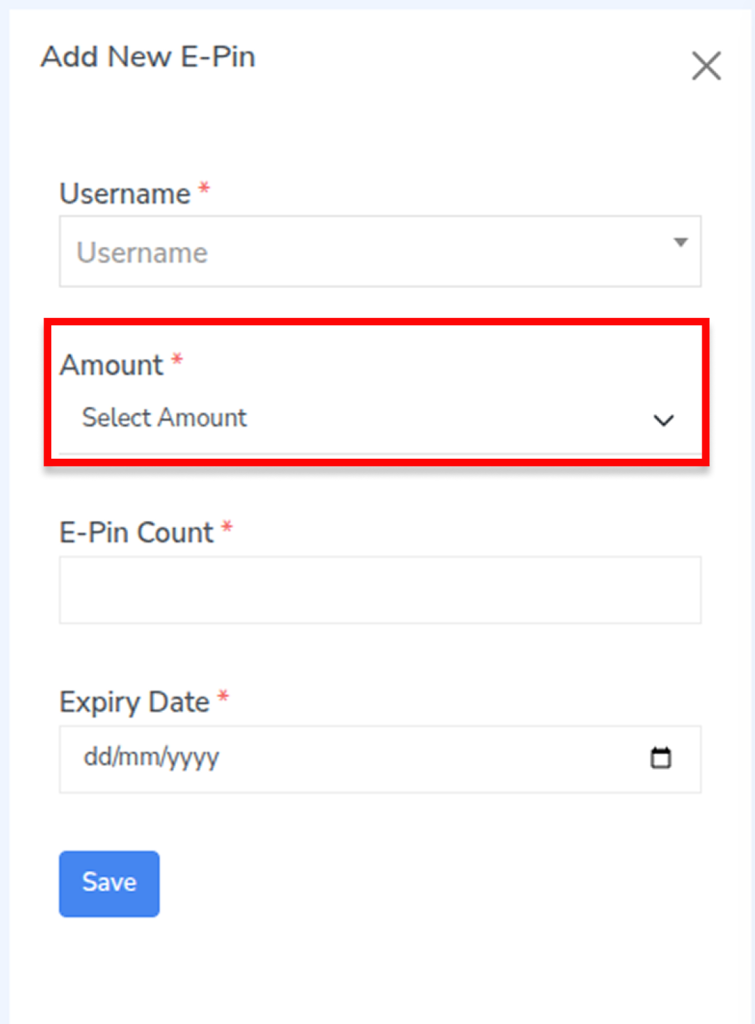
Step 5: Enter the E-Pin Count i.e how many E-Pins you want to generate.
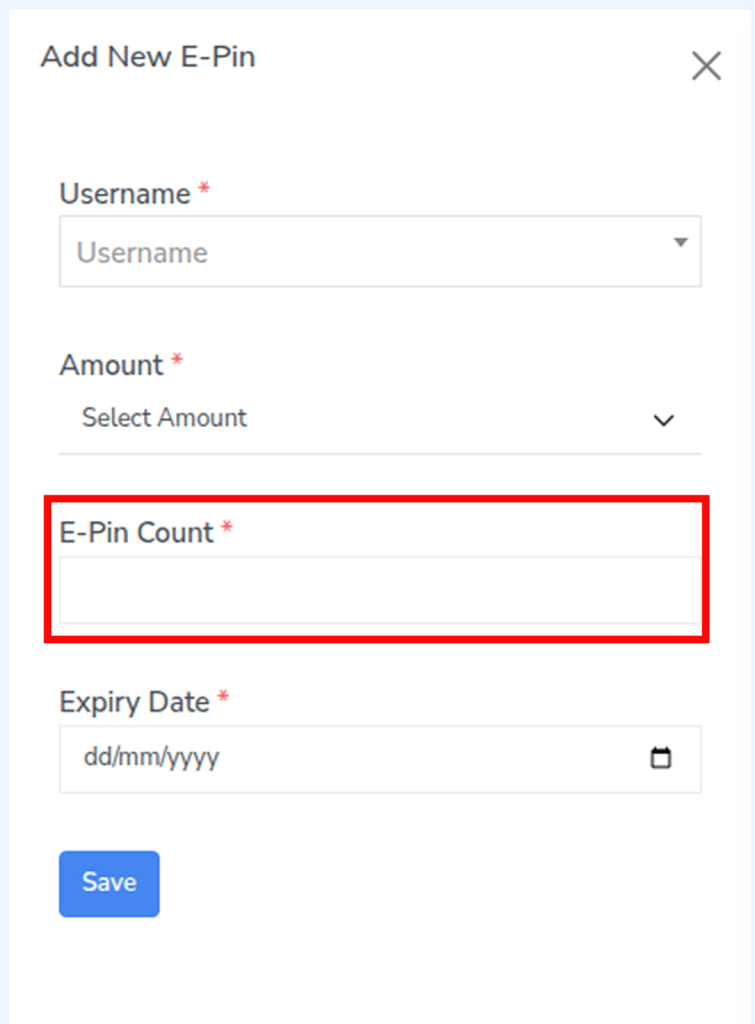
Step 6: Select the Expiry Date.
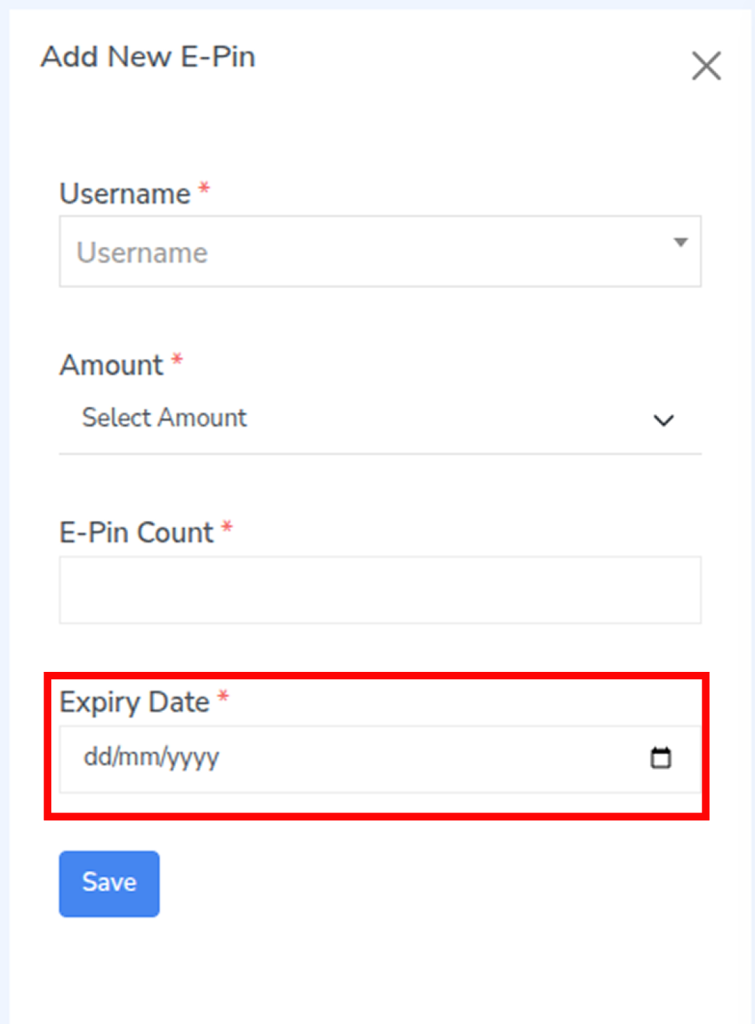
Step 7: Click Save to generate the E-Pins.
Important

  • All fields marked (*) are mandatory.

4. How to do E-pin Transfer?

Step 1: Navigate to the top-left of the screen and click the dropdown next to the Add E-Pin button.
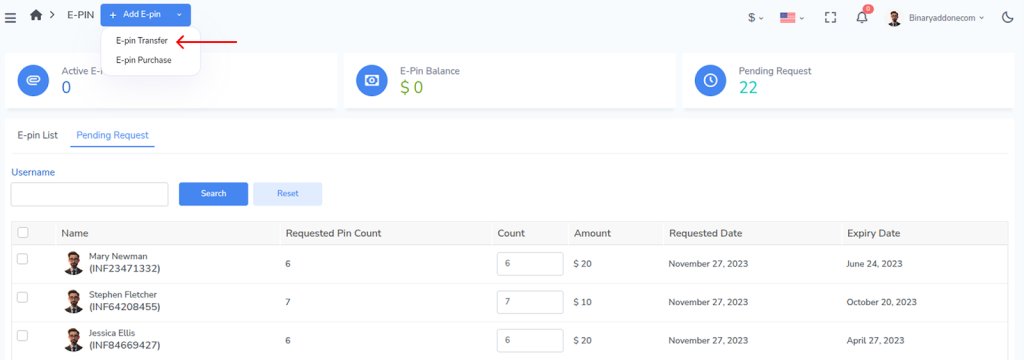

Step 2: Select E-Pin Transfer. The transfer window will open.
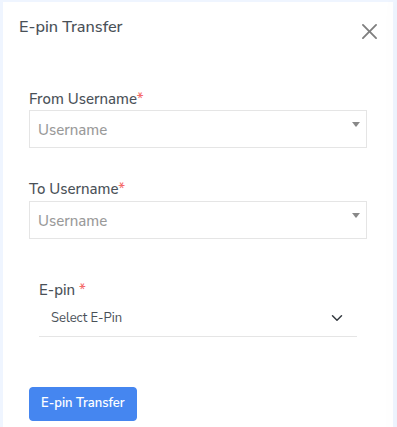
Step 3: In From Username, select the user who currently owns the E-Pin.
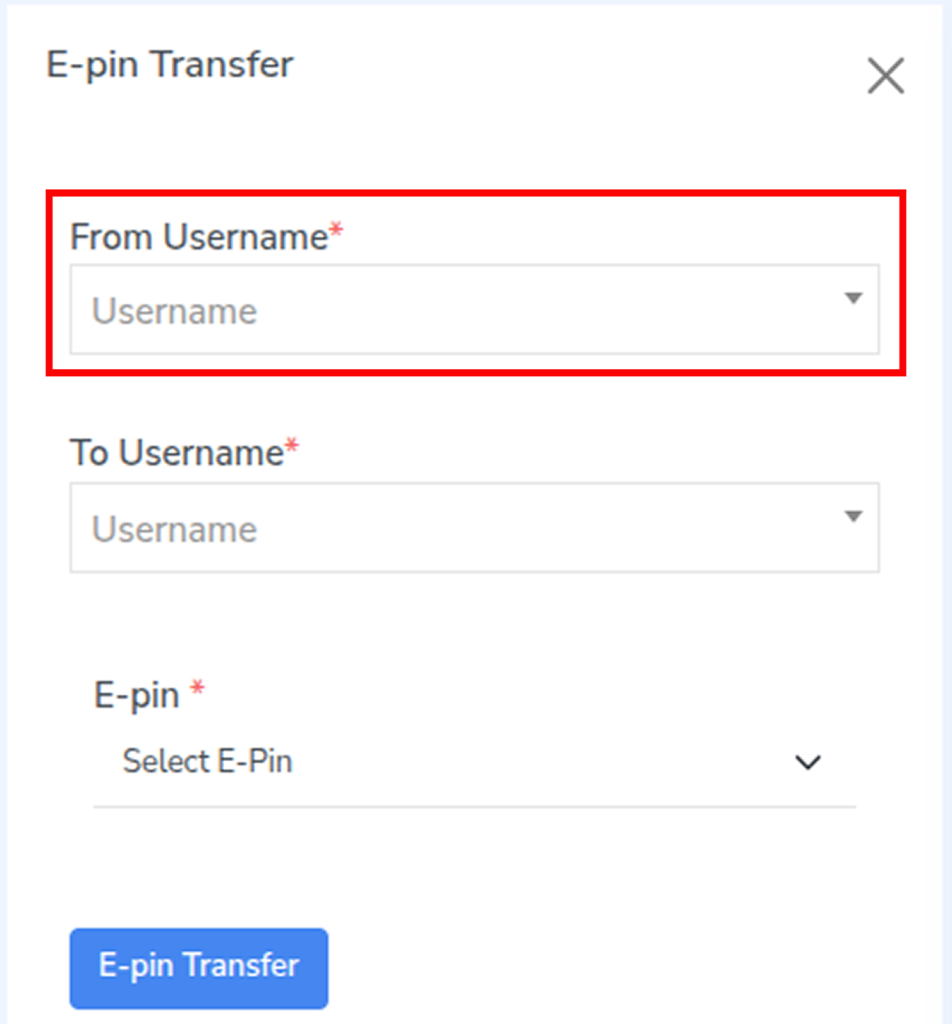
Step 4: In To Username, select the user to whom the E-Pin should be transferred.
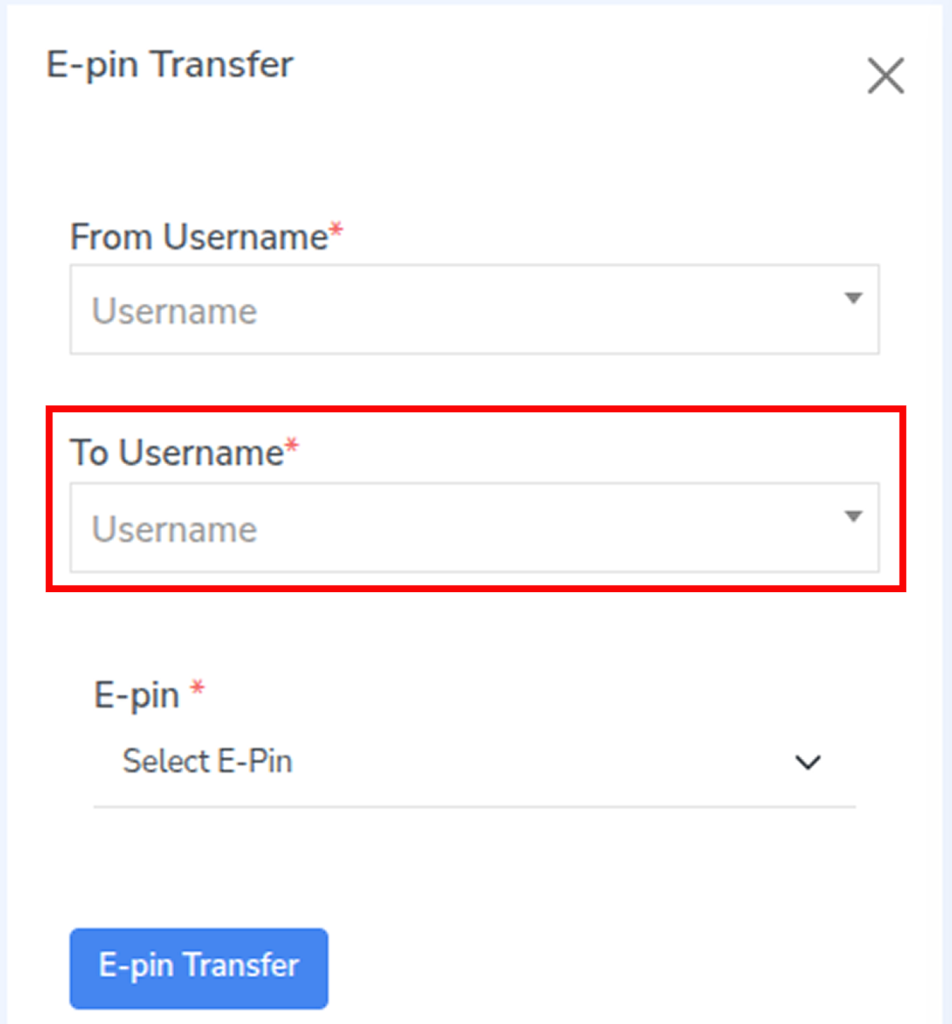
Step 5: In the E-Pin field, choose the E-Pin you want to transfer.
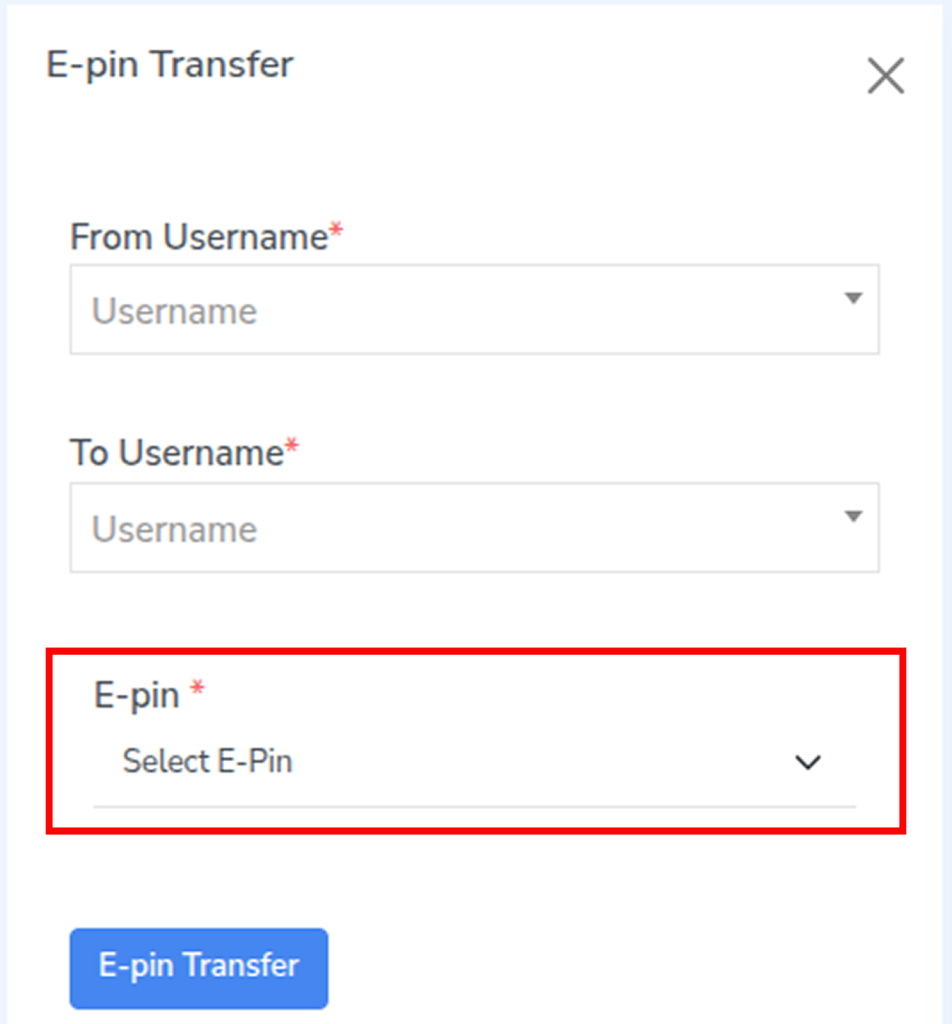
Step 6: Click E-Pin Transfer to complete the transfer.

5. How to do E-pin Purchase?

Step 1: Navigate to the top-left of the screen and click the dropdown next to the Add E-Pin button.
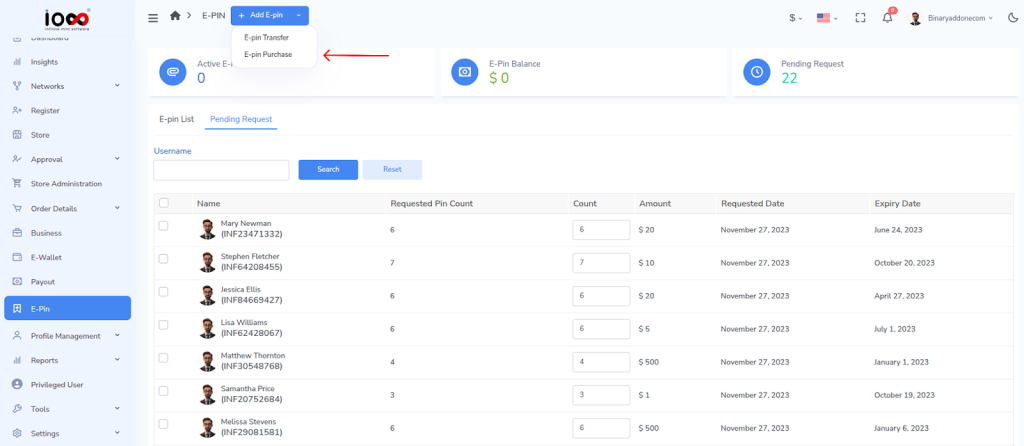
Step 2: Select E-Pin Purchase. The purchase window will open.
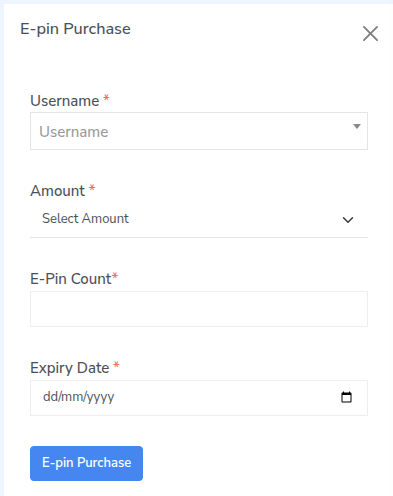
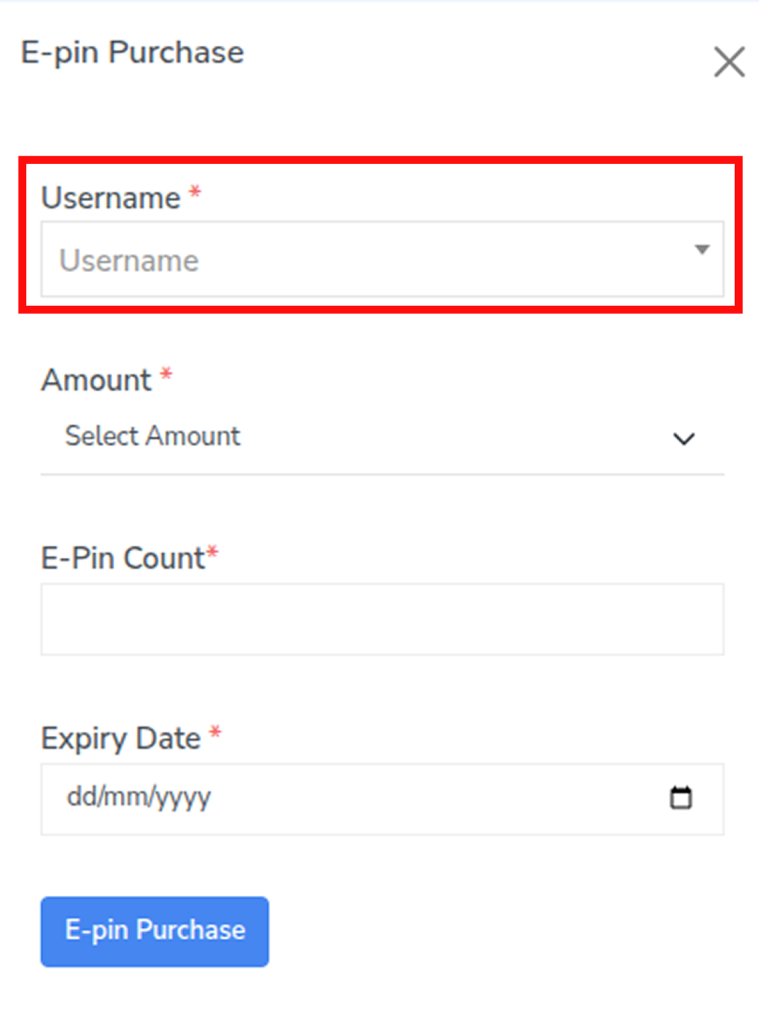
Step 3: In the Username field, select the user who is purchasing the E-Pins.
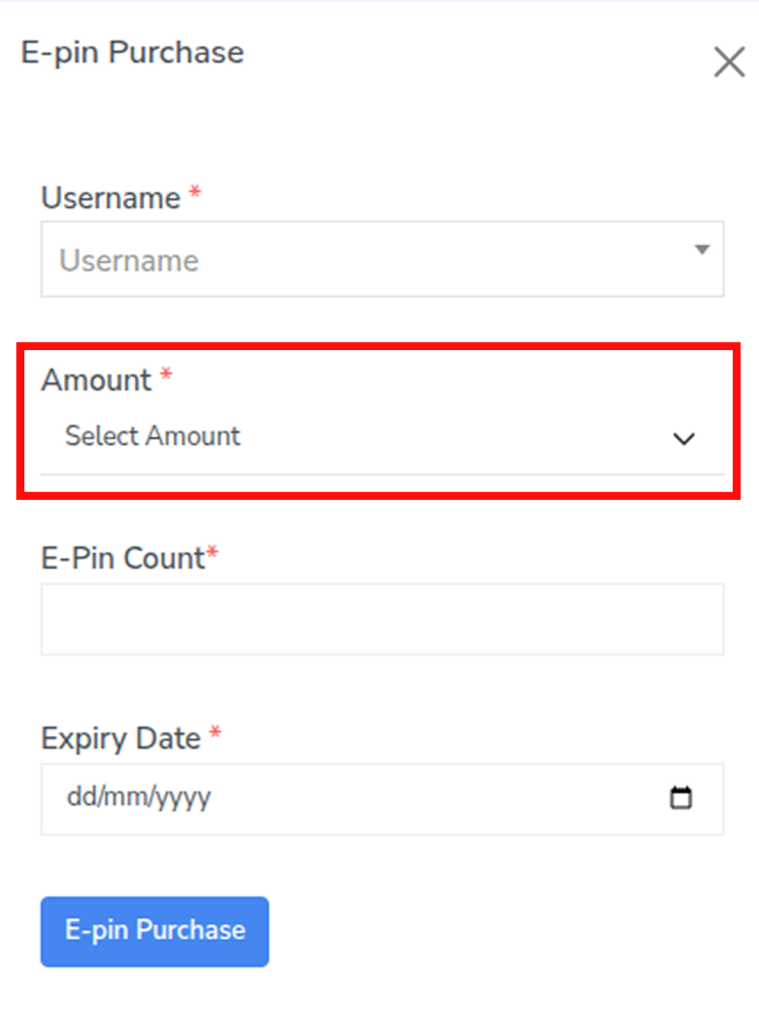
Step 4: In the Amount field, select the E-Pin value.
Step 5: Enter the required number in E-Pin Count.
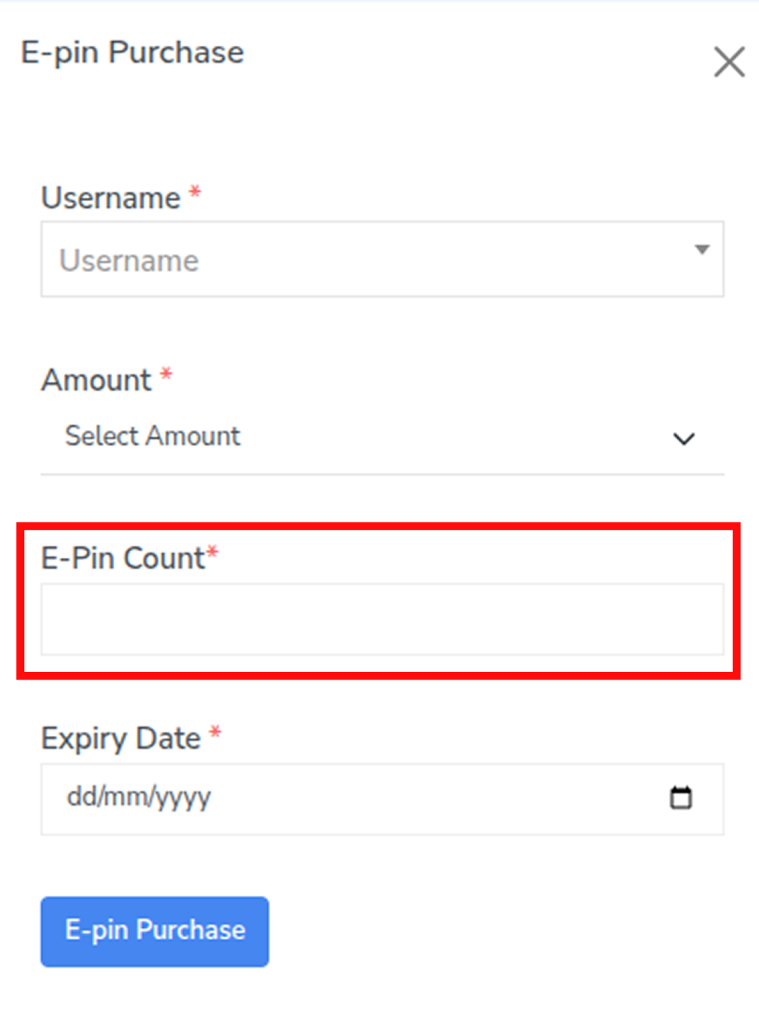
Step 6: Select the Expiry Date for the E-Pins.
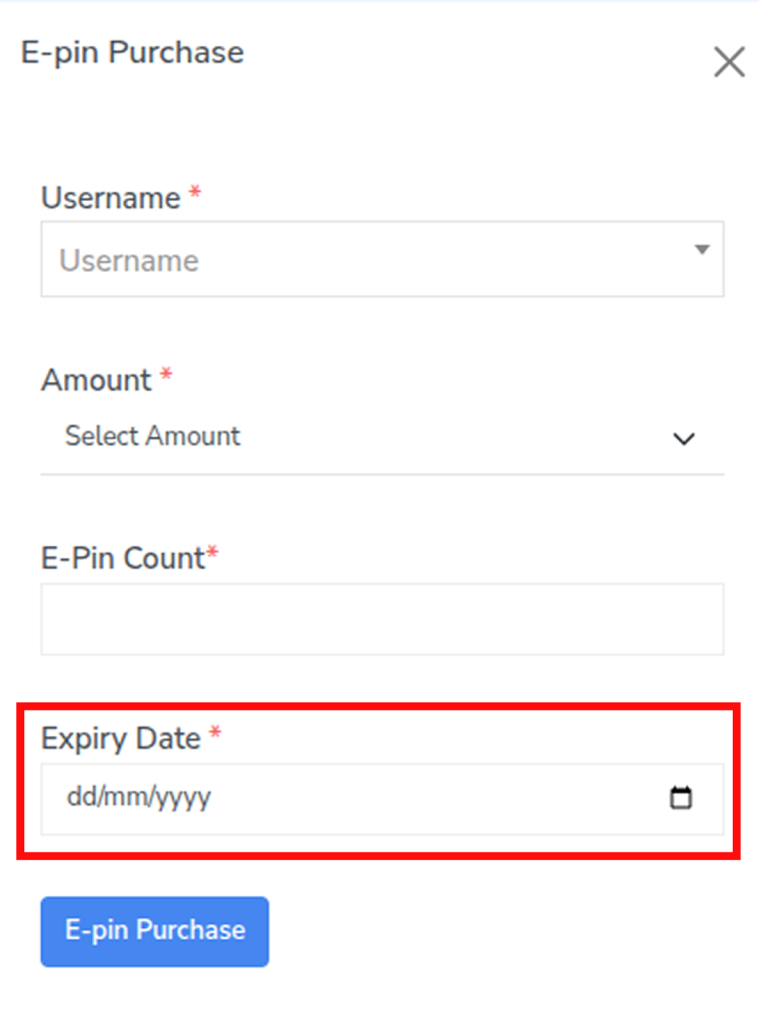
Step 7: Click E-Pin Purchase to complete the purchase.

Related Articles

  • How To Do E-Pin Purchase?

  • How To Do E-Pin Transfer?

  • How To Add A New E-Pin?

  • How to View E-Pin Pending Requests?

  • How to View an E-Pin List?

MLM Software Dashboard

Try Free MLM Demo

Try Now

© Copyright 2026 by Infinite Open Source Solutions LLP All Rights Reserved.

Questo sito web utilizza i cookie del browser per migliorare la tua esperienza utente e velocizzare i tempi di caricamento, ma non memorizziamo mai i tuoi dati privati. Continuando, accetti la nostra informativa sulla privacy.

Politica sui cookie