
Infinite MLM Software Logo
  • Prodotti
    Prodotti
    Software MLM Binario Crescita equilibrata tramite downline duali
    Software MLM Board Consente la rotazione e il rientro dei membri
    Software MLM Matrix Crescita organizzata tramite una struttura di team limitata
    Software MLM Monoline Allinea i membri in una sola linea per benefici equi
    Software MLM Unilevel Consente reclute dirette illimitate
    Software per la Vendita Diretta Semplifica le attività e le operazioni di vendita diretta
    Servizi MLM
    Migrazione MLMTrasferisci i tuoi dati a una nuova piattaforma MLM
    Integrazione di Terze PartiConnettiti con strumenti e servizi esterni
    Integrazione ShopifySincronizza il software MLM con il tuo store Shopify
    Demo dashboard preview

    Livello Enterprise · Basato su IA

    Infinite MLM Software

    Tecnologia avanzata, automazione intelligente e funzionalità smart — tutto in un’unica piattaforma.

    Prova la Demo Gratuita
  • Demo
    Demo Personalizzata
    Custom Demo preview

    La demo personalizzata del software MLM offre un’esperienza su misura per le esigenze della tua azienda.

    Prova Ora
    Demo Preimpostata
    Preset Demo preview

    La demo preimpostata offre una vista standardizzata del software con dati di esempio preconfigurati.

    Prova Ora
    1 Million Users
    Demo MLM con 1 Milione di Utenti
    • Gestisci 1 milione di utenti
    • Bonus di Matching Binario
    • Impostazioni di Limite / Cap
    • Impostazioni Spillover Binario
    Demo Admin Demo Utente
  • Piani MLM
    Piani MLM
    Piano MLM Binario Costruisce una struttura di downline a due gambe
    Piano MLM Matrix Limita la larghezza e la profondità delle downline
    Piano MLM Unilevel Consente un numero illimitato di reclute dirette al primo livello
    Piano MLM Board I membri avanzano attraverso una matrice
    Piano MLM Monoline I distributori sono inseriti in una sola linea discendente
    Piano Party MLM Si concentra sulle vendite tramite eventi sociali
    Piano MLM Generation Commissioni su più livelli
    Piano MLM Ibrido I referral diretti vengono collocati in una delle due gambe dallo sponsor
    Piano Stair Step Sistema di separazione basato sui ranghi
    Vedi tutti i piani →
    MLM Plans overview

    Confronta e Scegli

    Reclutare, Premiare, Fidelizzare: I Migliori Piani MLM per il Successo

    Confronta le strutture di compensazione e scegli il piano perfetto per la tua azienda.

    Vedi i Piani
  • Prezzi
  • Risorse
    Azienda
    Chi SiamoLa nostra missione, i nostri valori e la nostra storia
    TestimonianzeRecensioni e feedback dei clienti
    Caso d’UsoEsempi reali di utilizzo del prodotto
    Domande FrequentiDomande comuni con risposte
    Esplora
    BlogArticoli e aggiornamenti regolari
    Video TutorialGuide visive per un apprendimento facile
    DocumentazioneGuide utente e istruzioni
    Cronologia delle VersioniRegistro degli aggiornamenti del software
    CaratteristicheStrumenti e funzionalità principali
    Storie di SuccessoSuccessi dei clienti con la nostra soluzione
    Componenti Aggiuntivi MLMComponenti aggiuntivi avanzati per funzionalità estese
    Calcolatore MLMCalcoli facili delle commissioni per piano
    Contact our experts

    Siamo qui per Aiutarti

    Mettiti in Contatto con i Nostri Esperti

    Dalle demo dei prodotti alle soluzioni personalizzate, siamo al tuo fianco per il successo.

    Contattaci
Demo dal Vivo Inizia Gratis
Inizia Ora
MLM HELP

How does E-Wallet manage MLM earnings and payouts?

/ E-wallet / How does E-Wallet manage MLM earnings and payouts?
  • May 29, 2026
  • infinite_help
  • E-wallet

Click on the ‘E-Wallet’ menu on the left panel of the window to view E-wallet details. It displays the credited amount, debited amount, and E-Wallet balance and the commission earned.

There are different tabs to view E-Wallet summary, E-Wallet transactions, E-Wallet balance, Purchase wallet, E-Wallet statement, and User earnings.

1. E-Wallet Summary

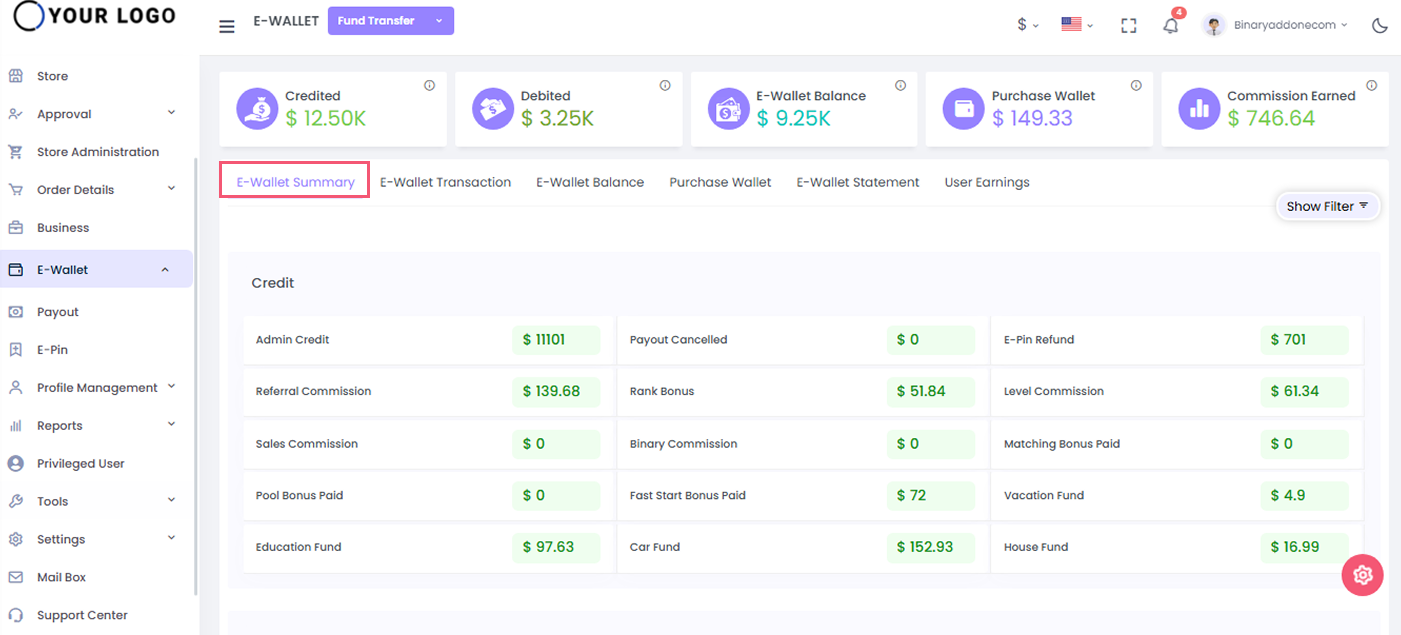
Click on the E-Wallet Summary tab to view the whole system E-Wallet summary. It displays the total amount credited and debited.

It also displays the category wise amount credited or debited for the selected date range.
2. E-Wallet Transactions

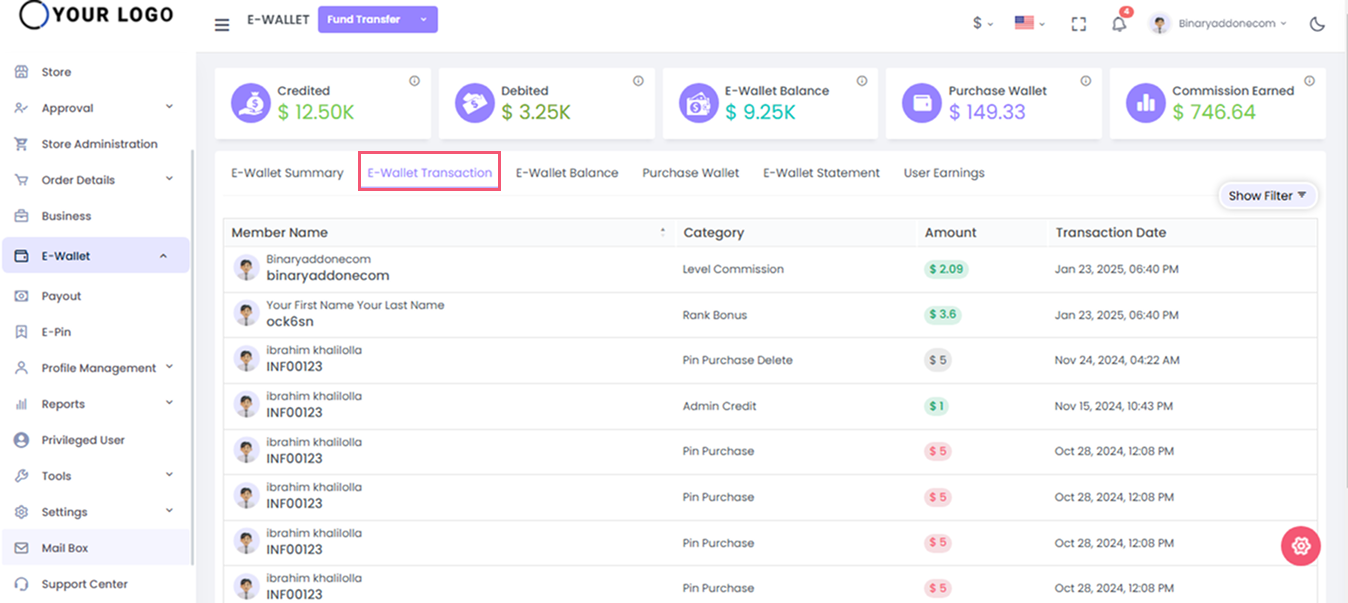
Click on the ‘E-Wallet transactions’ tab to view all the credited or debited transactions of the user for selected category and date range.

Enter the following details:

  1. User Name: Enter the user name
  2. Status: Select Credited/Debited from the drop down
  3. Category: Select the payment category from drop down (E-Pin Purchase, Fund Credit, Fund Debit, many more)
  4. Date Range : Select the period from the drop down (Alltime, Last 30 days, Last 90 days, Last year, Custom range)

Click on the ‘view’ button to see all the credited or debited transactions for the selected options.
3. E-Wallet Balance

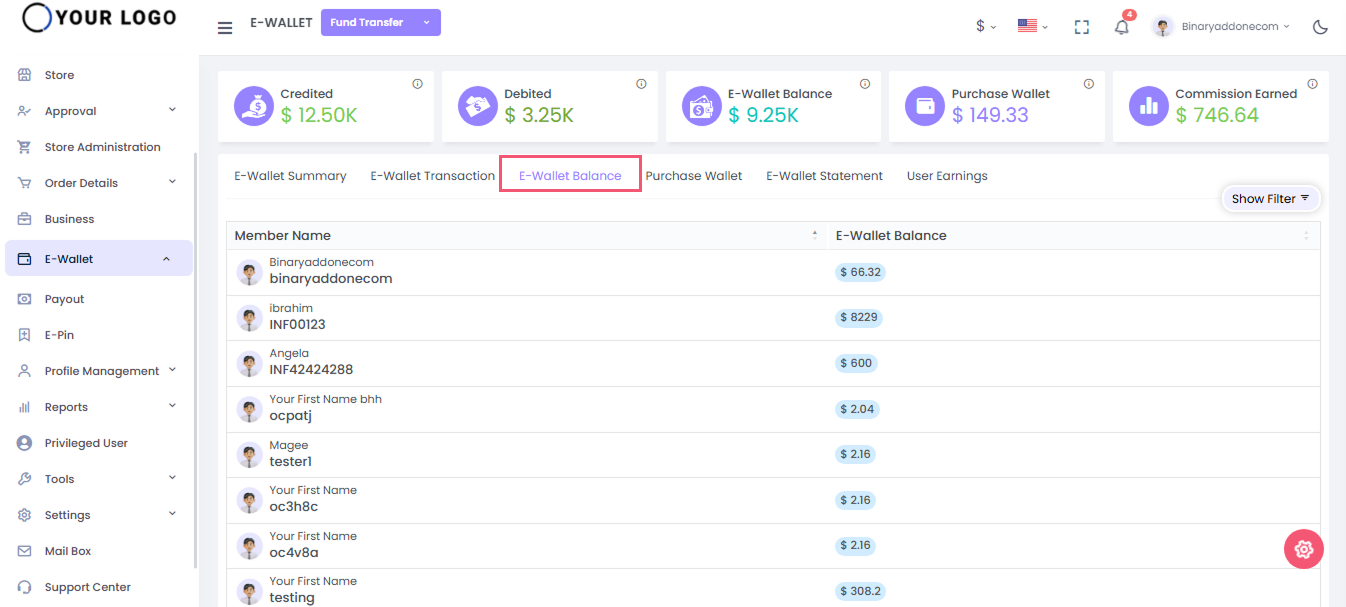
Click on the ‘E-Wallet Balance’ tab to view the E-wallet balance of the specified user. Enter the username and click on the search button to view the e wallet details of the user.
4. Purchase Wallet

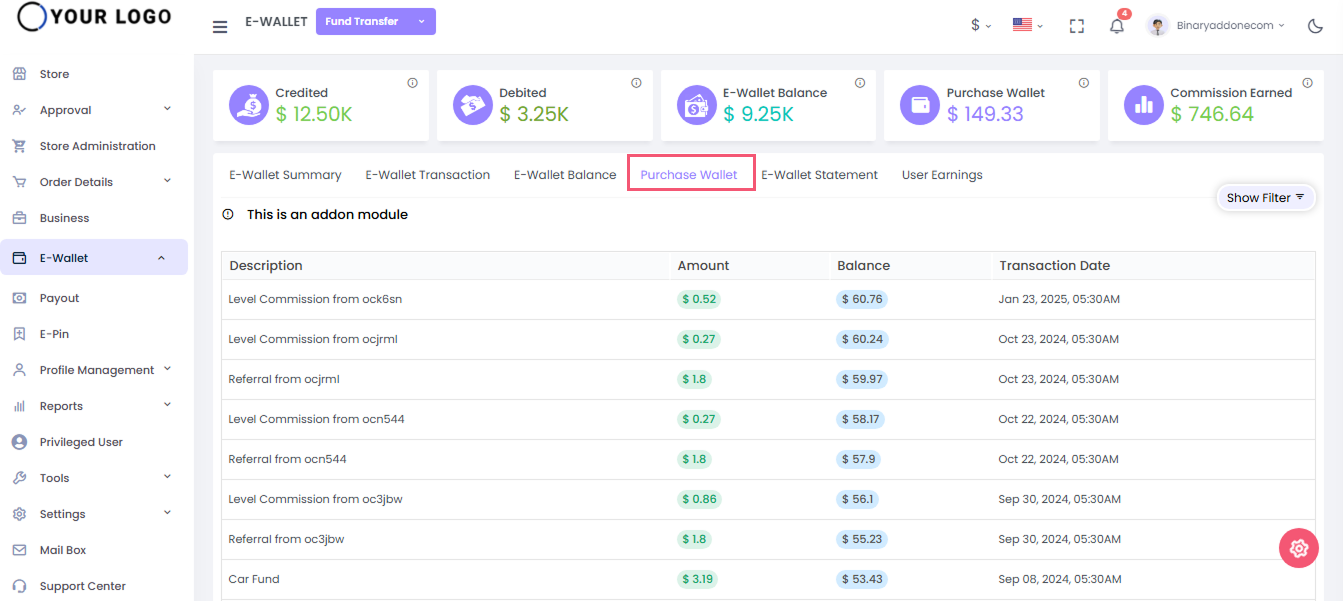
This is an add-on feature. This shows the details of the credited and debited amount through this wallet.

Enter the username and click on search button to see the purchased wallets of the users
By clicking the search button you can see the description, amount, balance, and transaction date of each wallet.
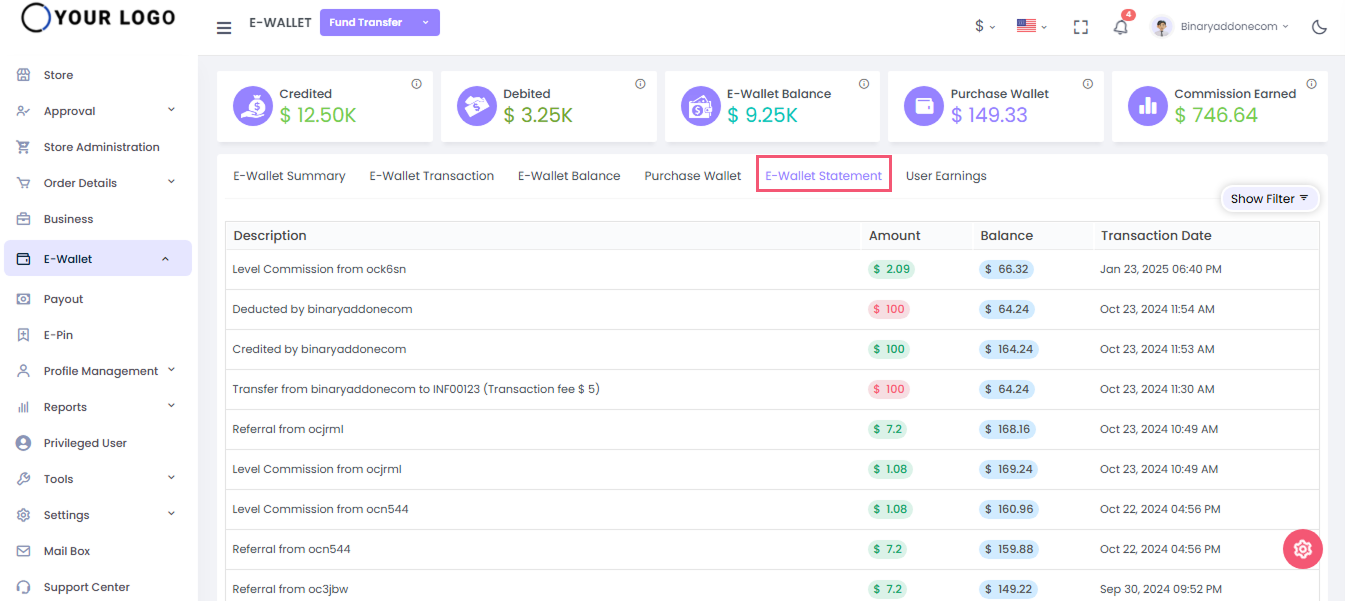
5. E-Wallet Statement

The E-Wallet statement shows the statement details of each transaction through the wallet.

By entering the username and clicking on the view button, you can see the description, amount, balance, transaction date.
6. User Earnings

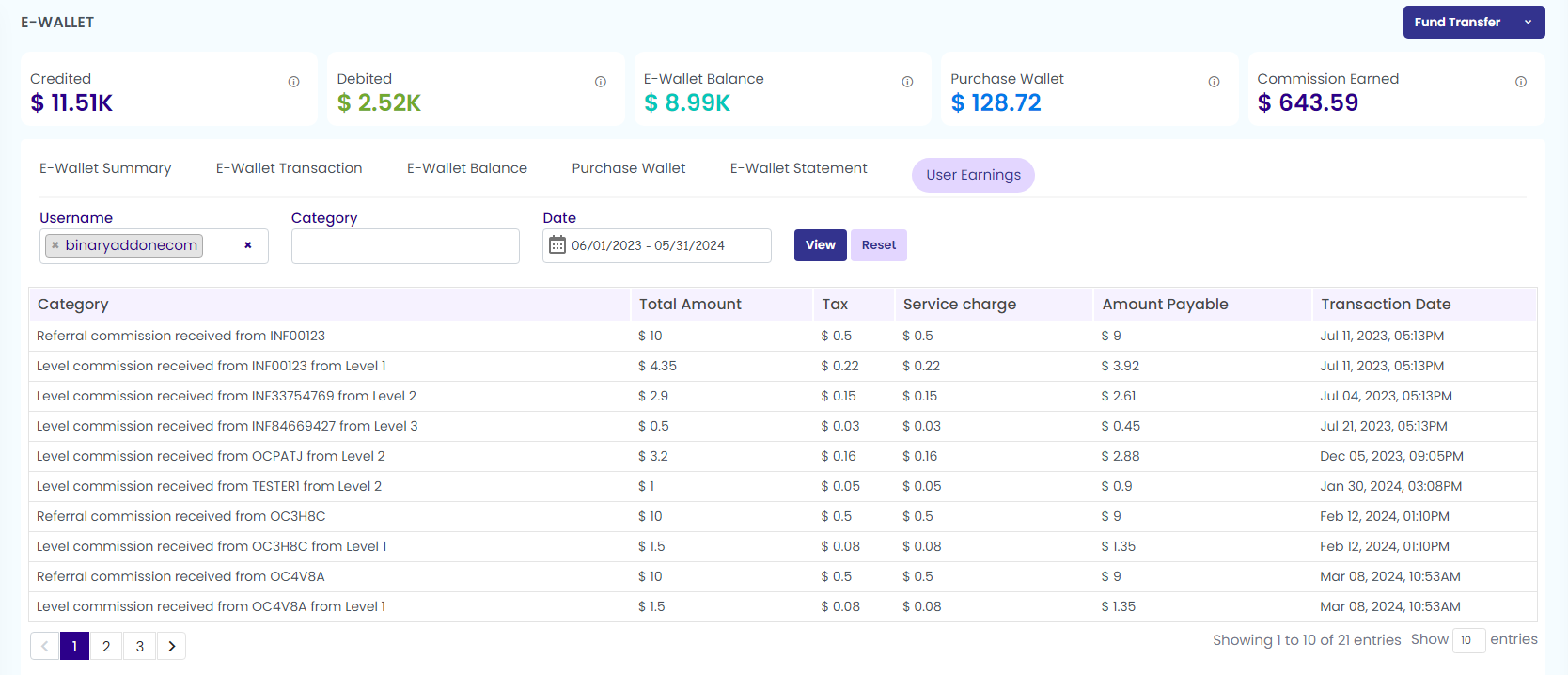
Here you can see the total earnings of each user. To view the details, enter the username, select the category, enter the date from the drop down. Click on the view button to see the category, total amount, tax, service charge, payable amount, and transaction date.
7. Fund Transfer

Click on the Fund transfer tab on the top right corner to transfer funds from one account to another.

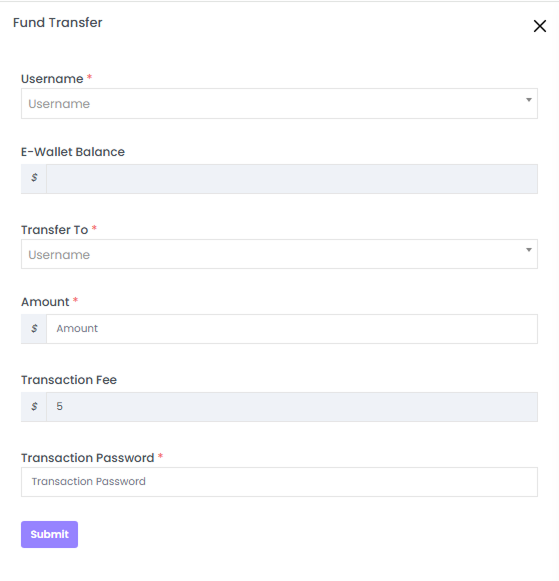
Fill in the necessary details within the pop-up window that has appeared.

  1. Username: Enter the username of the sender account
  2. E-Wallet Balance: Automatically displays the E-Wallet balance of the sender account as you enter the username.
  3. Transfer To: Enter the username of receiver account
  4. Amount:Enter the amount to be transferred
  5. Notes: Mention the transaction note.
  6. Transaction Fee: the transaction fee gets popped up if any
  7. Transaction Password: Enter the password

Click on the Submit button and the message gets popped on the top as “ Fund credited successfully”.
There are two options under Fund Transfer Tab as shown in the below screenshot

  1. Fund Credit
  2. Fund Debit

Fund Credit

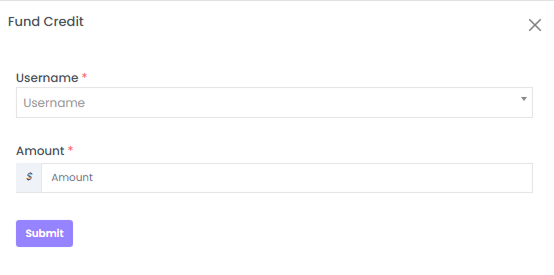
Click on the Fund Credit option to add the amount to the E-wallet of any user.

Enter the following details

  1. Username: Enter the user name whose fund to be credited to the wallet
  2. Amount: Enter the required amount

Click on the Submit button and the message gets popped on the top as “ Fund credited successfully”.
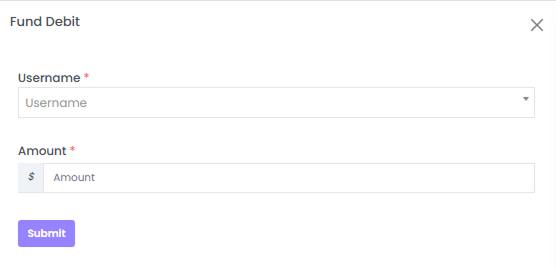
Fund Debit

Click on the Fund Debit option to deduct the amount from the E-wallet of any user.

Enter the following as shown in the below screenshot.

  1. Username: Provide the username of the individual whose funds are to be debited from the wallet.
  2. Amount: Enter the required amount.

Click on the ‘Submit button’ and the message gets popped on the top as “ Fund debited successfully”

Related Articles

  • How to View an E-Wallet Statement?

  • How are MLM profits and payouts managed by E-Wallet?

  • How to View the User Earnings?

  • How to View the Purchase Wallet Details of a User?

  • How to Check the E-Wallet Balance of a Particular User?

MLM Software Dashboard

Try Free MLM Demo

Try Now

© Copyright 2026 by Infinite Open Source Solutions LLP All Rights Reserved.

Questo sito web utilizza i cookie del browser per migliorare la tua esperienza utente e velocizzare i tempi di caricamento, ma non memorizziamo mai i tuoi dati privati. Continuando, accetti la nostra informativa sulla privacy.

Politica sui cookie
