
Infinite MLM Software Logo
  • Produits
    Produits
    Logiciel MLM Binaire Croissance équilibrée grâce à des lignées doubles
    Logiciel MLM Board Permet la rotation et la réinscription des membres
    Logiciel MLM Matrix Croissance organisée via une structure d’équipe limitée
    Logiciel MLM Monoline Aligne les membres sur une ligne pour des avantages équitables
    Logiciel MLM Unilevel Permet un nombre illimité de recrues directes
    Logiciel de Vente Directe Simplifie les tâches et opérations de vente directe
    Services MLM
    Migration MLMTransférez vos données vers une nouvelle plateforme MLM
    Intégration tierceConnectez-vous à des outils et services externes
    Intégration ShopifySynchronise le logiciel MLM avec votre boutique Shopify
    Demo dashboard preview

    De Niveau Entreprise · Propulsé par l’IA

    Infinite MLM Software

    Technologie avancée, automatisation intelligente et fonctionnalités performantes — tout sur une seule plateforme.

    Essayer la Démo Gratuite
  • Démo
    Démo personnalisée
    Custom Demo preview

    La démo personnalisée du logiciel MLM offre une expérience adaptée aux besoins de votre entreprise.

    Essayer maintenant
    Démo prédéfinie
    Preset Demo preview

    La démo prédéfinie offre une vue standardisée du logiciel avec des données d’exemple préconfigurées.

    Essayer maintenant
    1 Million Users
    Démo MLM avec 1 Million d’Utilisateurs
    • Gérer 1 million d’utilisateurs
    • Bonus de correspondance binaire
    • Paramètres de plafonnement
    • Paramètres de débordement binaire
    Démo Admin Démo Utilisateur
  • Plans MLM
    Plans MLM
    Plan MLM Binaire Construit une structure de réseau à deux jambes
    Plan MLM Matrix Limite la largeur et la profondeur des lignées
    Plan MLM Unilevel Permet un nombre illimité de recrues directes au premier niveau
    Plan MLM Board Les membres progressent à travers une matrice
    Plan MLM Monoline Les distributeurs sont placés en une seule ligne descendante
    Plan Party MLM Axé sur les ventes via des événements sociaux
    Plan MLM Génération Commissions sur plusieurs niveaux
    Plan MLM Hybride Les filleuls directs sont placés dans l’une ou l’autre jambe par le parrain
    Plan Stair Step Système de séparation basé sur les rangs
    Voir tous les plans →
    MLM Plans overview

    Comparer et Choisir

    Recruter, Récompenser, Fidéliser : Les Meilleurs Plans MLM pour Réussir

    Comparez les structures de rémunération et choisissez le plan parfait pour votre entreprise.

    Voir les Plans
  • Prix
  • Ressources
    Entreprise
    À proposNotre mission, nos valeurs et notre histoire
    TémoignagesAvis et retours clients
    Cas d’UsageExemples concrets d’utilisation du produit
    FAQQuestions fréquentes avec réponses
    Explorer
    BlogArticles et mises à jour réguliers
    Tutoriels vidéoGuides visuels pour un apprentissage facile
    DocumentationGuides utilisateur et instructions
    Historique des versionsJournal des mises à jour du logiciel
    FonctionnalitésOutils et fonctionnalités principales
    Témoignages clientsRéussites clients avec notre solution
    Modules complémentaires MLMModules avancés pour des fonctionnalités étendues
    Calculatrice MLMCalculs simples de commissions par plan
    Contact our experts

    Nous Sommes Là pour Vous Aider

    Contactez Nos Experts

    Des démos produits aux solutions sur mesure, nous vous accompagnons vers le succès.

    Nous Contacter
Démo En Direct Commencer gratuitement
Commencer maintenant
MLM HELP

How do admins handle the ticket system?

/ Support Center / How do admins handle the ticket system?
  • May 29, 2026
  • infinite_help
  • Support Center

Click on the Support Center menu on the left pane of the window to manage the ticket system.

It consists of the following menus

  1. Ticket Dashboard
  2. View Tickets
  3. Category
  4. Configuration
  5. Open Tickets
  6. Resolved Tickets
  7. FAQ
  8. Logout

1. Ticket Dashboard

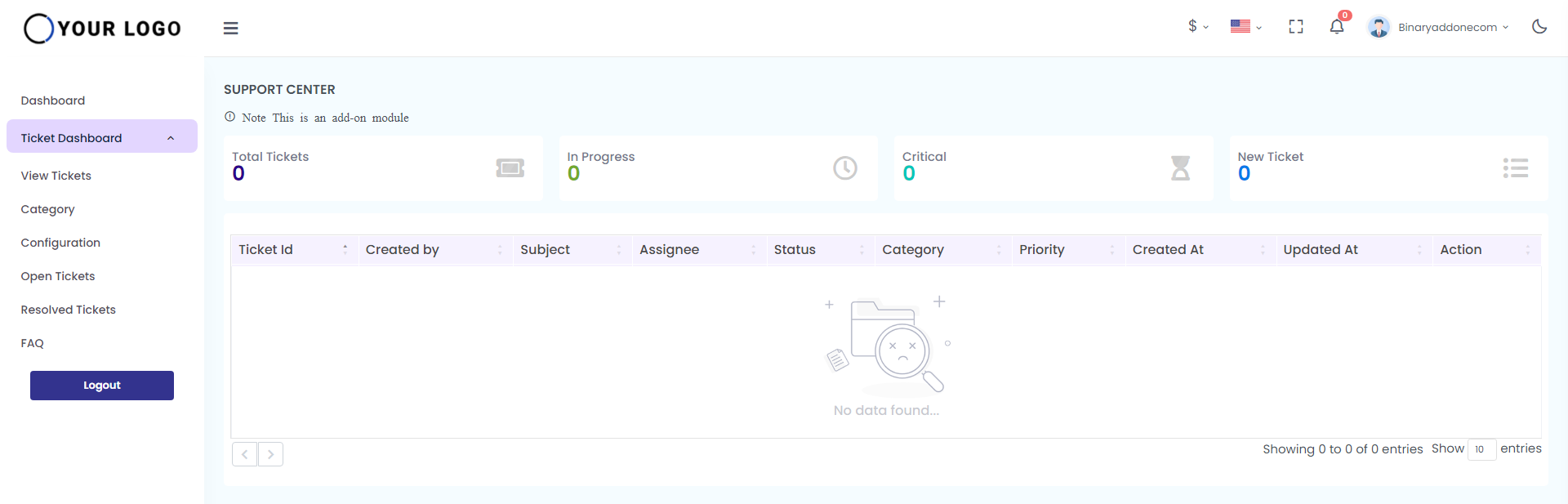
Click on the ‘Ticket Dashboard’ menu to view the details of the number of tickets.

It displays the total, in progress, critical, and new tickets in the ticket dashboard.
2. View Tickets

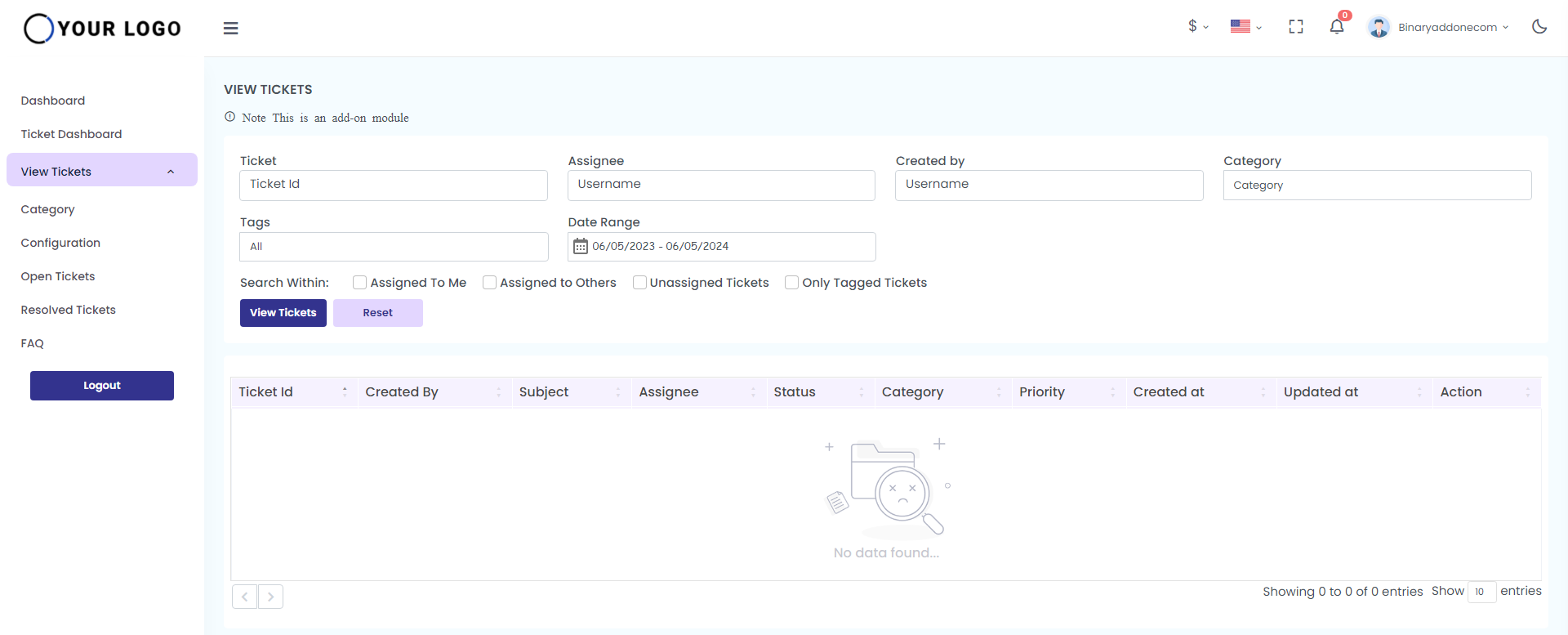
Click on View tickets menu to view and find the tickets raised from user end.

To see each one in detail, either click on the icon from ticket dashboard or click on ‘view tickets’ from the panel and enter the following details:

Ticket, Assignee, Created by, Category, Tags, and Date range. You also have options to enable search within, assigned to me, assigned to others, unassigned tickets, and only tagged tickets. Enable the requirements and click on ‘view tickets’ to see the detailed reports.

Click on the View tickets menu to view and find the tickets raised from the user end.
3. Category

Click on Category menu to add new category, to edit and activate/inactivate category.

You can see details like: Category Name, Assignee, Percentage, and Action.
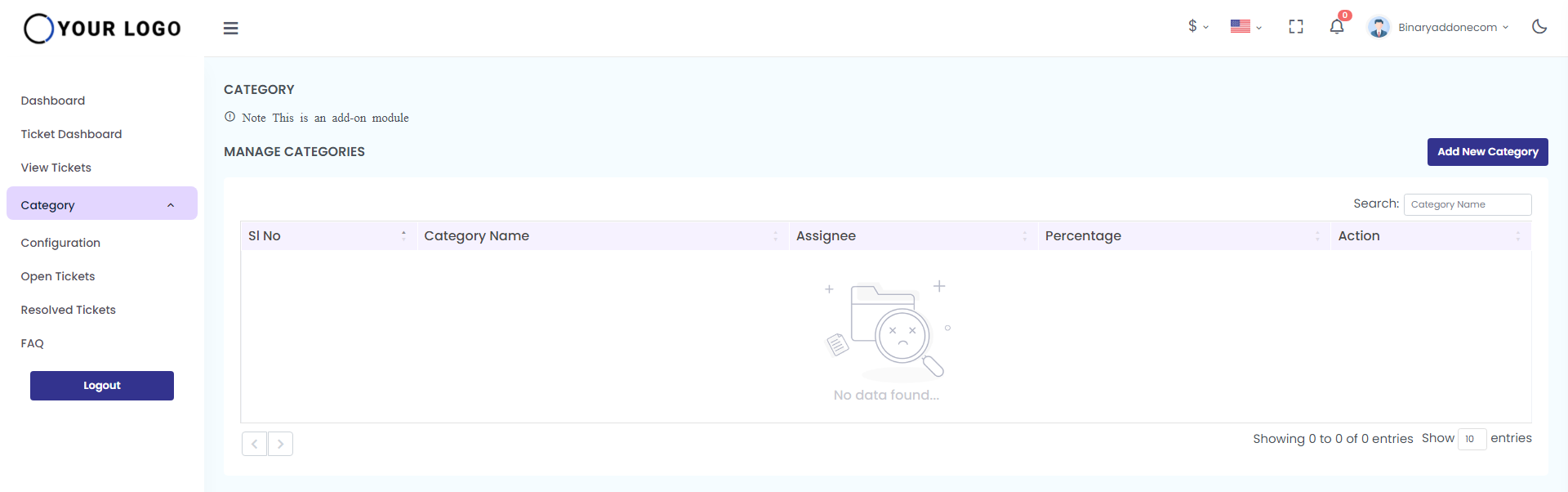
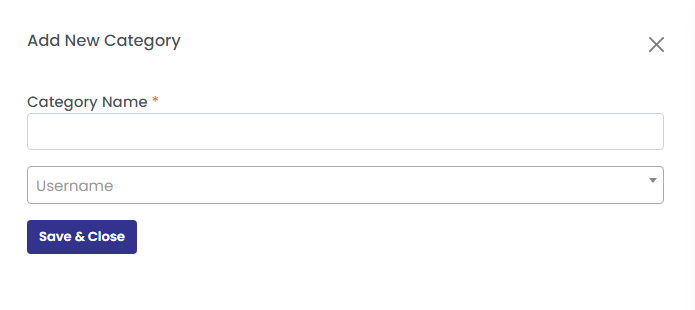
Click on the ‘Add new category’ button to create a new category. Enter the category name and the username and click on ‘save’ button to add a new category and the message “Category created successfully” pops up. The new category will be listed under managed categories.

Click on the icons marked red in the above screenshot to inactivate and edit the category.

Click on Edit Category button to edit the category. The message “ Category updated successfully” gets popped up.
4. Configuration

Click on the Configuration menu to configure the status, tag, priority of the tickets.

Click on the activate/inactivate icon under the action field to activate/inactivate the status , tag, priority of the tickets.

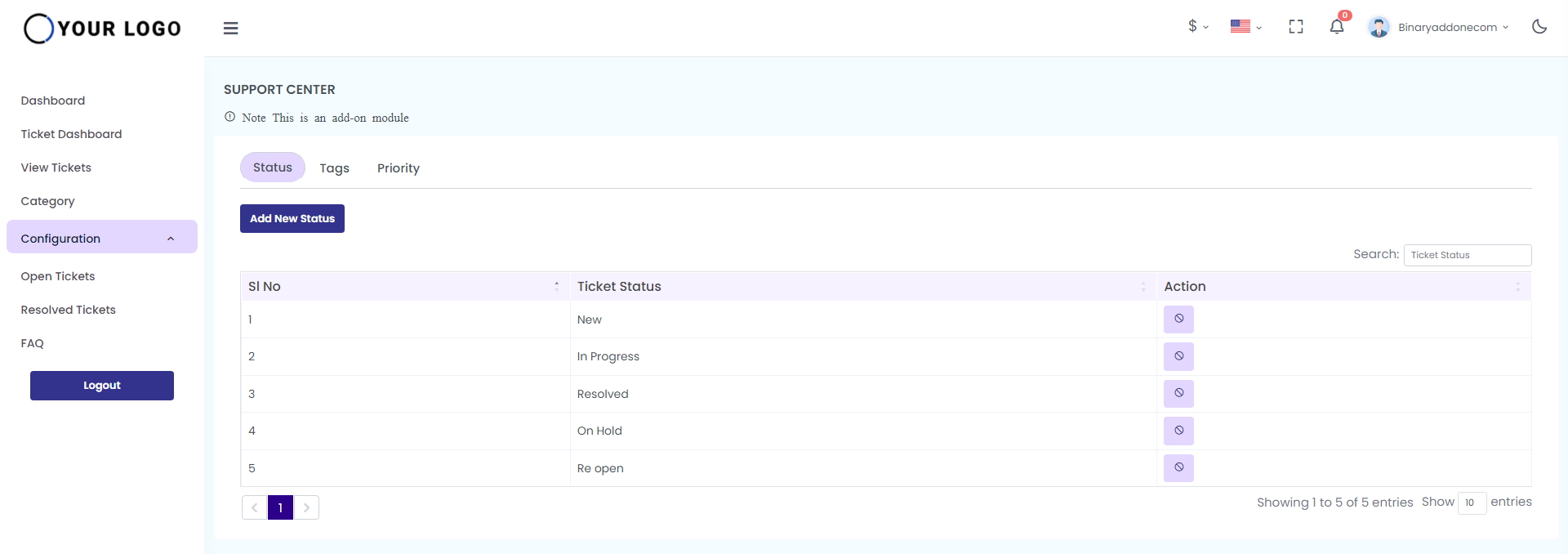
Status

Under this tab, click on the Add new status button. Enter the status name in the space provided.

Click on the Submit button to add the new status to the list. The message “New status created successfully” pops up.
Tags

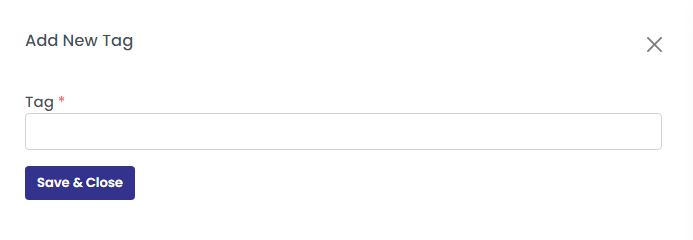
Under this tab, click on the ‘Add new tag’ button. Enter the tag name in the space provided as shown in the below screenshot.

Click on the Submit button to add the new tag to the list. The message “New tag created successfully” gets popped up.  
Priority

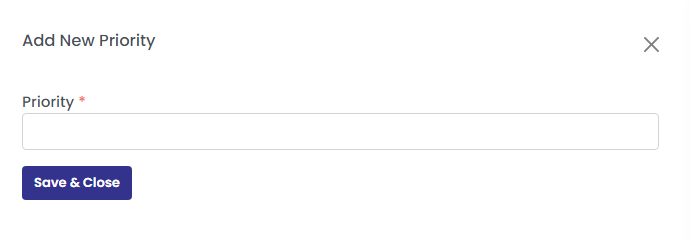
Under this tab, click on the Add new priority button. Enter the priority name in the space provided as shown in the below screenshot.

Click on the Submit button to add the new priority to the list. The message “New priority created successfully” gets popped up.  
5. Open Tickets

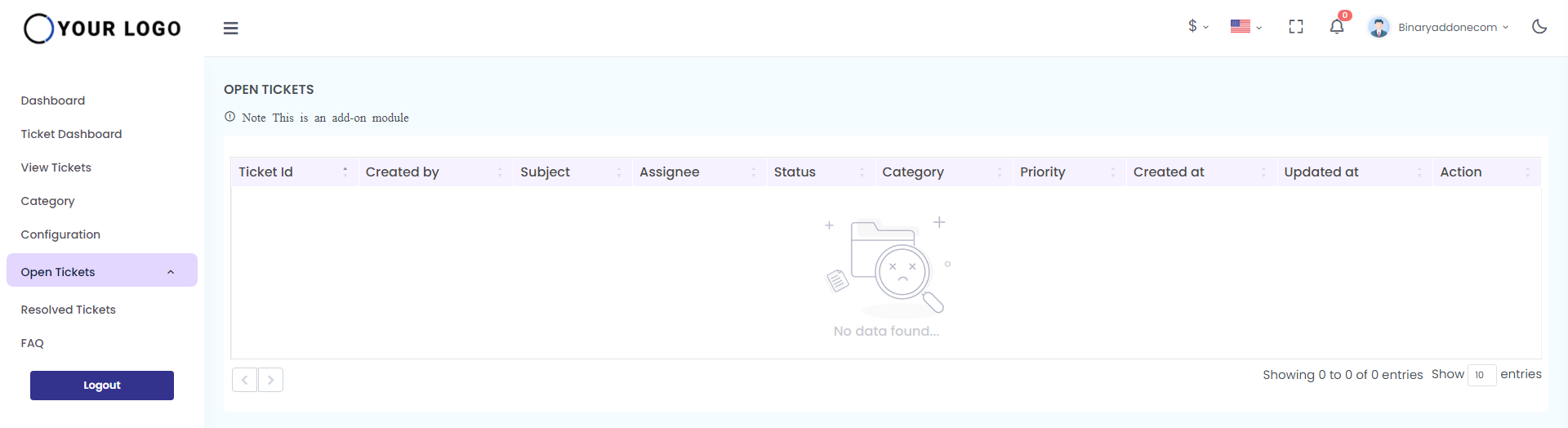
Click on Open Tickets menu to view the open tickets in the system.
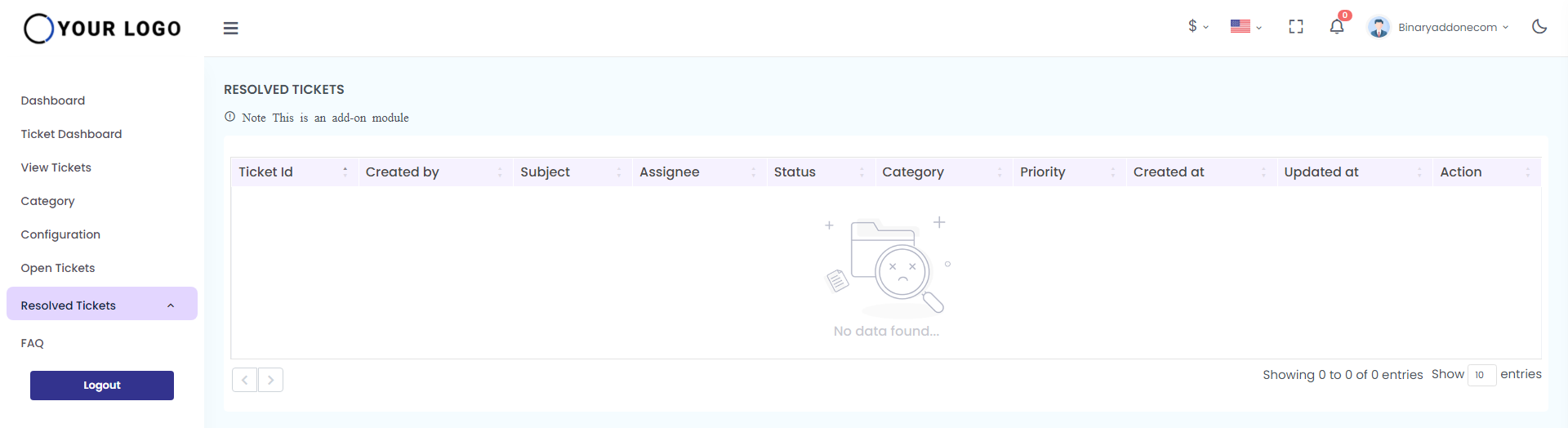
6. Resolved Tickets

Click on Resolved Tickets menu to view the status of resolved tickets.
7. FAQ

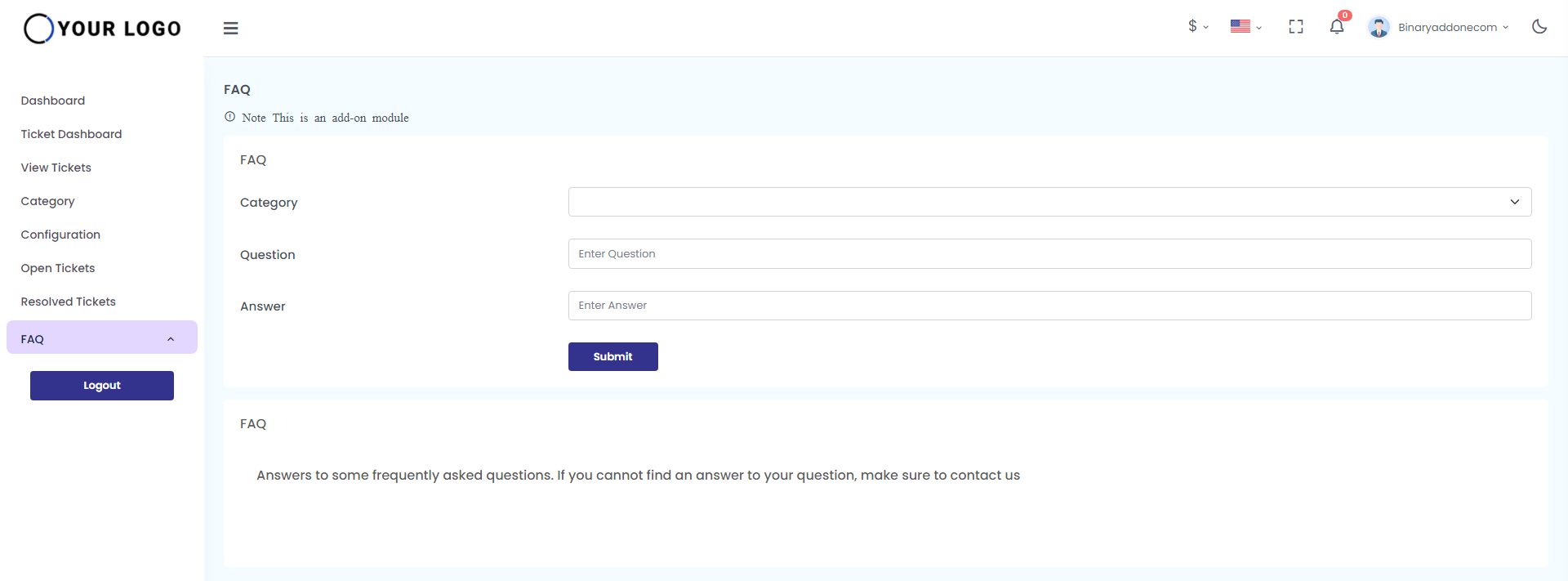
Click on FAQ menu to add the FAQ in the ticketing system.

Enter the following to create the FAQ

Question:- Type the question to be added in the FAQ
Answer:- Type the answer for the question in the space provided.

Click on create button to create the FAQ. The message “ FAQ created successfully” gets popped up. The added FAQ will be listed under the page.
8. LogOut

Click on Logout to logout from the application

Related Articles

  • How is the ticket system handled?

MLM Software Dashboard

Try Free MLM Demo

Try Now

© Copyright 2026 by Infinite Open Source Solutions LLP All Rights Reserved.

Ce site web utilise des cookies de navigateur pour améliorer votre expérience utilisateur et accélérer le chargement, mais nous ne stockons jamais vos données privées. En continuant, vous acceptez notre politique de confidentialité.

Politique relative aux cookies