
Infinite MLM Software Logo
  • Products
    Products
    Binary MLM Software Balanced growth through dual downlines
    Board MLM Software Enables member rotation and re-entry
    Matrix MLM Software Organized growth through limited team structure
    Monoline MLM Software Aligns members in one line for equal benefits
    Unilevel MLM Software Allows unlimited direct recruits
    Direct Selling Software Simplifies direct selling tasks and operations
    MLM Services
    MLM MigrationTransfer your data to a new MLM platform
    Third-Party IntegrationConnect with external tools and services
    Shopify IntegrationSyncs MLM software with your Shopify store
    Demo dashboard preview

    Enterprise Grade · AI-Powered

    Infinite MLM Software

    Advanced technology, intelligent automation and smart features — all in one platform.

    Try Free Demo
  • Demo
    Custom Demo
    Custom Demo preview

    Custom MLM Software demo provides a personalized experience tailored to your business needs.

    Try Now
    Preset Demo
    Preset Demo preview

    Preset demo offers a standardized view of the software with sample data pre-configured.

    Try Now
    1 Million Users
    MLM Demo with 1 Million Users
    • Manage 1 Million Users
    • Binary Matching Bonus
    • Ceiling / Capping Settings
    • Spillover Binary Settings
    Admin Demo User Demo
  • MLM Plans
    MLM Plans
    Binary MLM Plan Builds a two-legged downline structure
    Matrix MLM Plan Limits the width and depth of downlines
    Unilevel MLM Plan Allows unlimited direct recruits on the first level
    Board MLM Plan Members advance through a matrix
    Monoline MLM Plan Distributors are placed in one straight downline
    Party Plan MLM Focuses on sales via social events
    Generation MLM Plan Commissions through multiple levels
    Hybrid MLM Plan Direct referrals are placed in either leg by the upline
    Stair Step Plan Features a rank-based breakaway system
    View All Plans →
    MLM Plans overview

    Compare & Choose

    Recruit, Reward, Retain: The Best MLM Plans for Success

    Compare compensation structures and pick the perfect plan for your business.

    View Plans
  • Pricing
  • Resources
    Company
    About UsOur mission, values and history
    TestimonialsCustomer reviews and feedback
    Use CaseReal-world examples of product use
    FAQCommon questions with answers
    Explore
    BlogRegular articles and updates
    Video TutorialsVisual guides for easy learning
    DocumentationUser guides and instructions
    Version HistoryLog of software updates
    FeaturesMain tools and functionalities
    Client Success StoriesCustomer wins using our solution
    MLM Add-OnsAdvanced add-ons for extended functionality
    MLM CalculatorEasy plan-based commission calculations
    Contact our experts

    We're Here to Help

    Get in Touch With Our Experts

    From product demos to custom solutions, we're here to support your success.

    Contact Us
Live Demo Get Started Free
Get Started Now
MLM HELP

How to Set Text Invites in MLM Software?

/ Tools / How to Set Text Invites in MLM Software?
  • May 29, 2026
  • infinite_help
  • Tools

Text invites are a simple yet powerful way to reach out to potential prospects and grow your network faster. Instead of creating messages from scratch every time, MLM software allows you to design, save, and reuse professionally formatted invite messages in just a few clicks. This not only ensures consistency in communication but also saves time while improving your outreach effectiveness.

Flow: How to Set Text Invites in MLM Software

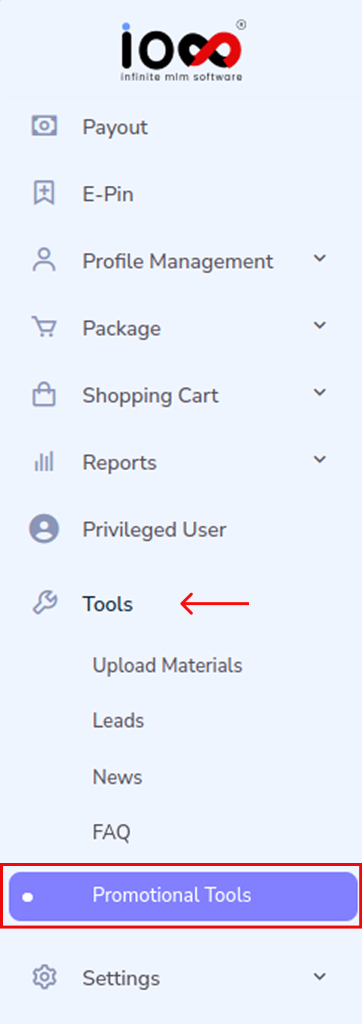
Step 1: Access Promotional Tools
Start by navigating to the main dashboard. Go to Tools and select Promotional Tools from the dropdown menu. This section contains all the resources needed to create and manage marketing content for your network.

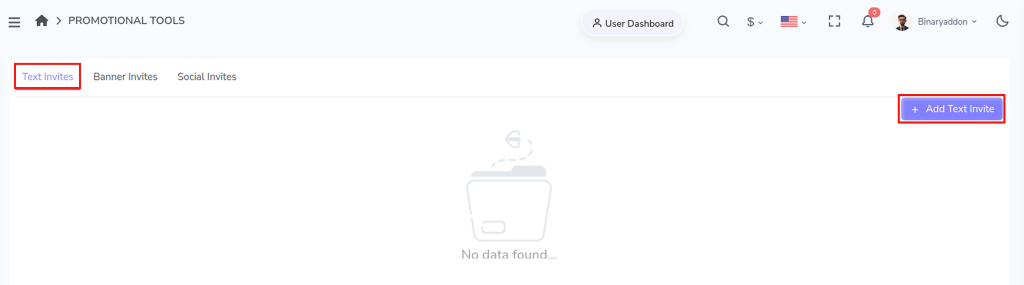
Step 2: Open the Text Invites Module

Within the Promotional Tools window, locate and click on Text Invites. This is where you can create, store, and manage invitation messages used for outreach and recruitment.


Step 3: Add a New Text Invite

Click on the “Add Text Invite” button. A new pop-up window will appear, allowing you to create a fresh invite message.

Step 4: Enter the Subject Line
In the pop-up, fill in the Subject field. This acts as a headline for your invite, so keep it clear, engaging, and relevant to attract attention.


Step 5: Create and Format Your Message
Move to the Message section and type your invitation content.
You can enhance your message using the built-in editor tools, such as:

  • Font styles and sizes to improve readability
  • Text colors to highlight key points
  • Alignment options for better structure
  • Basic formatting like bold, italics, and lists

This helps you create a more professional and visually appealing invite.
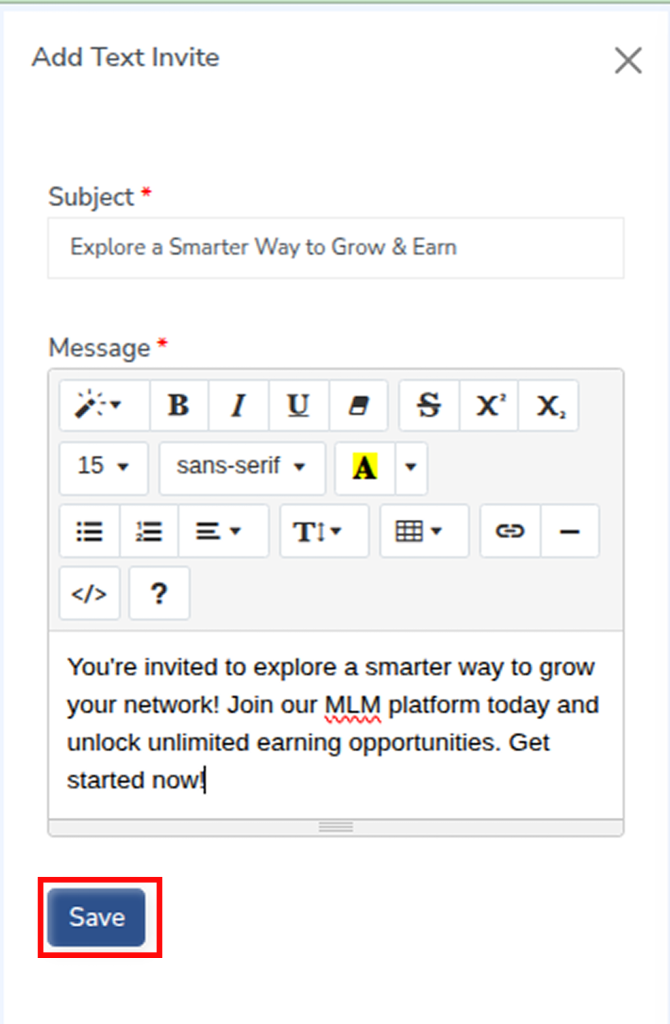

Step 6: Save the Text Invite

Once your message is ready, click on the Save button. Your text invite will be stored and added to the list of available invites.


Step 7: View and Manage Saved Invites
After saving, your invite will appear in the Text Invites list. From here, you can:

  • Copy the message instantly using the copy button for quick sharing
  • Edit the invite to update content or formatting
  • Delete invites that are no longer needed

Related Articles

  • How to Set Social Invites in MLM Software?

  • How to Set Banner Invites in MLM Software?

  • How to View Leads in MLM Software?

  • How to Add FAQs in MLM Software?

  • How to Add Autoresponders in MLM Software?

MLM Software Dashboard

Try Free MLM Demo

Try Now

© Copyright 2026 by Infinite Open Source Solutions LLP All Rights Reserved.

This website uses browser cookies to enhance your user experience and boost loading speeds but we never store any of your private data. By continuing you accept our privacy policy.

Cookie Policy